Taxi
Members
-
Joined
-
Last visited
Everything posted by Taxi
-
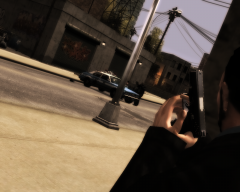
From the album: On Duty
Original Image: -
-
Rebel Radio all the way son
-
Love it
-
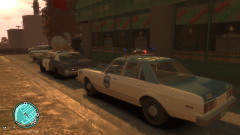 wait...Jake and Elwood just gave up? Damn...what happend to the Blues Brothers? :D
 -
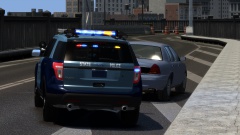 NICE
NICE -
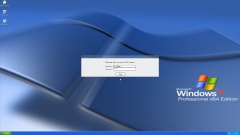 Windows XP Nice Idea :D
 -
-
-
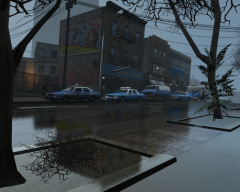 not an ENB at all lol. Just a mix between Realistic Time Cycle V5 by Sgt. Kanyo and Reality IV V2
 -
-
-
Love the idea. Looks cool
-
Looks quite nice :)
-
-
-
-
-
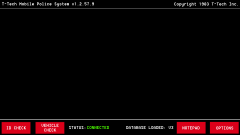
1980s LCPDFR Police Computer Background by Strike Team Liberty (taximan5) --------------------------------------- Perfect for classic car lovers. Feedback is always welcome. Now i know that mod is not for everyone and it's a simple skin. It's suppoast to be that way. That how stuff was done in the 80s :D Thank you FCV96 for testing :) Install Instructions: ---------------------- [Don't forget to make a backup first] Simply copy over the mainmenu.png located inside your lcpdfr folder (which is in your GTA 4 Main Folder) with the one from this mod. Copyright: ----------- You can re-upload it and edit it if you give credit 2 me
- 9 comments
- 3 reviews
-
 I F'N LOVE YOU GUYS :D Blues Brothers is awesome. And to be honest by the time i had the idea for the background i was thinking about that scene :D And don't worry. I just need to do some minor things but it should be out soon :D
 -
:D
-
THX
-
From the album: Other
Since i planned to give my GTA a 70s/80s setting i thought it would need a new MDC Background. I wanted to make something that really looks basic and like it could very well be from the 80s. It's still a W.I.P -
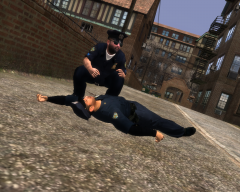 :D hahaha kinda true lol
 -