OfficerHotDog153
Members
-
Joined
-
Last visited
Everything posted by OfficerHotDog153
-
 https://discord.gg/FxjHEW8A2D no working
 -
 This disables my stop the ped and ultimate back up menus and causes Lspdfr to crash not recommended
- 127 comments
- 13 reviews
-
-
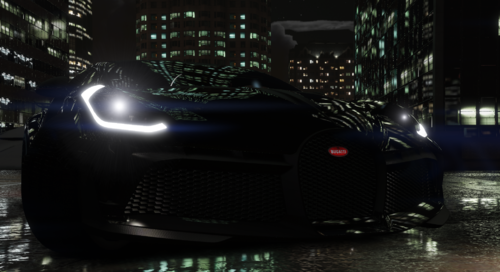 i love how it says fivem ready yet wont spawn in
 -
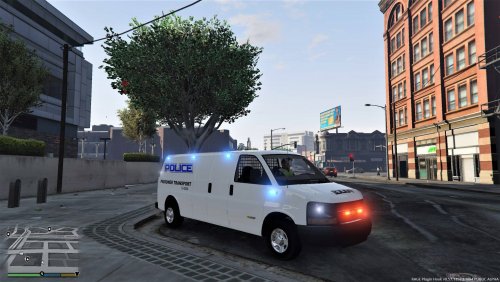 so the lights wont work on ai what do i change i cant find the line of code to get the light s to work with ai
- 136 comments
- 13 reviews
-
-
holster works till i pull gun out then just empty holster will load video if required
-
i have the same issue
-
so wear do i find the carvariations to allow ai to use lights not helpfull with out to folder line
- 136 comments
- 13 reviews
-
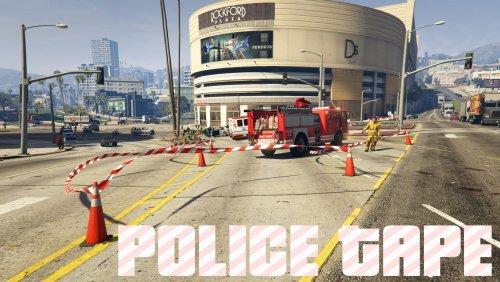 how do i allow peds to stop but emergancy vehicles to enter the zone like corner and police and ect
- 299 comments
- 25 reviews
-
-
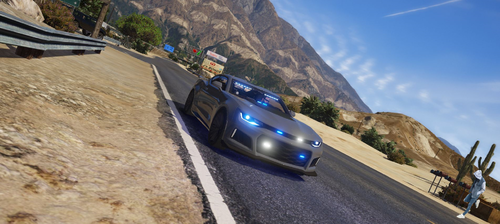 may i use this in my fivem server i dont stream so but if someone askes ill tell them who made it
- 9 comments
- 3 reviews
-
-

- 1
-
-
-
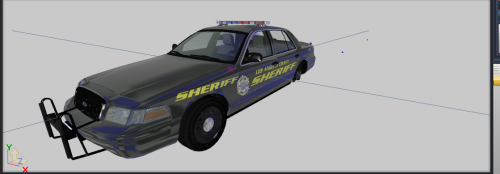 i love the model and lights but i dont like how there is no antennas on the back like a real sheriffs car
- 14 comments
- 3 reviews
-
 when i first downloaded it worked like a charm how it wont work at all just stays in breaking on or 5mph wont go any higher that that
- 126 comments
- 25 reviews
-
-
-
 im haveing the issue when you press F4 and go on duty one of the lines says traffic policer dose not exist it worked fine but now its saying this
- 3,646 comments
- 306 reviews