Everything posted by UnknownBastion
-
-
Honestly, it sounds like a lovely teleportation system for crossing the map. 😂 But in all seriousness, if this is a core LSPDFR issues then maybe @LMSwill know more. 🙂
-
No problem! Glad I could assist! 🙂
-
Oh you have not hit my sarcasm level of 1000 yet. It will take time. And all you have to do is pledge your eternal servitude the the Support Forums. 😂
-
Yeah, I reported that in my last little testy update thingy. 🙂
-
Best answer: You cant. xD
-
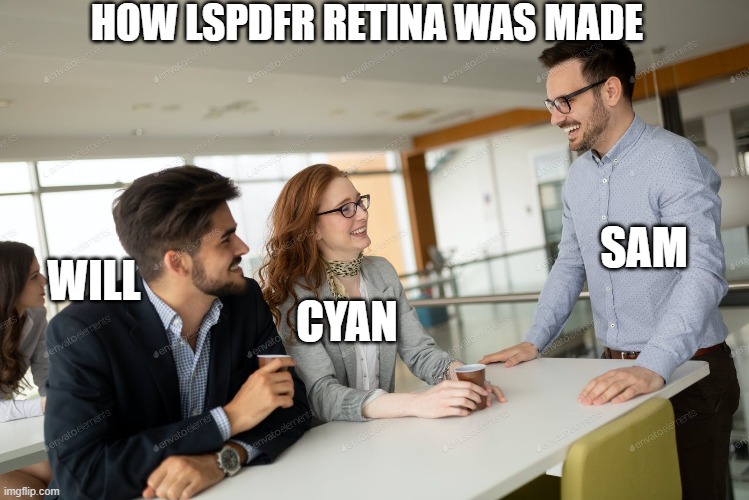
Yes....enjoy my shit meme....MUAHAHAHAHA!
-
No problem! Bit of a suggestion, don't use his because they are outdated. I would stick with StopThePed, Ultimate Backup, and Compulite. Perfect replacement for them and they are updated. 🙂
-
Nothing in the log. Do you remember what callout it was? That can sometimes be the cause, but I wouldn't bank on it all the time.
-
Out of curiosity, why delete SuperCallouts? I use it and it works fine. 🙂 If you could send the RPH Crash Log. That would be great. => Your RagePluginHook log is a text file (called RagePluginHook.log or RagePluginHook), and is found in your main GTA V folder. => IT IS NOT FROM INSIDE OF YOUR "LOGS" FOLDER.
-
Hey! If you are looking to change the ELS keybindings, just go into the INI and change it to your liking. Here is a reference sheet if you need keybinding codes: Hope This Helps! 🙂
-
Its just my way of making the bugs more optimistic. xD Hey! I think it looks pretty! xD How about....
-
Its a secret easter egg for people who use the power of left click and drag. 😂😂😂
-
Yeah, that's the right location. Should just have to drag the Plugins folder from the download into the Main Directory. Can you send your RPH Crash Log please? Just to make sure everything is loading properly.
-
Show me where you installed them.
-
You need to go into the respective ini for each callout pack and they should have a section that says how often the callouts spawn. You would just increase the number next to each callout.
-
If the callouts are in the Plugins/LSPDFR folder they should just happen automatically. I believe that some callout packs let you change the frequency of each call in the ini by increasing the number.
-
-
Yeah, but it was old af. xD
-
Consider it being at the bottom a perk for people who take the time to look around. 😉😂
-
No problem! Glad I could assist! 🙂
-
To my knowledge, you just have to credit the person who makes the vehicles themselves. More info can be found here:
-
No problem! Glad to assist! 🙂
-
I believe so. It should be the same, just like 0taku mentioned.
-
Native Trainer is the one that comes with ScriptHookV. Its nice for being a starter trainer but useless for advanced stuff. Simple Trainer offers a lot more functionality and control over the environment and is perfect for Machinimas or just feeling like the almighty Kraff himself!