




UnknownBastion
Community Team
-
Joined
-
Last visited
Everything posted by UnknownBastion
-
Couple of things: 1. Update: 686 Callouts, Riskier Traffic Stops, and XScanner. 2. Remove: United Callouts, Leroy Callouts, Regular Callouts, DeLuca's County Calls (including dlGlobal), Traffic Callouts, WoutersCalloutsV, and Callout Manager for an improved performance. 3. Re-install: Super Callouts as you do not have PyroCommon installed to the Main Directory. If you are still having issues, send the RPH Log. It is a txt file in the Main Directory either called RagePluginHook or RagePluginHook.log. It is NOT in your Logs folder. Your topic has been moved to LSPDFR 0.4 Support. Please post in the correct location in the future.
-
Launch normal GTA V first. Then once fully in storymode, tab out and launch RPH.
-
Rename mods to _mods and try again. If that works, try removing 5Real and see if the game still crashes.
-
While I cannot help with the Windows problem, regarding your game, rename mods to _mods and try again.
-
Rename mods to _mods and try again.
-
This topic has been moved to the appropriate forum. Please post in the correct location in the future.
-
Glad I could help!
-
That is still the wrong file. Please send the log that Dozel told you to send.
-
Yeah that one. Now can you show the top? Because I dont see any of your vehicles in there if they are addon.
-
Glad you got it resolved!
-
Try changing the following in the lspdfr.ini to get more FPS: Networking.DisableDiscordRichPresence = true PoliceStation.DisableAmbientSpawn = true Frisking.DisableCovid19Items = true Callouts.DisableBigRadar = true AmbientSpawn.DisableRandomUnits = true Main.PreloadAllModels = false WorldEvents.MaxNumberOfEvents = 0 Ambient.DisableEscapedSuspectEncounter = true This topic has been moved to the appropriate forum. Please post in the correct location in the future.
-
Things you can try: 1. Install the Gameconfig, Heap Adjuster, and Packfile Adjuster. 2. If that doesnt work, remove what you have added recently and test after each removal. 3. if all that doesnt work, restart your mods folder.
-
Try using this version of SHV.NET.
-
Screenshot the Main Directory.
-
Glad I could help!
-
Screenshot the last few entries of the dlclist.xml.
-
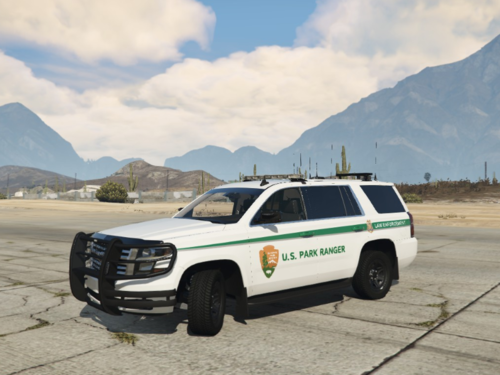 If you have concerns about ownership, you are able to report the file. No use arguing here.
 -
If renaming mods to _mods works, do the following: 1. Install the Gameconfig, Heap Adjuster, and Packfile Adjuster. 2. If that doesnt work, remove what you have added recently and test after each removal. 3. If none of those works, restart your mods folder.
-
No. All those should now be working fine. Can you screenshot the Main Directory please?
-
Couple of things: 1. Update: XScanner (Keep in mind, re-install XScanner should also fix the Khorio.Common issue if you follow the readme). 2. Remove: Crazy Pursuit for a better experience. 3. Move: CalloutInterfaceAPI from Plugins/LSPDFR to the Main Directory.
-
Not sure what a "superfix" is but let's start with renaming mods to _mods and try again.
-
You can try: 1. Launching normal GTA V first and then RPH once fully in storymode. 2. If that doesnt work, rename mods to _mods and try again. Your topic has been moved to GTA V Support, this is not LSPDFR related. Please post in the correct location in the future.
-
In terms of replace, yes.
-
Rename mods to _mods and try again.
-
Rename _mods back to mods. If it crashes still, resume step 2 in my original response.


