




Yasd
Community Team
-
Joined
-
Last visited
Everything posted by Yasd
-
Please navigate to your GTAV/lspdfr/lspdfr.ini and set Main.DisableGameBlipHiding = true Update MCCallouts RobberyCallouts SuperCallouts
-
An alternative would be this.
-
Install ScripthookVDotNet back and rename he scripts folder to _scripts and try again.
-
This topic has been moved to the appropriate forum. Please post in the correct location in the future.
-
Negative, lspdfr has no virus or related. Its a false flag by the antivirus due to Ragepluginhook hooking in gta. For now add the whole gta folder as an exception in your antivirus.
-
Update AdvancedHook from the ELS download in the main gta folder.
-
Update Scripthookvdotnet nightly in the main gta folder.
-
Remove BetterEMS and TrafficPolicer, those may cause problems due to being outdated.
-
Next time do not post screenshots from the log file, instead attach the file by clicking below on "Choose files..." The problem is the log and the gta5.exe show different gta versions. You need to delete gtav.exe and verify your game files. After that you probably need to redo your mods folder, update scripthookv, els, shvdn.
-
Install the latest Scripthookvdotnet nightly version.
-
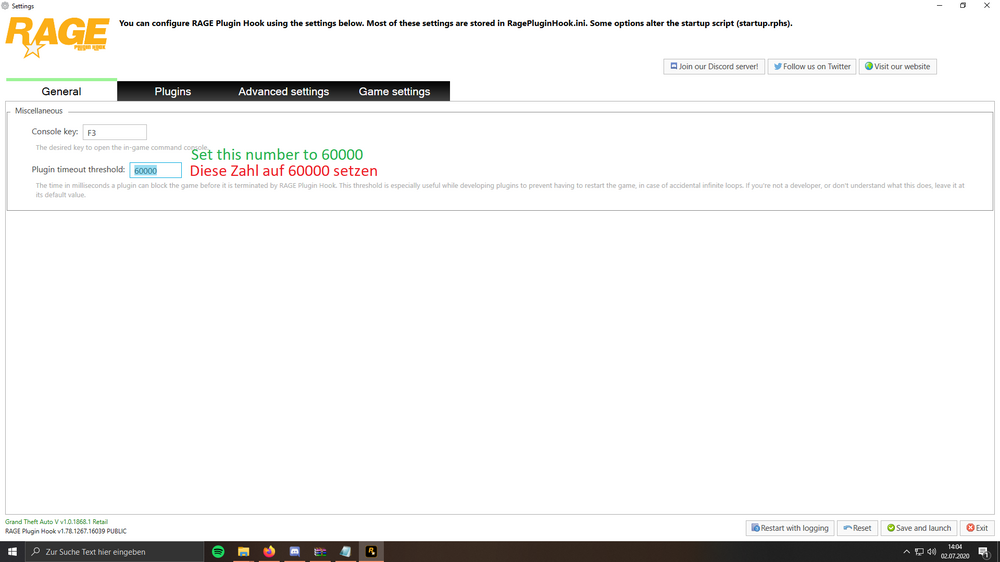
Set your Ragepluginhook plugin laoding time to 60000. You might wanna remove Keep Calm, its unstable & outdated.
-
post the ragepluginhook.log from the main gta folder, its called exactly so without any date in the name.
-
Error while hiding ambient game blips: Disable ambient events, by adding those lines to your lspdfr.ini: Main.DisableGameBlipHiding = true
-
https://www.microsoft.com/en-US/download/details.aspx?id=26999
-
Hi, you might try MCCallouts, which is coded by myself 😉 Priority number one is being stable, number two is being fun to play & being different then the usual callouts.
-
Überprüfe deine .asi Dateien. entferne notfalls alle, und probiere ob dann nochmal gta zu starten
-
dinput8.dll zu _dinput8.dll umbenennen
-
Error while hiding ambient game blips: Disable ambient events, by adding those lines to your lspdfr.ini: Main.DisableGameBlipHiding = true For CalloutInterface install IPT.common in the main gta folder.
-
Hallo turbogeist, benenne deinen mods Ordner zu _mods um und versuche es erneut.
-
Hello, be aware you are playing an an outdated gta, ragepluginhook & lspdfr version. You might update to the latest ones. Your crash is caused by aa missing file from SuperCallouts, names CalloutInterfaceAPI.dll, install it in the main gta folder. The following plugins recommended to be removed, cause the appear unstable: - Callout Manager - Force A Callout - Officer Status Plugin - Richs Police Enchantements (has issues, remove!) --> Recommended alternatives would be Callout Interface & Grammar Police. Once your game runs stable, you can readd them, if neccessary.
-
Edit your topic and translate it to english, since its an english forum, thanks.
-
This topic has been moved to the appropriate forum. Please post in the correct location in the future.
-
1. Thats the wrong file. 2. Pls post the Ragepluginhook.log from the main gta folder right here and not elsewhere, attach it as a file.
-
Post a screenshot of the critical error. Additionally post the Ragepluginhook.log from the main gta folder.
-
This topic has been moved to the appropriate forum. Please post in the correct location in the future.


