


TheStegosaurus
Members
-
Joined
-
Last visited
Everything posted by TheStegosaurus
-
Are you manually installing this pack, or using the OIV package installer?
-
So are you tring to revert back to an older version of GTA V? I'm not really too sure I understand if that's not the case. I'd recommend using the most up to date version of RPH and GTA V, as that way you will have access to more mods, and a more stable version of plugins etc (not to mention LSPDFR 0.4 is coming out soon, and you won't want to miss out on that!)
-
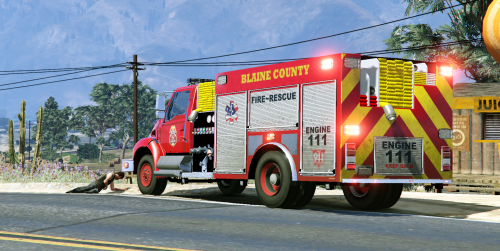 Fantastic model with a really great ELS lighting scheme. Loving the liveries that come with it too. I just wish more callouts had fires so that I could see it more often!
- 23 comments
- 4 reviews
-
-

- 1
-
-
Thank you Albo for all the fun you've bought into LSPDFR. Thank you also for opensourcing your mods to allow others to update and adapt them. Good luck in your next adventure 🙂
-
-
 FOR EVERYONE ASKING ABOUT CO-ORDINATES: I've found the best setup is FlatbedX=0.0 FlatbedY=-1.1 FlatbedZ=1.3 It's not 100% perfect with every vehicle, but it's pretty much perfect with 99% of them (basically anything that isn't a truck or bus) Hope this helps :)
- 38 comments
- 3 reviews
-
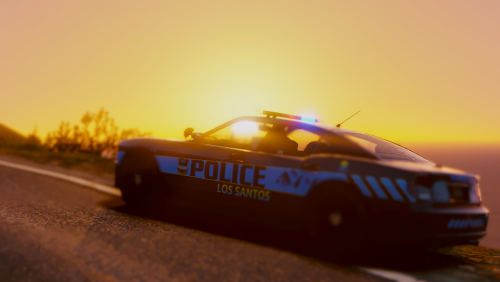 Hoping someone can help me out - I've installed the 'default' police ELS cars no issue, however when I go to add the sheriff pack, my game starts to crash. I'm struggling with the vehicles.meta, and carvariations files, as I'm not really sure how to edit them (as I can drag and drop for one pack, but for the second I need to add the text lines). Could someone help me out please? Thanks :)
- 82 comments
- 30 reviews


