Crusader0192
Members
-
Joined
-
Last visited
Everything posted by Crusader0192
-
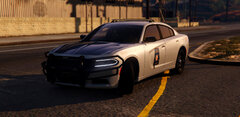 See em quite a bit up here in the Quad Cities post lmao. What visual pack is being used here?
 -
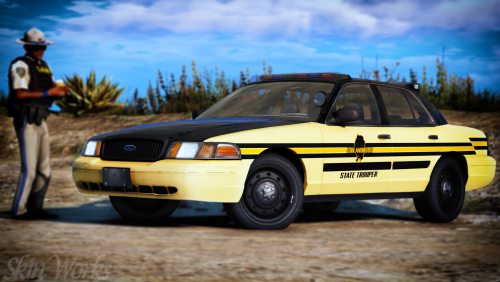
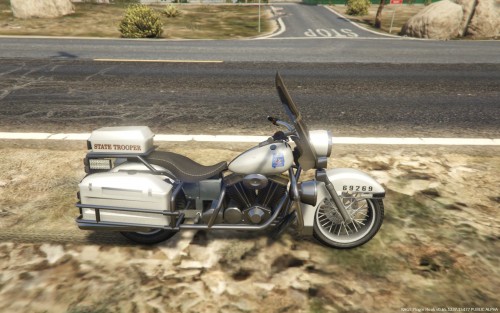 I am absolutely loving these skins being posted recently! I saw that you're using the old Alabama State Troopers sign (dark blue). If you would like the new (2016+) gold one, please message me! -Sean
 -
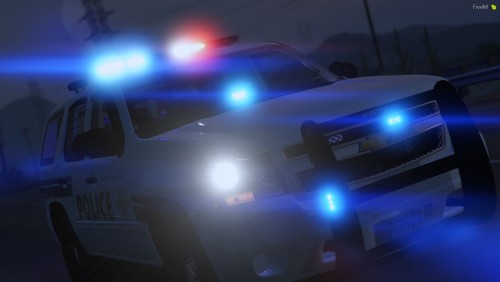 This is a great looking Tahoe and functions amazing. Honestly probably my favorite one. If you need any skins done, shoot me a message on Discord 😉 crusader0192#5189
- 10 comments
- 1 review
-
-

- 1
-
-
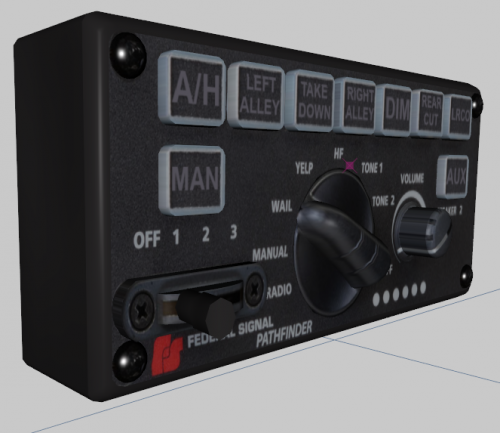 Looks smexy as always, good work brother
 -
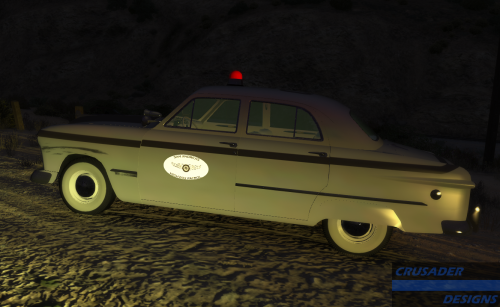 ~~~~~~~~~~CAR USED DOWNLOAD IT BITCH~~~~~~~~~~
 -
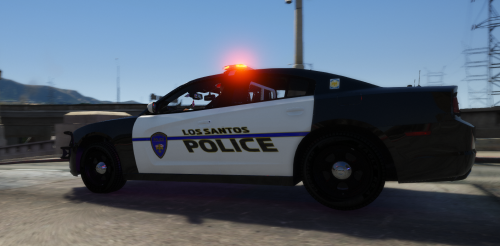 ~~~~~~~~~~CAR USED DOWNLOAD PLEZ BBS~~~~~~~~~~
 -
-
-
Can't wait. Gunna be great.
-
-
-
 I would LOVE to know what font you used?
 -
 File link?
 -
-
-
-
 so, when ever i install this and attempt to run my game, my game crashes. Any ideas?
- 21 comments
- 2 reviews
-
 So im not sure if its a problem or not but when i search for a suspect a picture doesnt pop up by their name
- 1,743 comments
- 172 reviews
-
 I'm having the "unhandled exception during forceduty" thing happening to me as well. RagePluginHook.log
- 138 comments
- 34 reviews
-
-
- 1
-