Creators: Due to background reprocessing of files, approvals and file security checks may be delayed. Thanks for your patience.

Trp. Keaton
Members
-
Joined
-
Last visited
Everything posted by Trp. Keaton
-
-
-
-
-
-
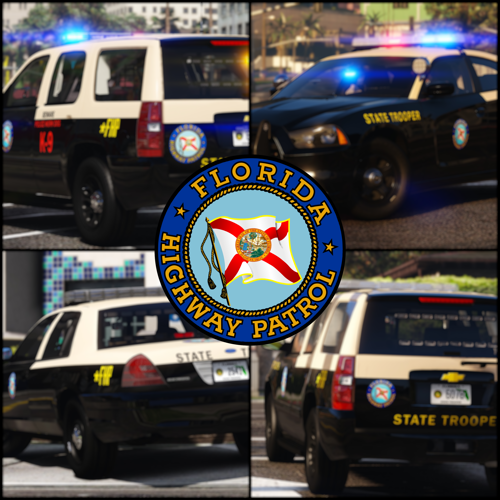 Hey @sarg7238 as the betas continue on, I will eventually be updating the interiors to all of the cars while will be including radar units, and weapons, as well as stuff in the trunks so they will no longer be empty and will hopefully give everyone a much more enjoyable playing experience using the pack
- 297 comments
- 21 reviews
-
Do not worry. Like what AstroBurgers said, they will be released once all the base models are 100% complete, or when I start focusing more on the textures is when I will be pushing them out. I do want to try and get them out before beta is done, but it probably wont be until after the pack is done.
- 297 comments
- 21 reviews
-
-

- 1
-
-
Yes that is the beta version, please make sure to report those issues in the google forum linked in the description
- 297 comments
- 21 reviews
-
So when you click the download button on this site. You are presented with 3 options. One option is to download the beta version of FHP, and the other two options are the old pack the new beta pack is replacing.
- 297 comments
- 21 reviews
-
Is this issue for the Beta Release pack, or the full released one? There is currently no way around the spotlight issue. I will work on getting them all fixed before next beta release. If you find any more issues, please make sure to report them in the google forum. Thank you so much for enjoying the new pack! It means a lot to me!!
- 297 comments
- 21 reviews
-
Hey man, I'm glad to hear you go it to work. The pack does look really good, put a lot of hard work into it, and I can wait for everyone to see the final results
- 297 comments
- 21 reviews
-
So all the cars files have something called a _hi.yft file. example fhp1_hi.yft is the file that houses the cars full LODS, and other things. I know that some cars are having issues such as explorers, but it is appearing that every car for you is having some issue. Something to suggest, when you spawn one car in an empty area, does this still occur, or does it only happen when there is alot around you. I have honestly never seen this issue before.
- 297 comments
- 21 reviews
-
You would need to modify the agency.xml file for LSPDFR, I am pretty sure. I could be wrong on that but I think that's what it uses.
- 297 comments
- 21 reviews
-
-
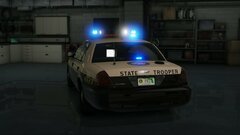 They're only going to get better my friend
 -
-
Hi there, please use the provided google forum on the download to report issues found with the pack. As for making replace files, no replace files will be included with this pack. Due to the complexity of each vehicle, having replace is not a viable option. Add-on files are much better, as you can have access to every car right from the start.
-
-
I am so happy that you are enjoying the pack. A 19/20 Chevy Tahoe K9 variant is planned, and trunk equipment is hopefully going to be coming to the pack as well before full release. If you have any suggestions for trunk equipment, please do send me a DM, or contact me on discord!
- 297 comments
- 21 reviews
-
-
- 1
-
-
Hey, sorry for the late reply. I currently don't have an estimated time until completion, but if you would like to help report any issues with the pack, that would always be appreciated.
-
-
You might be missing some required files for DLC packs to work. Below I have linked somethings you should download, and give it another try. If they don't work, send me a DM, and I can try and help in seeing what the problem might be. Install Gameconfig by going to Mods/Update/Update.rpf/Common/Data and drag + drop gameconfig.xml into it. https://www.gta5-mods.com/misc/gta-5-gameconfig-300-cars Install Heap-Limit-Adjuster by dragging and dropping GTAV.HeapAdjuster.asi into your Main GTA directory. https://www.gta5-mods.com/tools/heapadjuster Install Packfile-Limit-Adjuster by dragging and dropping it into your Main GTA directory. https://www.gta5-mods.com/tools/packfile-limit-adjuster
- 297 comments
- 21 reviews
-
-
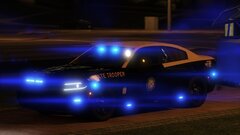
Well now it’s just all blue, but yes before it was configured in the R/B style, they only did it like that because certain colors where more visible at certain times.
- 297 comments
- 21 reviews
-
-
Oh yeah that thing. They do have one, well used too since they don't use vic's anymore, Ill find the picture for you
-
-
The Trello is still not available yet as I am currently working on it. As for the model list, that is also being worked on, once it's done, and the FHP is updated with fixes, it will be included
- 297 comments
- 21 reviews
-
-
- 1
-
-
Are you talking about the Whelen Freedom bar? None of the cars have a tomar in them. Unless they do and I’m just slow.
-