


.jpg.e891f29aa7e4ee9b573d99a5dfa67c58.jpg)
Prophet
Members
-
Joined
Everything posted by Prophet
-
 With the recent release of LSPDFR 0.3 there has been an influx of updated plugin callouts, scripts and other modifications. From Albo’s recent update of his traffic policer script, to Lt. Caine’s latest iteration of PLD. We’ve decided to list some of these scripts below, and made choosing a new modification all the more easier! So, if you’re looking for something new to add depth to your game, read on below.
 -
From the album: San Andreas
© HighSpeed Designs
-
 Ha.
Ha. -
From the album: San Andreas
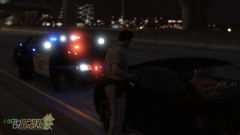
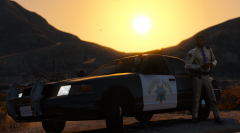
SAHP performing a traffic stop after the radio car's new ALPR system tagged the vehicle for expired registration.© HighSpeed Designs
-
From the album: San Andreas
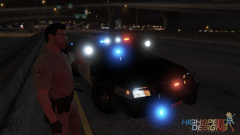
SAHP performing a traffic stop after the radio car's new ALPR system tagged the vehicle for expired registration.© HighSpeed Designs
-
Yes sir :)
-
 Happy Thursday everyone and welcome to the Community Staff Favorites. Hope you all enjoy this week's featured images. As usual, I'd like to express a big thank you to all of the generous members who decided to submit their work for this installation. Now without further ado (in no particular order) the Community Staff’s chosen Favorites.
 -
 Who's car?
 -
My boy. ( But seriously means a lot!)
-
 Currently, no.
 -
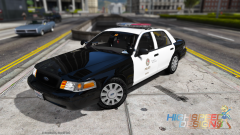
This model has already been released. This was a test model of: The wheels do not come with the actual model. If you watch my latest patrol video on my channel I show you what I mean by this in the first minute.
-
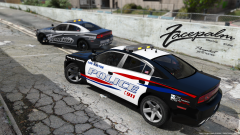 soon.
soon. -
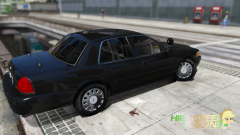 Just Pinnacle of V's Timecycle. No ENB or Reshade.
 -
Was gonna say the same about you.
-
From the album: San Andreas
© HighSpeed Designs
-
From the album: San Andreas
© HighSpeed Designs
-
Why do you do this. :(
-
-
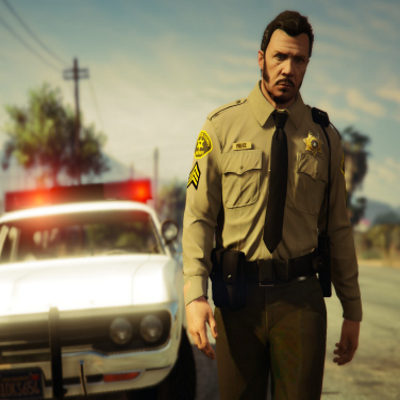 Greetings everyone and welcome back to the Community Staff Favorites. This CSF has been two weeks overdue, primarily due to the holiday season which in turn lead to the staff’s lack of free time on the site. I hope you all enjoyed your holiday vacation and enjoy this week's featured images. I’d like to express a big thank you to all of the individuals who decided to submit their work for this installation, and now without further ado (in no particular order) the Community Staff’s chosen Favorites.
 -
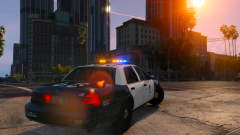
From the album: San Andreas
-
I approve this post. Great job with this tutorial.
-
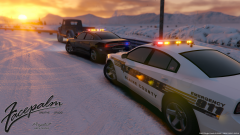 :)
:) -
I love you.
-
Secret place where pandas live.
-
Here you go.
.thumb.jpg.f7d19f85fad406630fb24c5fa819cf86.jpg)

