.jpg.e891f29aa7e4ee9b573d99a5dfa67c58.jpg)
Prophet
Members
-
Joined
Everything posted by Prophet
-
So.. you have physical copy or you purchased it from where exactly?
-
How did you get the game? i.e Rockstar Social or Steam?
-
Why not just re-download the whole game? it will update for you.
-
-
 If only they had FSES100's c:
 -
+1 for skins
-
 BxBugs123; unreleased unfortunately.
 -
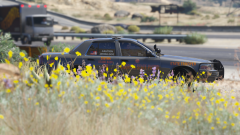
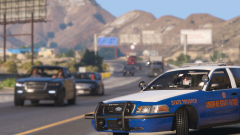
From the album: San Andreas
-
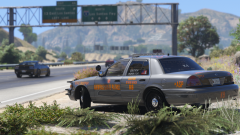
From the album: San Andreas
-
Later Progress Update/Demonstration by yours truly. Thank you all for being so patient. Trying to keep these progress/demonstrations coming in every 2 weeks
-
 I laughed.
 -
You're right; my personal emotions were misdirected and caused me to post insensitively to the topic at hand. I should have know better, and will be removing all of my previous comments. I will continue to keep the families and community involved in my prayers. To anyone I may have offended with my insensitive comments, I apologize.
-
......That feel when Mako Mankanshoku is my Waifu c:.
 Kinda my thing.
It's made by he.
Kinda my thing.
It's made by he.
.thumb.jpg.f7d19f85fad406630fb24c5fa819cf86.jpg)