



AdrianMonk28
Members
-
Joined
-
Last visited
Everything posted by AdrianMonk28
-
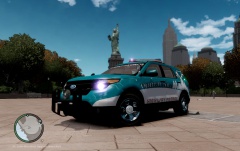
From the album: North Pole Highway Patrol Explorer
-
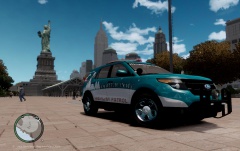
From the album: North Pole Highway Patrol Explorer
-
 Nice skins looking forward to a release .
 -
HAPPY NEW YEAR
-
Why should it stop at 69 why not 68 . Mustu are you trying to tell us something ??? lol
-
Good job guys on a job well done .
-
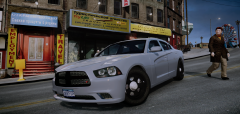 NicolaiB can you make a window template so that the windows can be tinted .
 -
Before anyone can help you we need to know the graphic mod you installed and a link to it .
-
No problem man we have all had problems with mods at one point or another .
-
Did you read the ELS 7 manual at all ? All you have to do is make a copy of the default_config file in the ELS folder and rename it to firetruck NO CAPS . Then open ELS.ini and change File = default_config to File = firetruck . Thats all
-
lmao
-
Looks okay but UNIVERSITY is spelled wrong on the textures in the screenshots .
-
Happy Birthday Sharp keep making those awesome skins .
-
Who is George Zimmerman ?
-
Cheddar Cheese all the way
-
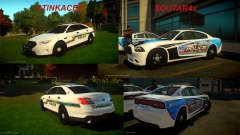 Soutar4x
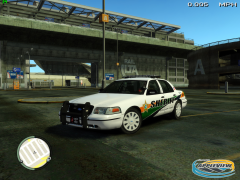 Can you release a Liberty County version of this skin ?
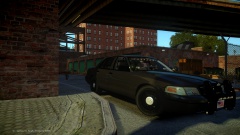 I was wondering why I didn't see any pics from you and your awesome ENB .First off what version of ELS are you using ?That Explorer is from BritishPoliceMods on youtube search for it in his channel . http://www.youtube.com/user/BritishPoliceMods


