
Deputy Brand
Members
-
Joined
-
Last visited
Everything posted by Deputy Brand
-
 Ahhaaahahah Bruh xD
 -
-
-
Thanks for the awesome episode
-
 I have an question to you guys, i played lspdfr in the port asked for code 3 backup but the the los santos police arrived and not the port police. Does rde just work when you are not on duty?
- 1,510 comments
- 85 reviews
-
-
 Nice Sneaker
 -
 Oh Thanks for more pictures
 -
8! Ok
-
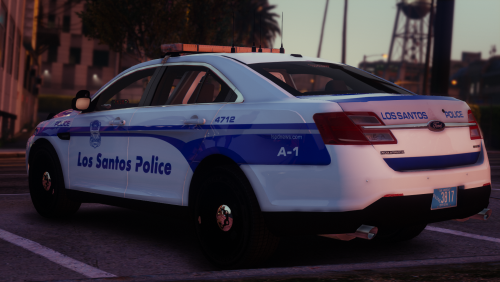 Nice Pack BradM can you give me an picture or an link from an boston police fpis i nvere saw one?
- 26 comments
- 13 reviews
-
-

- 1
-
-
-
Why Dont you make it vespucci beach?
-
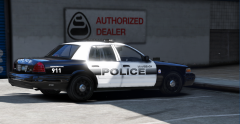 I wasnt sure if thats the right lightbar
 -
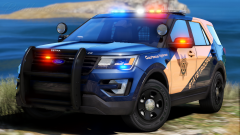 Thats an VERY GOOD quality
 -
Hmmmm the vehicle looks good BUT the lightbar Hmmmm i am not sure 9 from 10 points
-
-
Nice New Hampshire K-9 episode, i love K-9 and the New Hampshire State Police so Thank You
-
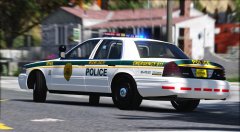 Like always beautiful
 -
Thanks Iggy for this awesome episode i love the miami pd, because i want to become a police officer there.
-
-
-
 Lufthansa cargo a300 or 310
 -
Thanks for doing Miami PD thats my favorite PD and i want to become a police officer in Miami to.
-
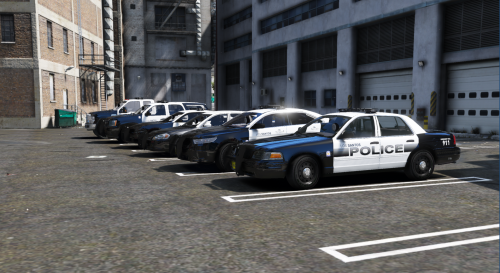
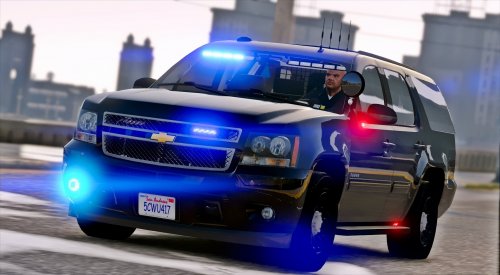
Here you can see some WIPs from me or other people
-
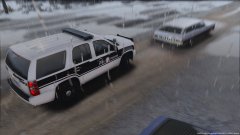
From the album: W.I.Ps(by me or other people)
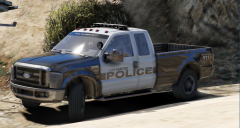
NCHP on an traffic stop near harmony