



Officer Joey Kuffman
Members
-
Joined
-
Last visited
Everything posted by Officer Joey Kuffman
-
Normally its when you place it on Policeold models like i have. but i just change color no big deal
-
hi, yeah we cant help you without any ragehook.log files and more information like screenshots and stuff if you want help you should post it here so others can see what the problem is. greets
-
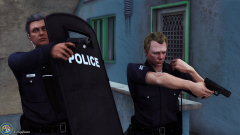
From the album: Officer Joey Kuffman Galleries
© J. Kuffman
-
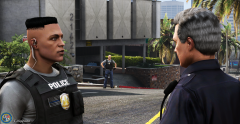
From the album: Officer Joey Kuffman Galleries
© J. Kuffman
-
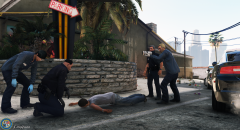
From the album: Officer Joey Kuffman Galleries
© J. Kuffman
-
LSPD OPEN UP! - Could not add this pic to my pic above for some reason.. sry for that.
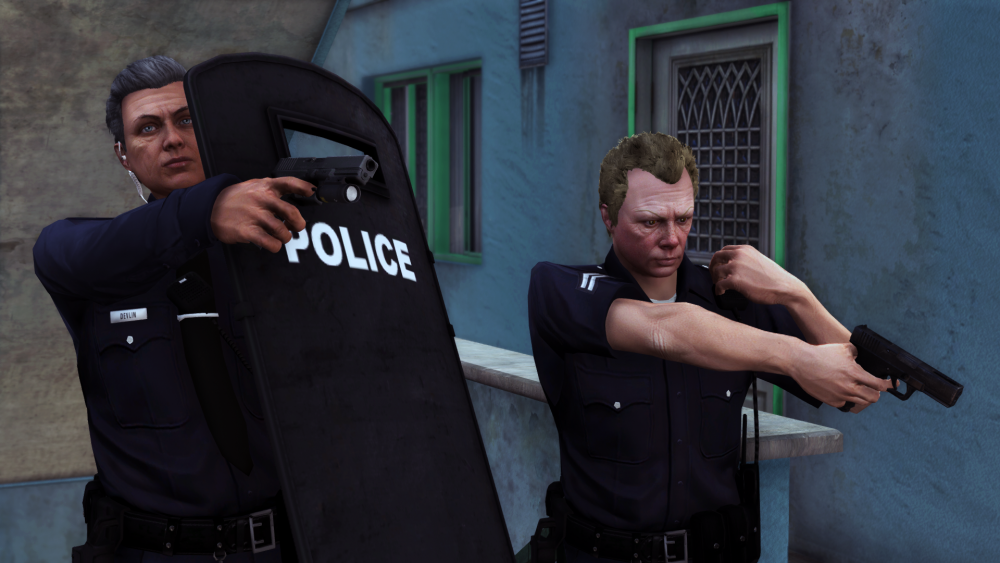
-
20-30 fps with rtx 2080 32GB ram core i7 6700k xDD? but when lspdfr is not enabled so not on patrol the fps is so mutch better.
-
Waiting for suspect.. @lspdfr.officer.joey
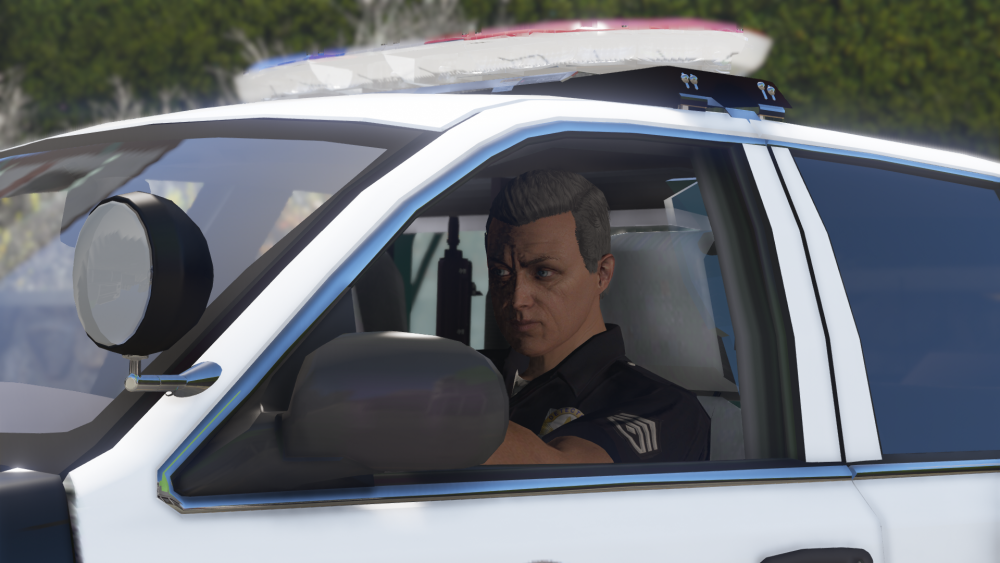
-
Lspd on scene @lspdfr.officer.joey
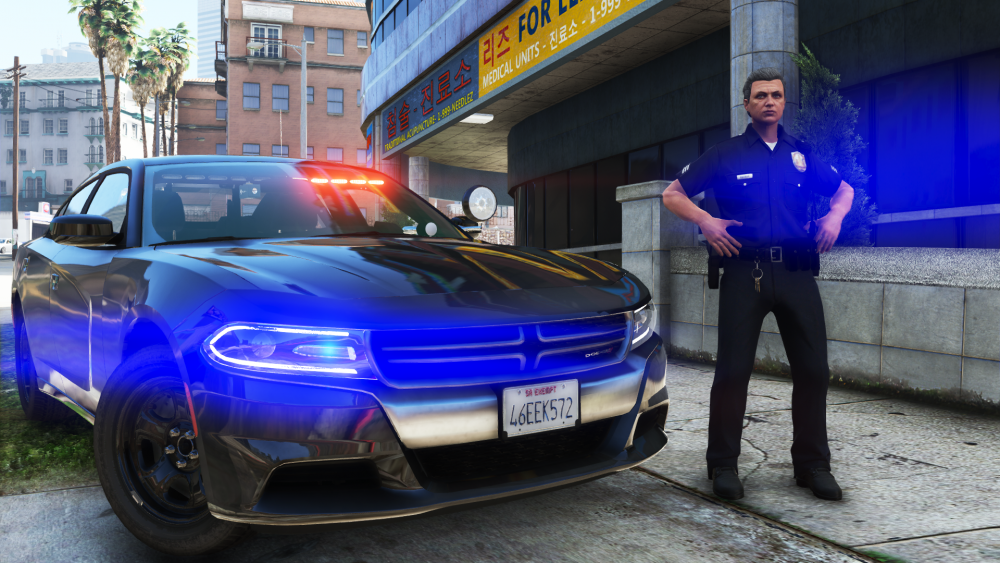
-
whats yo pc specs?
-
stop the ped works fine. nothing to see in your latest crash report.
-
From the album: Officer Joey Kuffman Galleries
© J kuffman
-
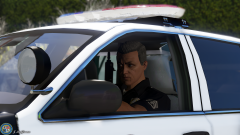
From the album: Officer Joey Kuffman Galleries
© J kuffman
-
-
Officer Joey Kuffman replied to Officer Christopher's topic in LSPDFR 0.4 for Legacy Edition Supportguess you know the best the one thats asking lol
-
Officer Joey Kuffman replied to Officer Christopher's topic in LSPDFR 0.4 for Legacy Edition Supportyou can change keybinds in lspdfr+ in the ini http://prntscr.com/ndmzeg
-
Lol if you want make better pics i suggest you use ingame screenshot script. removes hud
-
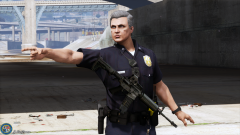 Menyoo editor.
 -
 stuff that is bought or sold is not allowed to send or sell
 -
Cant say. against rules.
-
installed pack file limit adjuster makes my game crash right away
-
thx for the message you got a link of that gameconfig? i cant find it just installed world of variety and the limit ajust
-
pc specs has noting to do with my issue lol anyway i have the normal gameconfig. i have issues changing that shit its not stable
-
already done did nothing. only thing that fixt the issue is adding vehicles 1 by 1 seeing witch one makes the texture load slow. callouts multiplier 0 lol should be boring for you without callouts
-
.png.c0d326369df2cbd037259be6ebdf5113.png)
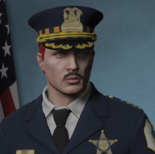



.png.c0d326369df2cbd037259be6ebdf5113.png)