
Officer Joey Kuffman
Members
-
Joined
-
Last visited
Everything posted by Officer Joey Kuffman
-
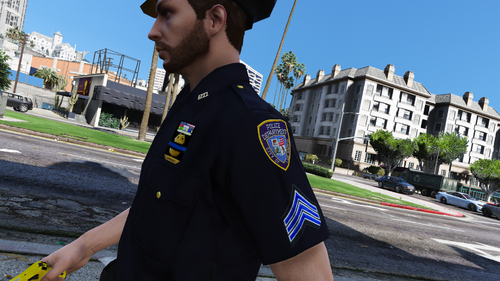 I have to install it all 1 by one? thats too mutch work to be honest, making a oiv isnt alot of work rather have it installed automaticly. still good outfits.
- 38 comments
- 3 reviews
-
-

- 2
-
-
bc i think thats the rules im trying to help him if you dont mind can you show us your gta v main folder?
-
im pretty sure you should make your own topic and thats not the right crash report inlcude rageook.log in your own topic
-
show screenshots van je gta v folder. < wrong person> show some screenshots of your gta folder
-
if you want help include screenshots and or ragehook.log file. so people can try to help you out. be sure to have up-to-date plugins installed. cars should be installed in the latest patchday21
-
-
im almost sure its against the community rules.u should include the crash log so people can try to help you out. ragehook.log
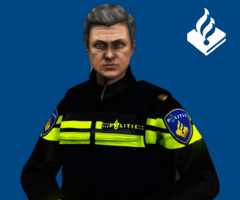
From the album: Officer Joey Kuffman Galleries
try to enable ragehook that it loads with plugins. see what it does then. so you dont have to reloadplugins.i had it to. i had to restart my pc some progams blocks it or something. i had teamviewer running and some other stuff then it did not work out for me. but when i disabled the progams it worked.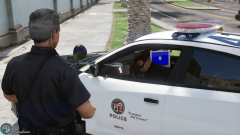 lol sry did not see ur message. he dead as you can see bullet hole in the door near mirror xD
From the album: Officer Joey Kuffman Galleries
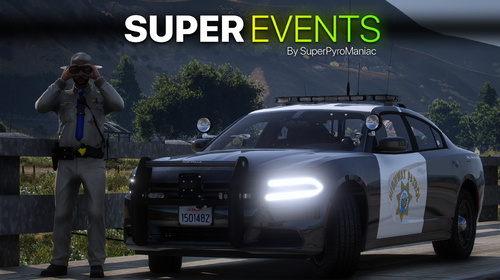 how did they call firedepartment anyway? i did with phone there is no option to call fire dep. in the plugins i use.
- 218 comments
- 22 reviews
looks good but car fire dont work. fire department comes. looks and goes away lol- 218 comments
- 22 reviews
what you wanna mod in that game LSPDFR? HORSE PATROL? lol looks good
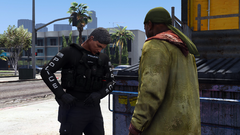 Not public
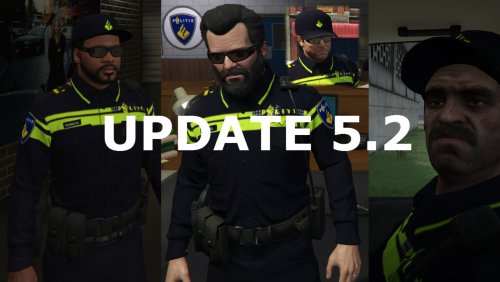 we need more dutch police makers there is almost no content i need eup 8.1 peds hopefully someone can make those one day
- 4 comments
- 1 review
this will never ever come to console ps4 ect.. never