
Officer Joey Kuffman
Members
-
Joined
-
Last visited
Everything posted by Officer Joey Kuffman
-
people cant help you out without ragehook.log file 🙂
-
did you donwload new version of scripthook?
-
-
 Looks good
 -
 must be a mistake some where in files because everytime i use this it crashes my game more often
- 60 comments
- 13 reviews
-
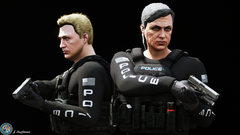
From the album: Officer Joey Kuffman Galleries
© J. Kuffman
-
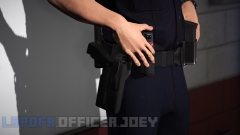 ;D
;D -
-
-
-
i think they need the ragehook.log not the log.txt ":)
-
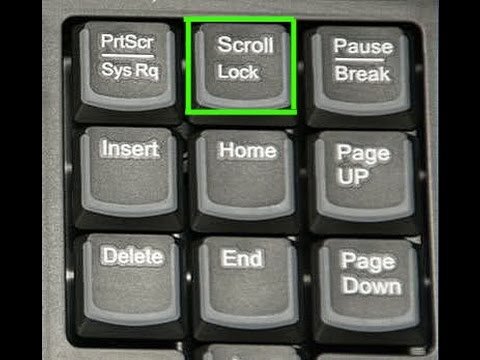
hey do you see a red text right side corner of screen? that maybe means you have scroll lock on the keyboard? other than that it should work maybe some screenshots of els folder would be cool 🙂

-
 says something about police radio.. but police radio isnt updated? so em idk lol and i dont have it installed RagePluginHook.log
- 117 comments
- 19 reviews
-
-
-
 Nope
Nope -
This is not eup made
-
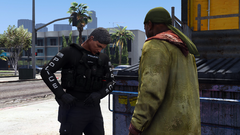
From the album: Officer Joey Kuffman Galleries
Little community work is good for all of us. Talking with this homeless man, giving him some water on a hot day© J.Kuffman
-
nobody
-
-
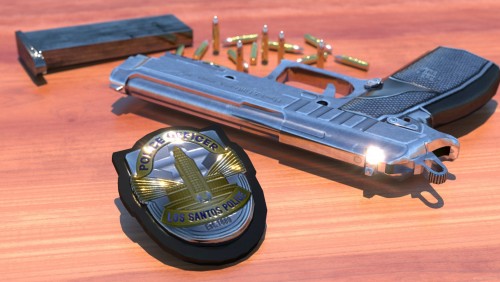 same did you figure it out? Go in interaction menu put the action as flash badge after that you can press caps lock then it shows 🙂
- 31 comments
- 2 reviews
-
-

- 1
-
-
people are not patient these days "Go play mine craft"
-
ragehook isnt updated yet so you cant play
-
ik weet dat computer+ random crasht dus ik zou dat eerst verwijderen. als nog zo is toch 1 voor 1 plugins toevoegen zo dat je kan zien welke crasht
-
i have no issues with LSPDFR so its not lspdfr i suppose. ragehook.log file is located in gta main folder you tell me there is not such a file?