
Officer Joey Kuffman
Members
-
Joined
-
Last visited
Everything posted by Officer Joey Kuffman
-
thanks for the update! 💪
-
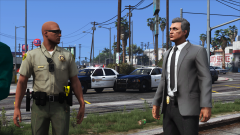
From the album: Officer Joey Kuffman Galleries
© Joey Kuffman
-
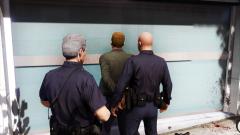
From the album: Officer Joey Kuffman Galleries
© Joey Kuffman
-
From the album: Officer Joey Kuffman Galleries
© Joey Kuffman
-
New captain in town. Paperwork 😞
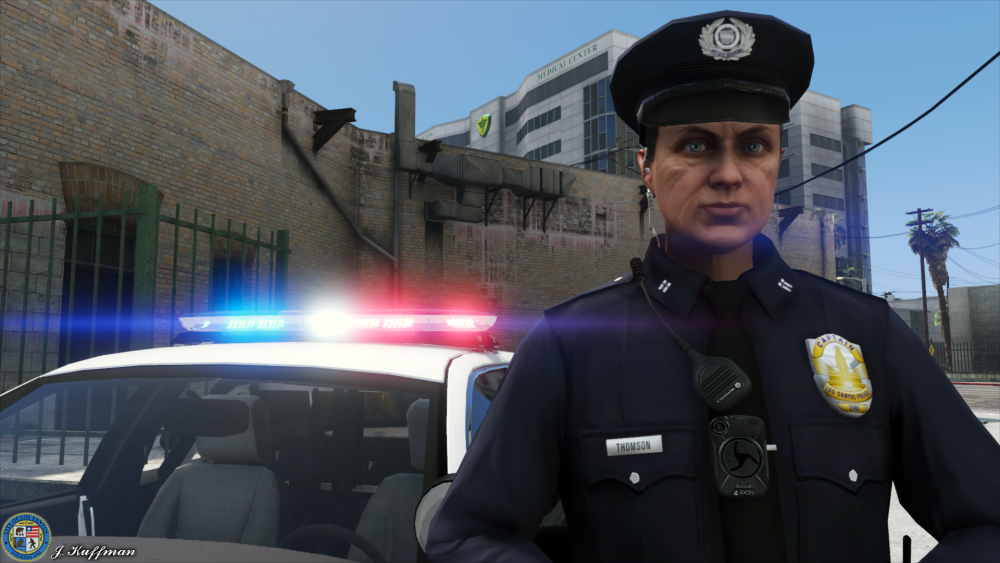
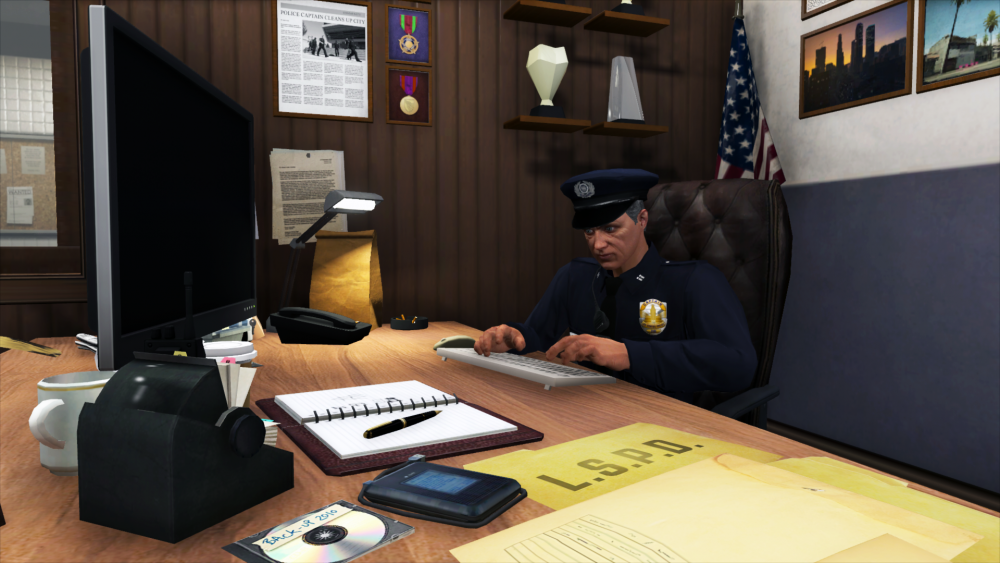
-
From the album: Officer Joey Kuffman Galleries
© Joey Kuffman
-
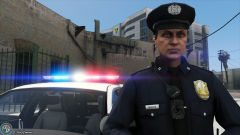
From the album: Officer Joey Kuffman Galleries
© Joey Kuffman
-
try to launch gta first. when you hear the sirens. ingame. start ragehook thats how i have to start it.
-
Maybe a weapon model?
-
-
-
-
-
why a hud? try to remove it?
-
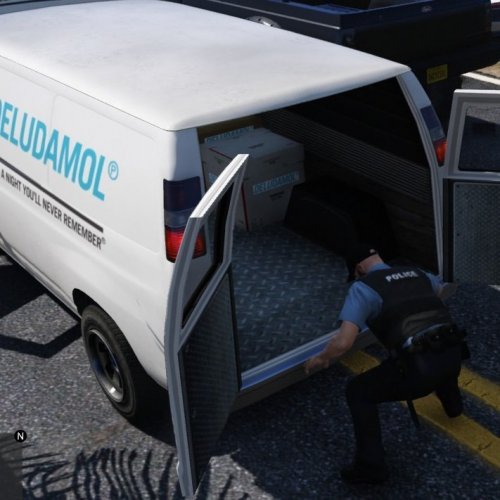 this is not a mod this is just a xml file. ofc it works. you just need to download the search warrant.
- 10 comments
- 1 review
-
-

- 1
-
-
 is it crash free?
 -
you can also change in the lspdfr folder lspdfr.ini Callouts.Multiplier = 260 or higher to get faster callouts
-
Heb je eerst je caracter gemaakt via pauze menu? weet je zeker dat je on duty bent? Nieuwe albo1125.common geinstalleerd? en wat als je callout force doet? via M menu dan Radio dan kan je force callout doen
-
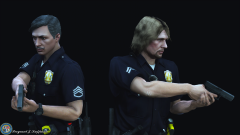
-
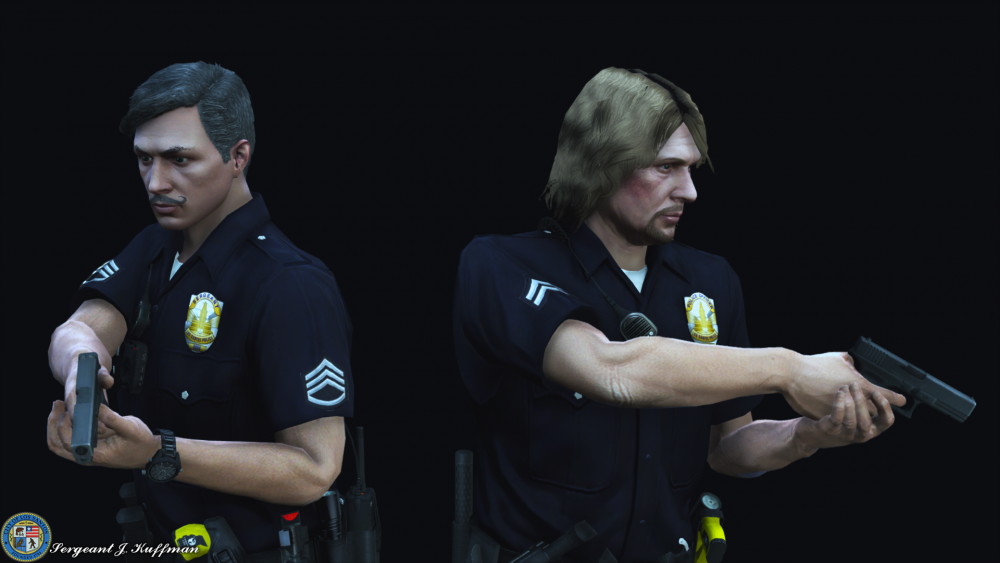
Hands up! UP!
-
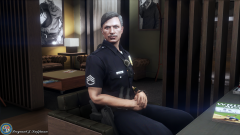
From the album: Officer Joey Kuffman Galleries
-
-
not me but maybe others yes.
-
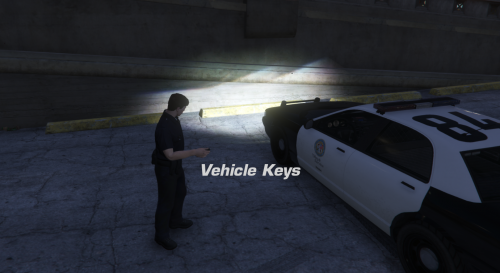 http://prntscr.com/mtzqs2 at this update its crashing it says vehicle keys was crashed. in bottom left. it also enables radio stations in police vehicles even when turned off in settings of gta it self.
- 55 comments
- 10 reviews
-
Like i said earlyer you need to give more information need ragehook log file to help you out