



RoegonTV
Members
-
Joined
-
Last visited
Everything posted by RoegonTV
-
-
-
-
-
-
-
-
-
-
-
-
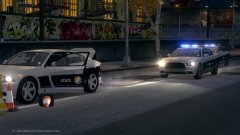 Found this on the 'ole HDD in my GTA section. NCSHP responding to an officer who was pushed into a construction barrier by an unknown suspect (who fled).
 -
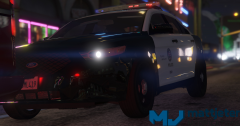 Never seen my car look so good <3
 -
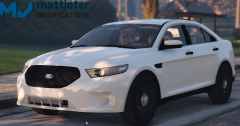 Holy fuck, let me go grab the fucking tissues. Default graphics?
 -
After a bit of thought, I have decided to leave the modding scene for IV. There is a lot of drama, and unneeded harassment to the point where it isn't fun anymore. I just wanted to make a small post to let you guys know I won't be releasing anything anymore, and that I hope you all have a fun time modding.
-
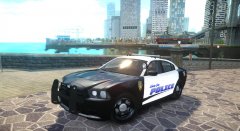 Had a friend edit the other skins to these. What do you think?
 -
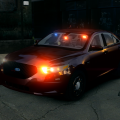 I was kindof going for a vehicle that would typically pull people in the fast lane, so right side rear visibility needed to be more than the TA.
- 16 comments
- 4 reviews
-
If i get some extra time today, I'll try and release my PI steelrims and hubcaps.
-
The more i work on it, the more I think i COULD get it in game. It would be just like converting any other car.
-
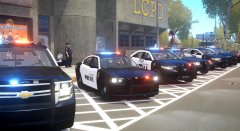 Part of the Fourth of July motorcade lined up in front of the station, ready to roll out.
 -
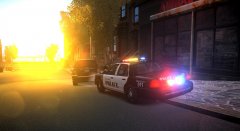 The LCPD always insists that drivers sleep in their cars rather than drive under the influence. This man did not follow that guideline and is now paying the consequences.
 -
Make sure that the .ini(s) are set up correctly in the ELS folder. If you are driving police1, the police.ini needs to be in the ELS folder, and the slot_control needs to say that police reads from police.ini.
-
UPDATE:
-
So I have decided to delve into spline modeling. This car is solely for learning purposes, so I don't really expect for it to be very accurate, nor ever be in GTA-IV but one can hope :) UPDATE 1: Hood is finished, door has the splines modeled.
-
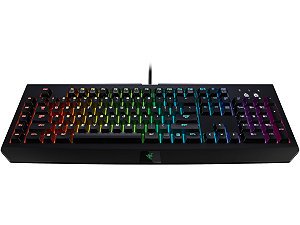 Right after I have to send mine back for a replacement :(


