


Joe C Wilson
-
Joined
Everything posted by Joe C Wilson
-
-
-
-
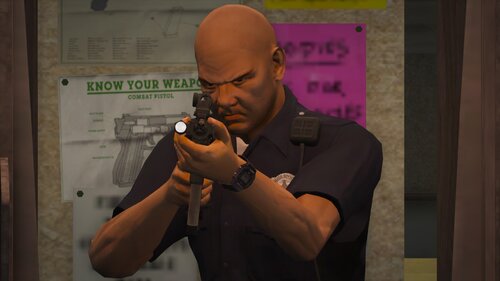 I removed the semi-auto from the SMG due to it causing the gun to not function correctly. However, the SMG still features new animations for the tactical grip and the ability to fire from vehicles. If you downloaded version 1.5, please update to the latest version to resolve this issue. Apologies for any inconvenience.
- 56 comments
- 2 reviews
-
-
-
-
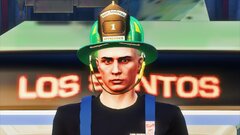
From the album: Better MSA N6A Textures [EUP] Showcase
-
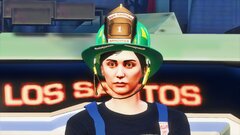
From the album: Better MSA N6A Textures [EUP] Showcase
-
The EUP mini texture pack provides an assortment of texture options for the standard MSA N6A Helmet made by NOVO. It includes textures for CHIEF, CAPTAIN, LIEUTENANT, FIREFIGHTER, EMS, and APPRENTICE roles. Additionally, the pack offers an alternative style that allows the outline text color to match the helmet color. The textures are FiveM-ready and LSPDFR compatible. They are loosely based on the helmets used by my local fire department.
-
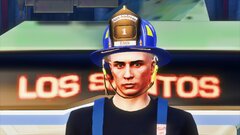
From the album: Better MSA N6A Textures [EUP] Showcase
-
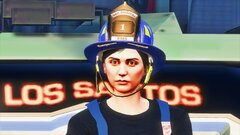
From the album: Better MSA N6A Textures [EUP] Showcase
-
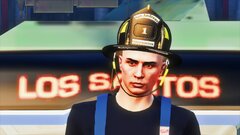
From the album: Better MSA N6A Textures [EUP] Showcase
-
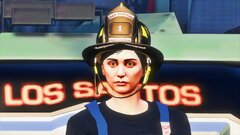
From the album: Better MSA N6A Textures [EUP] Showcase
-
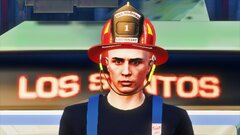
From the album: Better MSA N6A Textures [EUP] Showcase
-
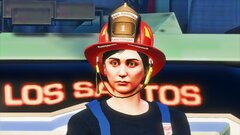
From the album: Better MSA N6A Textures [EUP] Showcase
-
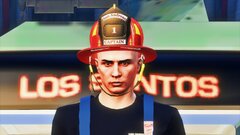
From the album: Better MSA N6A Textures [EUP] Showcase
-
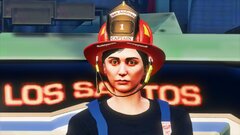
From the album: Better MSA N6A Textures [EUP] Showcase
-
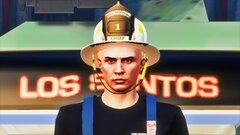
From the album: Better MSA N6A Textures [EUP] Showcase
-
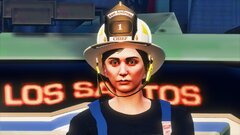
From the album: Better MSA N6A Textures [EUP] Showcase
-
 I'm afraid I don't fully understand what you are asking. If you're looking to change uniforms, you can do so by directly replacing them in the OpenIV EUP or SUP folders. My XMLs simply read the content installed in those two specific folders. Could you please provide more details about what you're trying to do? That would help me better assist you with your question.
- 931 comments
- 23 reviews
-
GTA 4 LCPDFR #15 - High-Speed Pursuits | ASP '13 FPIS via @YouTube
-
-
-


.png.b7ecdfddf5dde582f7e14c4e3efb6090.png)
.png.26b442282d076d4cdd251eadd5f81879.png)
.png.9377bbba528da0d37928db67e4b51bbe.png)