


Joe C Wilson
Members
-
Joined
Everything posted by Joe C Wilson
-
What version of GTA IV do you have, and what version of LCPDFR did you install?
-
According to the log, the issue appears to be related to a version mismatch with the NAudio library. I recommend reinstalling the More Radio Chatter plugin, as that seems to be the one causing the crash by utilizing NAudio. The log indicates that Ultimate Backup and LSPDFR loaded without any problems, so the NAudio issue is likely the root cause. I understand your frustration after watching the tutorial video, but it was uncalled for to blame me as this issue turned out to be a simple user error. I am more than happy to help as I sense you may have been having a bad day, but please don't do that again. I hope my solution works for you, and I wish you a better day ahead.
-
-
-
-
-
 Is this compatible with graphic mods? It seems to turn the sun blueish green for me.
- 27 comments
- 4 reviews
-
-

- 1
-
-
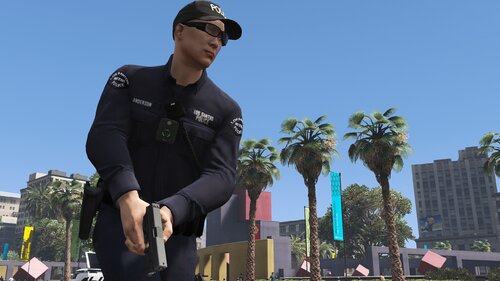 No. However, when the next EUP update becomes public, I will update this when needed.
- 944 comments
- 23 reviews
-
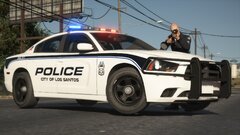
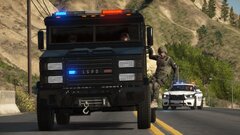
GTA 5 LSPDFR #78 - Stolen Bearcat Pursuit | LSPP '15 Charger via @YouTube
-
-
-
-
-
-
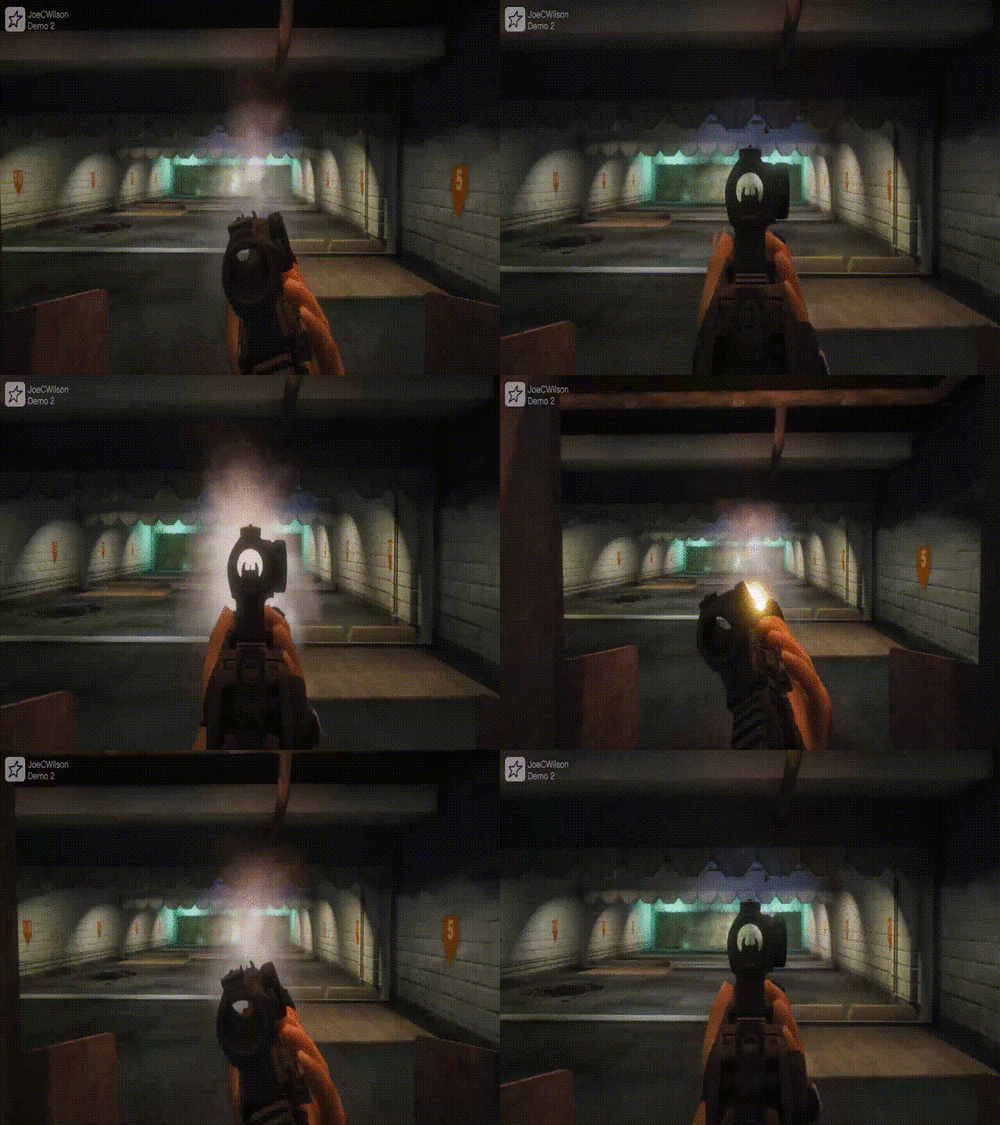 This mod doesn't force you to use the first-person camera to shoot. You may have a mod like Weapon Control that conflicts with the mod.
- 56 comments
- 2 reviews
-
Please restore the vanilla files in your game and reinstall the mod. A third-party mod may conflict with it.
- 56 comments
- 2 reviews
-
GTA 4 LCPDFR #17 - Shootout In Bohan | LCPD '15 FPIS via @YouTube
-
-
-
-
-
-
-
-

.png.d1bf7e25c0c300431aeb3758c4e85fa4.png)
.png.725f60fc28ce3712f10e90b6049b8fff.png)




.png.2ecbbe040b701e4ae6ac32fad9436e9b.png)
.png.73331a60336b4a45df6a4ffa639c310b.png)
.png.30ac4c76db82e9ac6f78ece2214c7c12.png)
.png.87dcd12e87dc823f2dd3c4612f41aeb0.png)