Lapd Code 3
Members
-
Joined
-
Last visited
Everything posted by Lapd Code 3
-
-
-
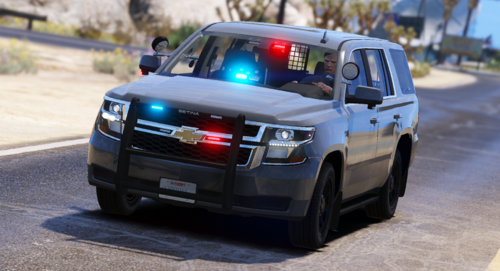
 not sure if anyone found a fix to this but this doesnt work with unmarked vehicles is there a reason for that?
- 262 comments
- 21 reviews
-
-

- 1
-
-
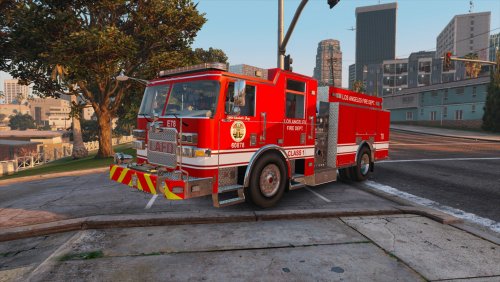 points for making em but i take a few out for inaccuracy they use black outlines on there numbers and Los Angeles Fire Department
 -
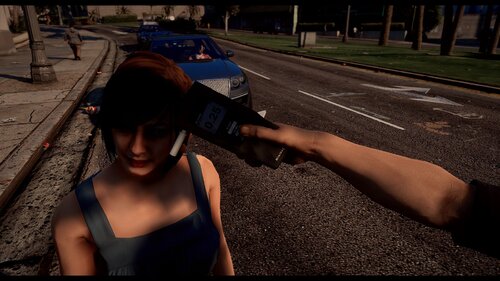 tested it works great I APPROVE of this Everyone Download this You Wont Be Disappointed
- 19 comments
- 7 reviews
-
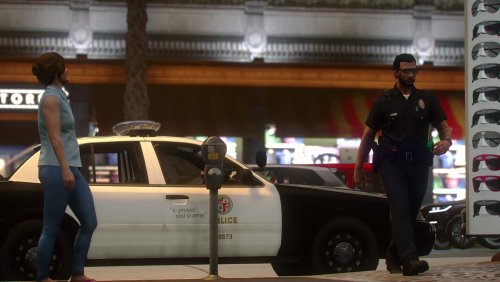 I APPROVE OF THIS MIC it fits well with custom over the shoulder duty belts this is a video of it in action
- 11 comments
- 1 review
-
-
will be testing this on my new episode today all thats left is the lapd uniforms that you guys are using hope you guys upload it eventually
- 11 comments
- 1 review
-
-
-
-
-
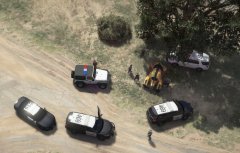
From the album: California's Finest
local park ranger and CHP Apprehended 2 suspects that stole a high performance vehicle and engaged in a high speed pursuit that ended with them hitting a tree and loosing control both suspects were arrested on drug and weapon charges as well as one with a warrant for home invasions -
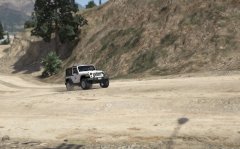
From the album: California's Finest
-
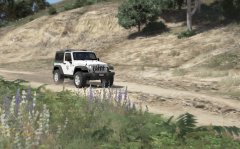
From the album: California's Finest
-
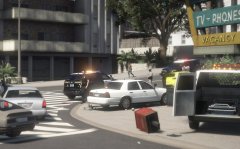
From the album: California's Finest
-
From the album: California's Finest
-
From the album: California's Finest
-
From the album: California's Finest
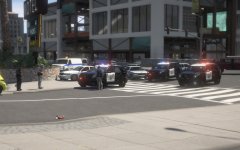
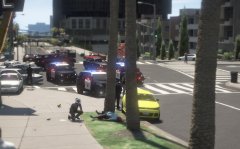
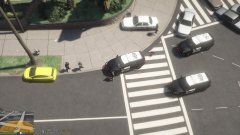
CHP Responded to a Vehicle Lowjack system Activated on Power Street and Occupation Avenue a traffic Stop Was Initiated and seconds after stopping the driver came out and opened fire resulting in the suspect shot and killed in broad daylight as you see here officers responded and closed the road to avoid traffic interfering with the scene -
 gotcha thx
 -
what do you have ?
-
 Chevy Colorado for next project
 -
chevy colorado non els for next project?
-
-

7PKVVKMDUYH7P7.thumb.png.a66a92c6be646e352c249e955133ea40.png)