


CiscoFan
Members
-
Joined
-
Last visited
Everything posted by CiscoFan
-
.png.1b423799be75a38799da9a17f63bd383.png) ok
ok -
@Lundy would like this... just kidding
-
-
ELS will be coming out so stay tuned for that.
-
I hope it is out SoonTM
-
its like police4.
-
It does
-
Yes, we will change the texture for it. here is the new texture arjent_emis.dds
-
-
Still working on it.
-
That is just the texture and Radiance V, you could fix the texture.
-
-
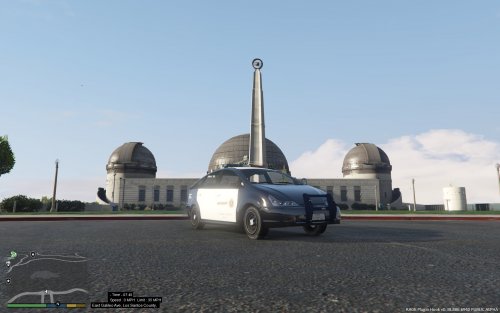 I know exactly why the left front wheel is like that, you have the wrong collision.
- 20 comments
- 2 reviews
-
-

- 1
-
-
The Blue's Mobile!!!
-
Whelen Liberty
-
The way the lights were set up was improved.
-
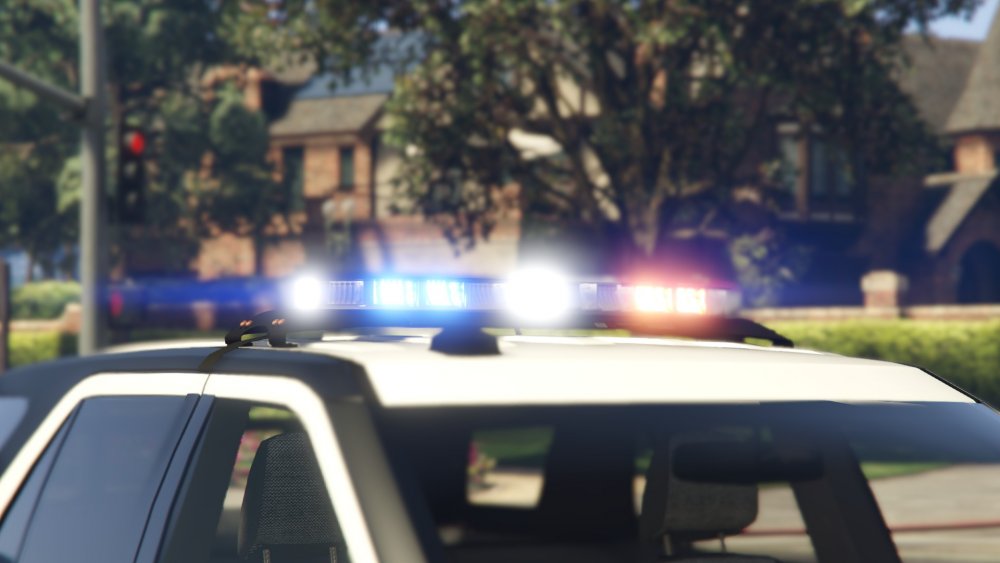
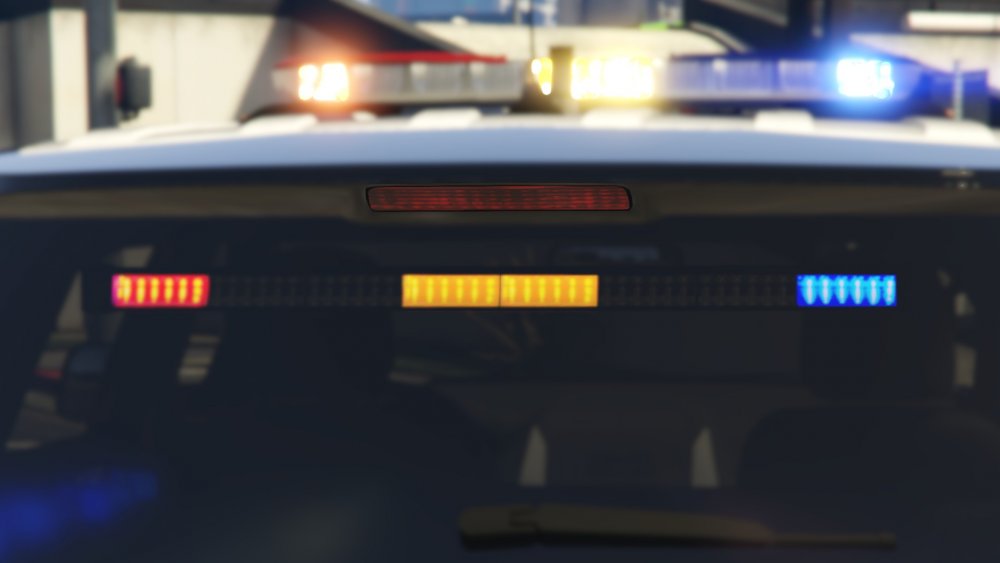
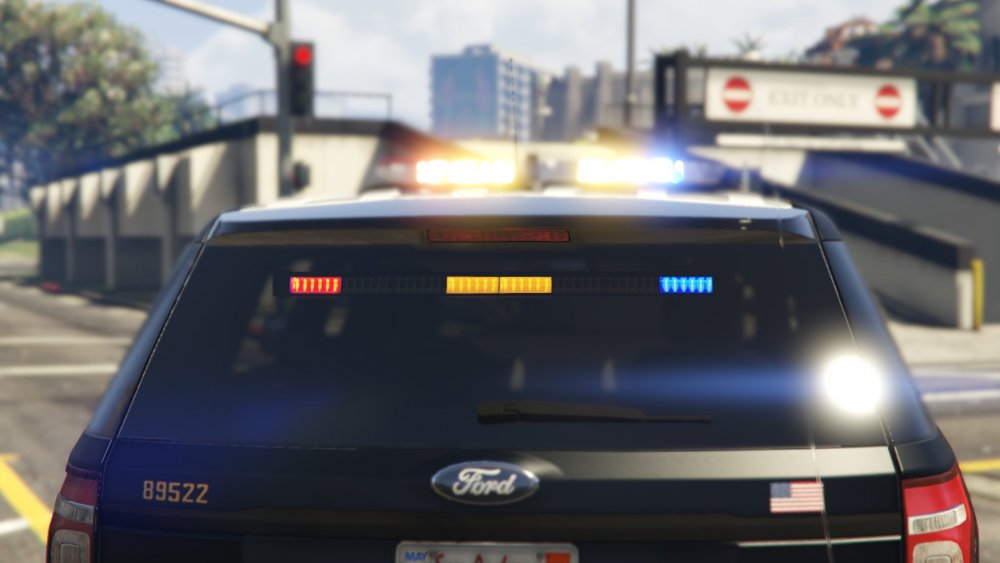
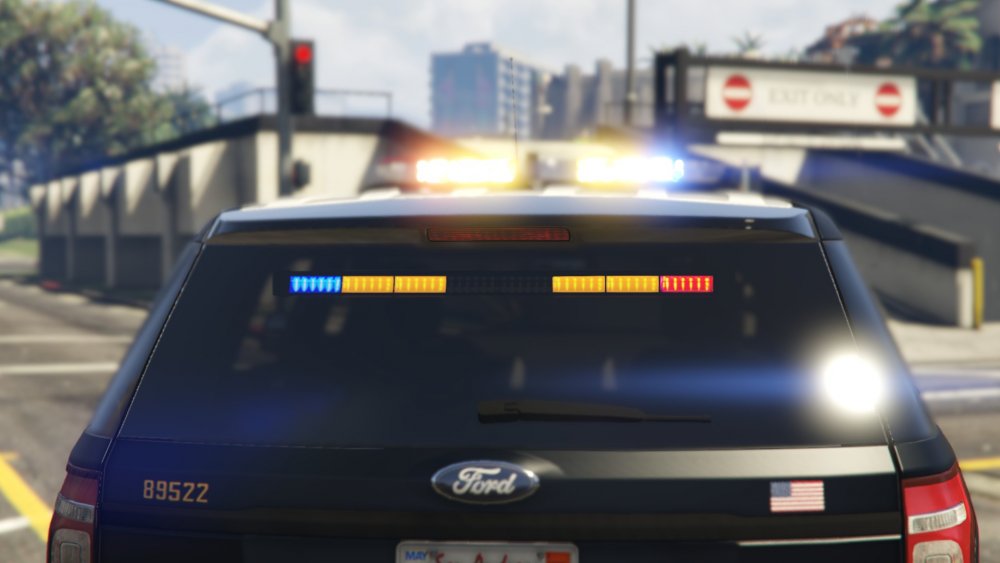
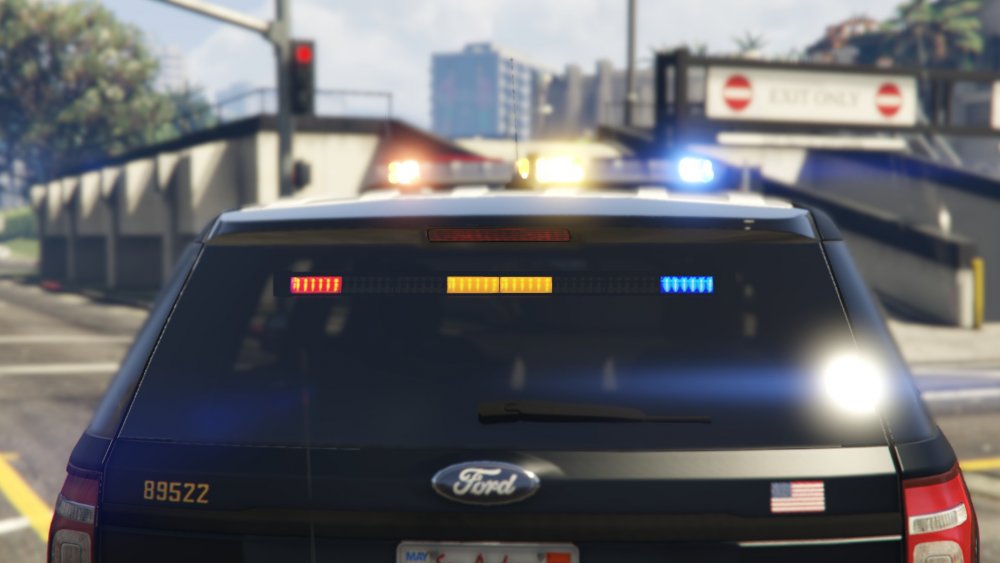
Here are some screenshots for the next update. Desmond98 and I are working together.
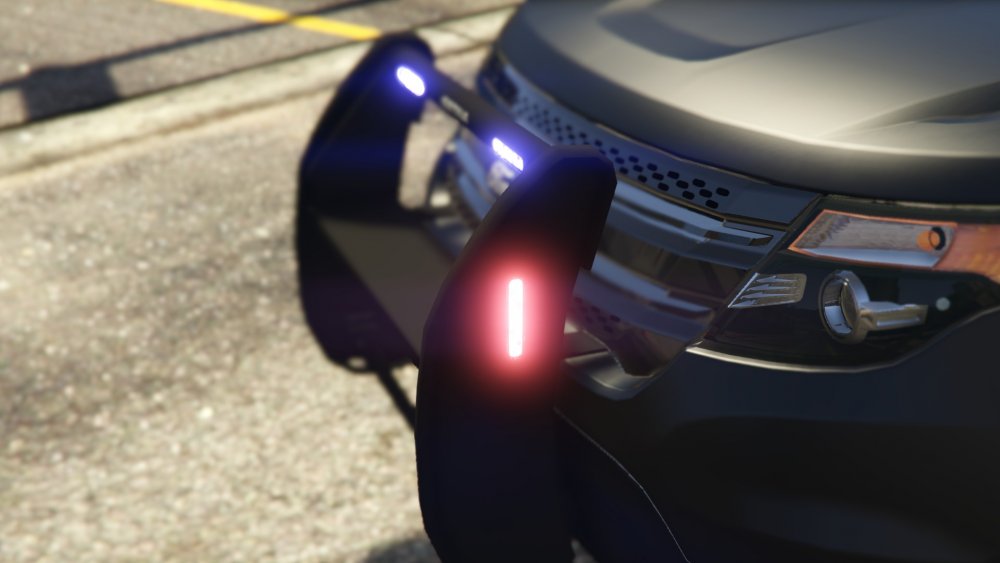
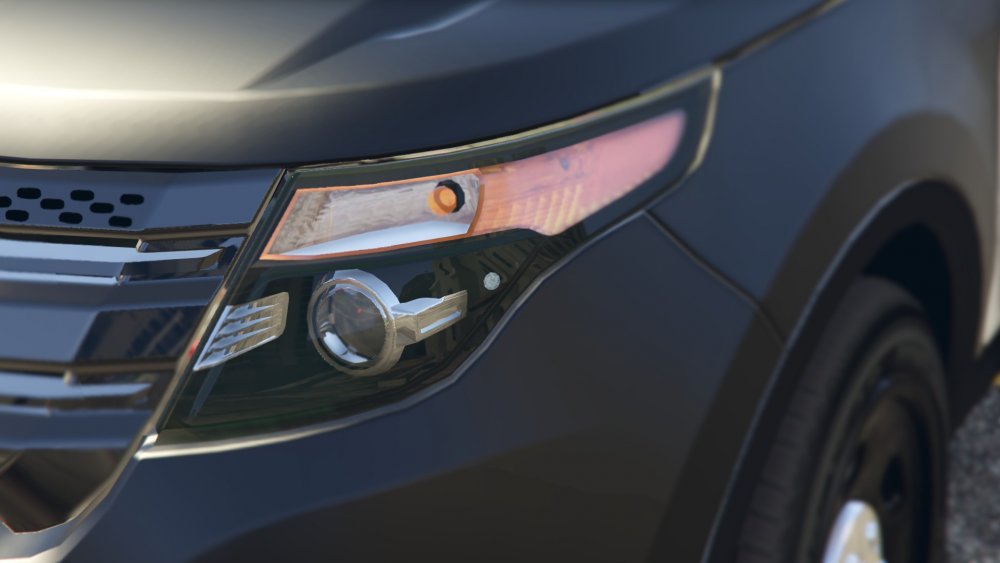
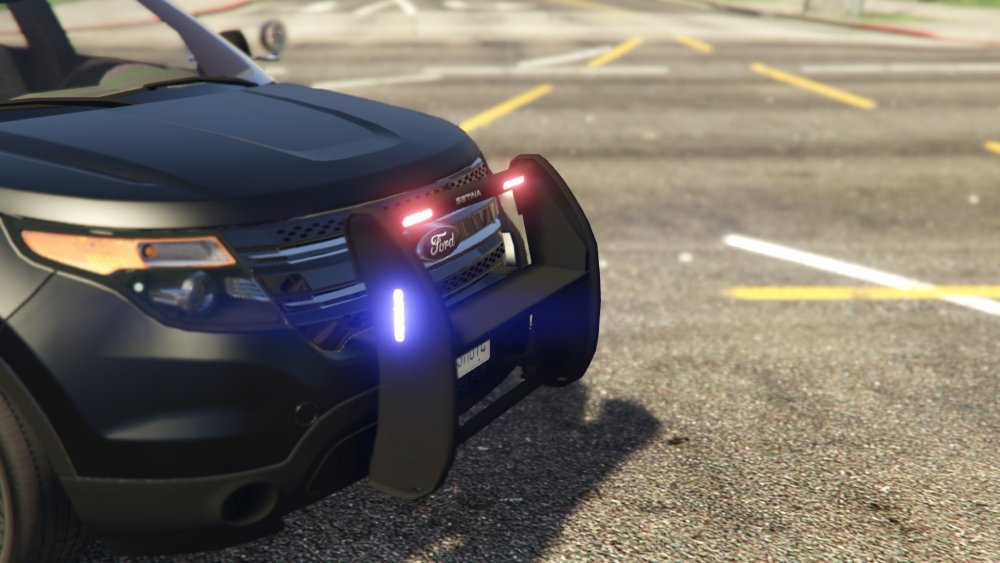
-
the screens look nice!
-
Love the progress so far. It will look almost like the real thing.
-
There is a way to make them flash but you would need to 3d model the lights and attach them a siren in the light bar. You need ZModeler3. To let you know, your english is not bad at all, in fact it is fluent.
-
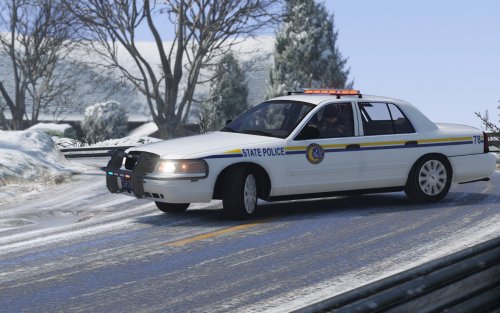 Look at the flags for police, police2, and police3 and put the flags into the flags of policeold2 in vehicles.meta
- 42 comments
- 5 reviews
-
it is working but there are four of the same liveries, you could go ahead and download any livery in the vehicle textures. That is normal for the lights.
- 42 comments
- 5 reviews
-
-
I lost that z3d so I can't do it with the RX2700 But it is flashing red and blue on 3.0
- 42 comments
- 5 reviews
-

.png.1b423799be75a38799da9a17f63bd383.png)


