J.J Dawkins
Members
-
Joined
-
Last visited
Everything posted by J.J Dawkins
-
-
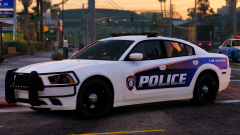
From the album: That's 2 More will be adding to the pack
@Krame86 is the author of the Skins that will make up this department -
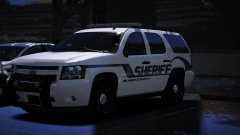
From the album: That's 2 More will be adding to the pack
@Krame86 is the author of the Skins that will make up this department -
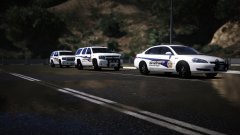
From the album: That's 2 More will be adding to the pack
@Krame86 is the author of the Skins that will make up this department -
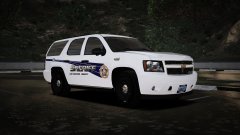
From the album: That's 2 More will be adding to the pack
@Krame86 is the author of the Skins that will make up this department -
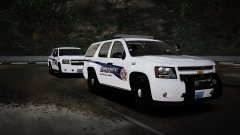
From the album: That's 2 More will be adding to the pack
@Krame86 is the author of the Skins that will make up this department -
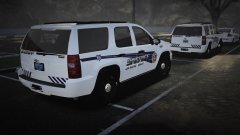
From the album: That's 2 More will be adding to the pack
@Krame86 is the author of the Skins that will make up this department -
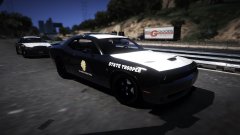 yeah it was made by my buddy Doug
 -
-
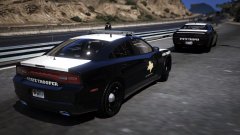 lets roll out boi's
-
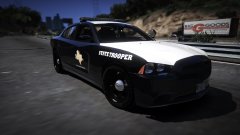 2014 Charger
-
damn that potato cat
-
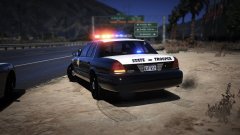 adding few more thing and we should be good
-
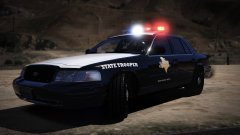 WELL Dang!!1
-
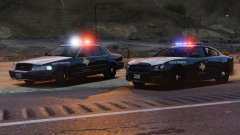 2 Down
-
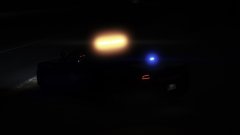 Must keep traffic under control to right
-
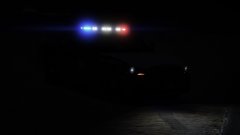 TAKEDOWN ON WITH CRUISE LIGHTS
-
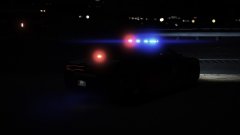 LIGHTS LOOKING GOOD AT NIGHT
-
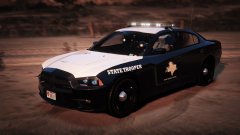 TAKEDOWNS WORK
-
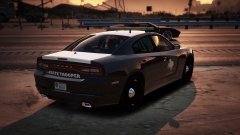 2014 Charger
-
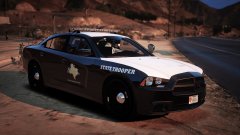 Finally got my game back working
-
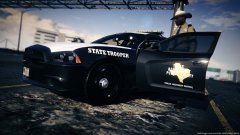 Everything is big in Texas
-
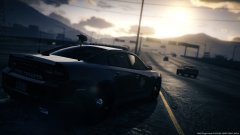 early morning shift
-
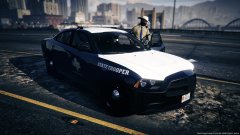 2014 Dodge Charger
-
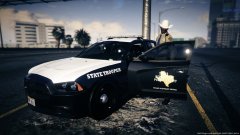 2014 dodge charger
From the album: W.I.P Texas State trooper Pack
From the album: W.I.P Texas State trooper Pack
From the album: W.I.P Texas State trooper Pack
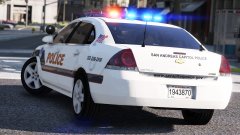 Damn!!!! she sexy
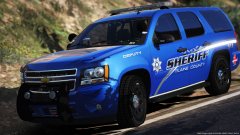 i will be making both
o i see what you mean i will make that change right now..that would look better Thank you for that bro i thank you so much i'm trying to do my best
i will be making both
o i see what you mean i will make that change right now..that would look better Thank you for that bro i thank you so much i'm trying to do my best
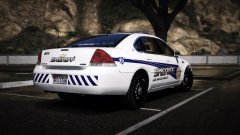
From the album: That's 2 More will be adding to the pack
@OfficerWalters so you say wtf are them lightsI have no idea who lightbar that is. I found that lightbar in all the lights i have. The lightbar is private until i can find out who lightbar that is I promise its the Valor Lightbar and the Whelen legacy with the lightbar you see is modified and i just added the hotfeet to it so it can look rightValor Lightbar..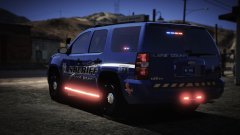 I'm so glad you came in and cleared tha up cause that's the last thing i want to do is give the wrong credit to somebody else...But i should have known that this was yours cause you do some damn good work both making models and skins. Shit what can you not do..lmao thank you for everything
Bro i am so freaking sorry didn't know i'm changing that right now sorry about thatFirst off dude i choose not to do accurate packs cause the parts i need is private. but what the fuck did i do to you. But that's cool @MrPotato Cat the hell to you too. and @OfficerWalters you stay begin a hater
I'm so glad you came in and cleared tha up cause that's the last thing i want to do is give the wrong credit to somebody else...But i should have known that this was yours cause you do some damn good work both making models and skins. Shit what can you not do..lmao thank you for everything
Bro i am so freaking sorry didn't know i'm changing that right now sorry about thatFirst off dude i choose not to do accurate packs cause the parts i need is private. but what the fuck did i do to you. But that's cool @MrPotato Cat the hell to you too. and @OfficerWalters you stay begin a hater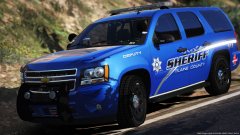 @SoarHawk i'll Make for you but i plan on keeping them onumm. what? did this guy just pretty much say @Thehurk CHP Pack is not the most accurate models for chp.. But Yet you come with this that is not even near Close to what chp use.. So Before you start throwing these words around like Accuracy and not doing your research, but then come up with this design that is not bad but at the sametime not even Close to what thehurk have did. No Disrespect
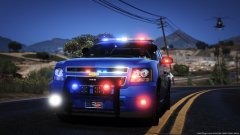 yes they are..