


J.J Dawkins
Members
-
Joined
-
Last visited
Everything posted by J.J Dawkins
-
- NAME: WHELEN LIBERTY LFL - VERSION: DEV_WHELEN_LIBERTY_V1.0 - OPTIMIZED FOR: any - CREDITS: EVI - MOD STATUS: Closed ADDITIONAL NOTES - Model created by EVI. - By downloading/using this file you agree to include my name if you decide to release/use any of my work. that is the full credits that i was given by a buddy then i also contacted EVI on gta mod center for permission and that answer was sure as long as you add my name into the credits. I respect Credits and would never steal take or give something out to a person without there permission o yeah and i modified it with a tier 3 that was provide to me so i hope that clears this up.
-
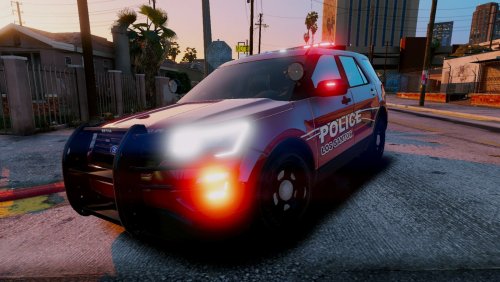 10/10/10 dang good work sir damn
 -
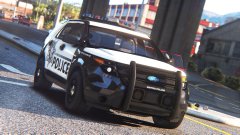 WELL DAMN..10/10 THE BEST I'VE EVER SEEN
 -
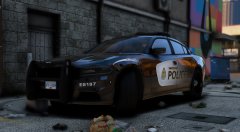 #DETAIL AT IT'S HIGHEST
 -
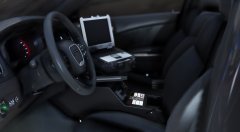 holy moly now this is freaking detail at it's highest. Now i know you are the truth..
 -
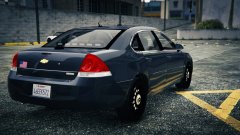 this model will be released nothing i do is private
 -
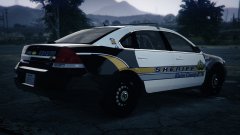
From the album: W.I.P Models
-
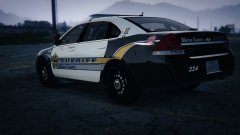
From the album: W.I.P Models
-
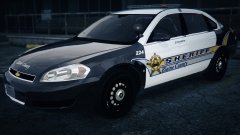
From the album: W.I.P Models
-
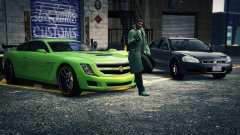
From the album: 2014 Dodge Charger By thehurk
-
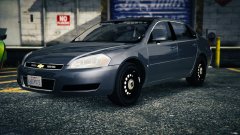
From the album: W.I.P Models
model is by voodoo put together by me Model will the partition cage as a extra just in case you guys want it in. -
From the album: W.I.P Models
model is by voodoo put together by me -
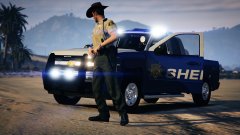
From the album: BCSO SUPER PACK W.I.P
-
-
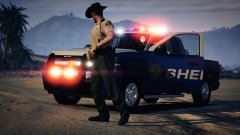
From the album: BCSO SUPER PACK W.I.P
-
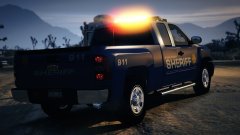
From the album: BCSO SUPER PACK W.I.P
-
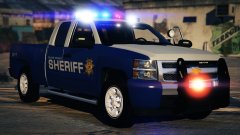
From the album: BCSO SUPER PACK W.I.P
Skin Is by @Bxbugs123 -
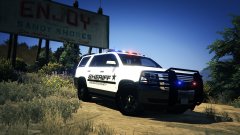 to be honest i just want the community to enjoy the models and have fun. I love making models and i love sharing what i made with the community but i do thank you so so much
 -
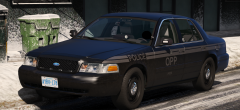 yeah these look hella nice keep up all the awesome work
 -
thanks so much
-
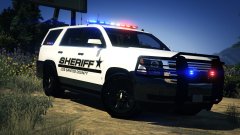 okay thank you so much i'm about to make that change right now thank you
 -
thanks buddy
-
From the album: That's 2 More will be adding to the pack
Los Santos County Sheriff Pack -
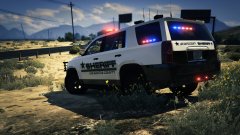
From the album: That's 2 More will be adding to the pack
-
From the album: That's 2 More will be adding to the pack



