J.J Dawkins
-
Joined
-
Last visited
Everything posted by J.J Dawkins
-
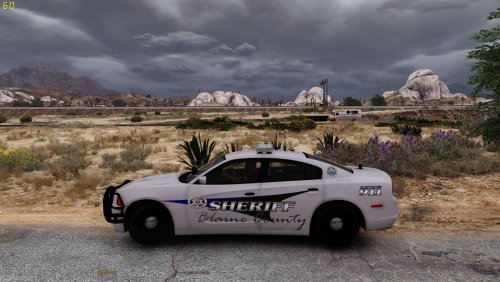 now this is something i will us love the color theme you went with. thank you for this sir will be using this in my next screenshot
 -
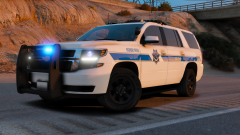 ..SEXY
 -
-
-
-
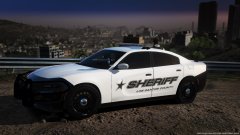
From the album: Sexy
-
From the album: That's 2 More will be adding to the pack
-
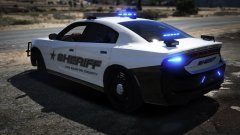
From the album: That's 2 More will be adding to the pack
-
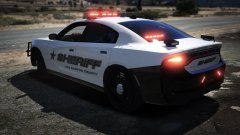
From the album: That's 2 More will be adding to the pack
-
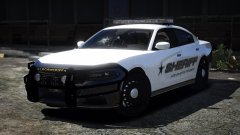
From the album: That's 2 More will be adding to the pack
-
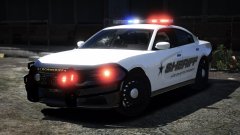
From the album: That's 2 More will be adding to the pack
-
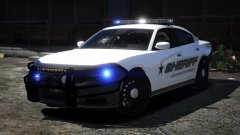
From the album: That's 2 More will be adding to the pack
-
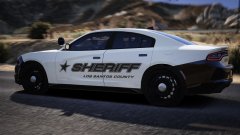
From the album: That's 2 More will be adding to the pack
-
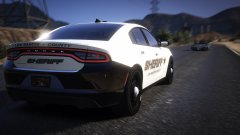
From the album: That's 2 More will be adding to the pack
-
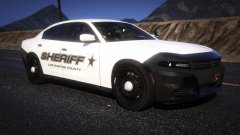
From the album: That's 2 More will be adding to the pack
-
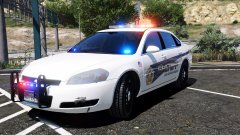
From the album: That's 2 More will be adding to the pack
-
From the album: That's 2 More will be adding to the pack
-
From the album: That's 2 More will be adding to the pack
-
From the album: That's 2 More will be adding to the pack
-
-
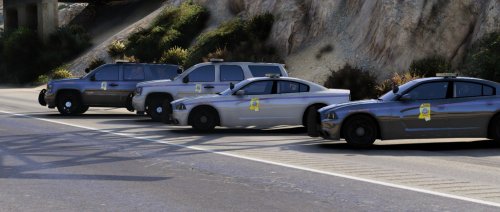 Every time i see your name i just download it cause i know for a fact that it's top Notch again with another beautiful mod by you i wish i can give up more stars cause all your work is amazing Keep up all the awesome work brother
- 7 comments
- 3 reviews
-
-

- 1
-
-
 BRUH!!! WHAT IS THIS..lmao can i at lease get a screenshot are something just a logo is a nogo for me
 -
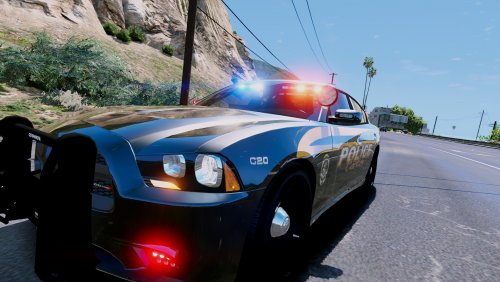 i love the design on this you always be doing damn good work. great job brother I wish i can get a lore friendly skin like this and then we in business r.i.p me not looking cause you already did it thank you so so much you are the freaking best
- 8 comments
- 4 reviews
-
-
- 2
-
-
-
@colgaming like what my Buddy @RobertTM said. all model need to go in the latest patchday so those car you adding overrides the one in-game Installing Models Goes in this Patchday C:\Program Files (x86)\Steam\steamapps\common\Grand Theft Auto V\mods\update\x64\dlcpacks\patchday14ng\dlc.rpf\x64\levels\gta5\vehicles.rpf\