
steinberg4145
Members
-
Joined
-
Last visited
Everything posted by steinberg4145
-
 That's because you've hit the max amount of add on cars in that dlc folder. That'll also be an issue in the latest title update version of GTA. To fix this either edit the gameconfig.xml or take the one from here
- 501 comments
- 104 reviews
-
Although I know most of the officers who use the mics use motorola commander II mics like in the picture placed on the left side of the belt and it runs strait up to the shoulder or (mostly bike cops do this) it's place on the right side of the belt or on the back of the belt and it runs diagonally across the back up to the shoulder. I know it's lasd but same principle It's the only on the left
-
-
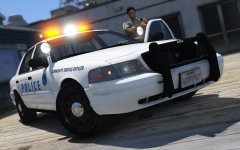
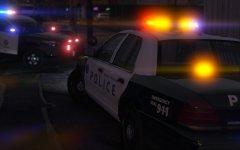 Thank you. Yes SMPD does use amber on the rear deck.
 -
From the album: West Valley Designs junk
I plan on making a pack consisting of a 2011, 2006, and 2003 SMPD CVPI. Let me know what yall think.© West Valley Designs
-
I feel like that's to keep up with Dodge and Chevy counter parts i.e. the Ram 1500 Special Service, The 12th gen Tahoe PPV, and the Van to keep up with the what ever Van Chevy has The Taurus does look nice, and I prefer the 2013-2015 explorers, but tbh if I had to chose from 2015+ Tahoe or the Expedition I'd take the Expedition.
-
-
Oh, Awesome I've just seen people using the SMPV with the wrap around, so I thought it wasn't. I must say though you have done a spectacular job recreating CHP. Thanks
- 501 comments
- 104 reviews
-
@Thehurk These cars are really amazing! I can't wait to get them all in my game, but just a FYI most SMPV FPIU's don't have the wrap around rambar (for some odd reason).
- 501 comments
- 104 reviews
-
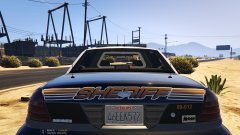 @oxherder1 What's up with the FlexFuel badge?
 -
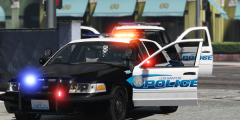 @thegreathah are you just using visualv or do you have something else?
 -
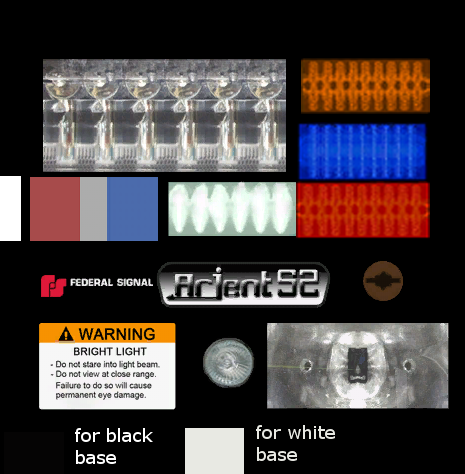
Hey yall I forgot to post this along with the new LAPD FPIU update but here is a bit better texture for the new arjent.
-
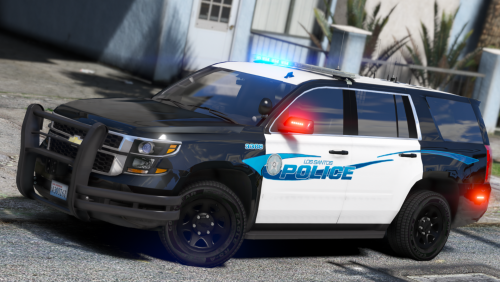 Wow, I really loved seeing these in GTA IV. I can't wait to put them in my game. Great work
- 34 comments
- 9 reviews
-
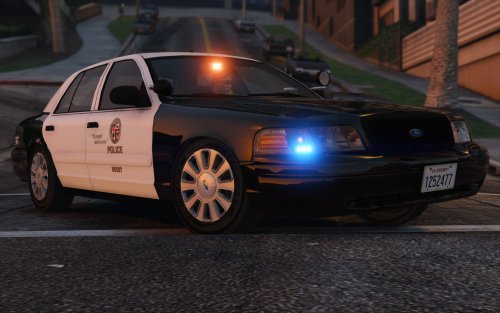 Absolutely amazing! I'm glad I got to see the project all the way through. Congrats
- 26 comments
- 12 reviews
-
-

- 3
-
-
 The cat did it!!!
 -
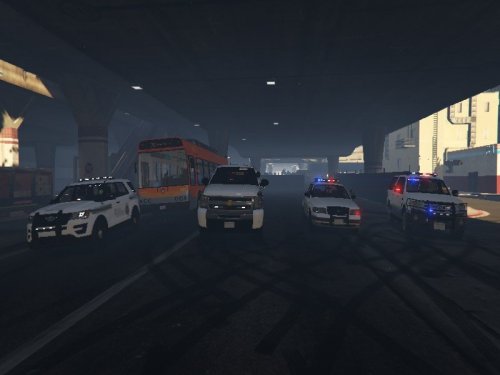 Ok so I'll leave you some feedback about your skins. The quality of the skins are extremely poor, and they're very pixilated and improperly scaled and place which makes It seem like you have simply gone to Google images and coppied and pasted real life pictures onto some car templates. Hopefully this feedback will improve the quality of your work in the future.
- 3 comments
- 1 review
-
-
- 6
-
-
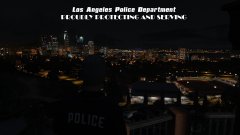
From the album: West Valley Designs misc Screenshots (because the other album is screwed up)
Just a nice screenshot made into a LAPD tribute. -
OmfgDON'T OPEN THE FILES they aren't in a rar or zip just drag them from your download folder to openiv
-
Whut? You have already downloaded the files. DO NOT open them just treat them as car files
-
Huh? Just instal them in the place I stated above and use a trainer to equip them to a car like any other wheel from Ls customs
-
X64i.rpf/models/cdimages/vehicle mods/wheelmods Or something like that
-
These aren't in a .rar file. Just put them into openiv as is
-
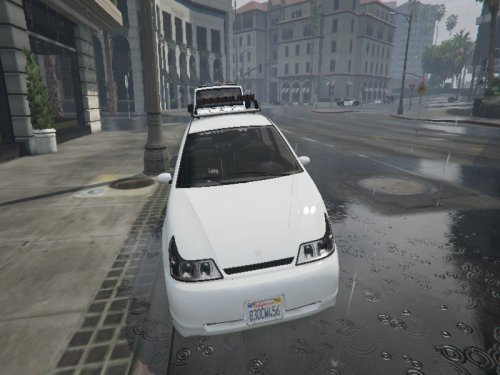 For starters, I will write some comments on the quality of this file. Your scale is very poor quality and on each side of the vehicle(s) the livery is located in different places. It looks as if you possibly copied and pasted city seals and the "parking enforcement" directly on to your skins. The unit numbers on the side are very inaccurate (wrong font, color). On the crown vic you placed one city seal above the trim and one on it. In addition your font sizes vary from door panel to door panel and looks as if you did not take any time or effort to center any of the rear bumper liveries. I hope this will help improve the quality of your file in the future.
 -
 Ah ok cool
 -
@thegreathah what skin is that it looks familiar?