




Kevin499
Members
-
Joined
-
Last visited
Everything posted by Kevin499
-
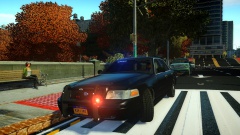
![Unmarked/Slicktop CVPI [RELEASED]](//s3-gallery.int-cdn.lcpdfrusercontent.com/gallery/album_2956/sml_gallery_25138_2956_49112.jpg) <3 Pengi. Only 4 of those in the world ;)
<3 Pengi. Only 4 of those in the world ;) -
Thanks!
-
From the album: Kevin499 Releases
Released ! - Check download! - Might be Pending if not there! https://www.youtube.com/watch?v=qNTGBpGPVXU -
=========================================== *Unmarked/Slicktop CVPI v1.0* =========================================== Model Overview: Name: Unmarked/Slicktop CVPI Verson: 1.0 Light Bar: Whelen Inner Edge Other Lighting: Code 3, Strobes, Tail lights Equipment: Antennas, Console, Computer, Siren Box, and Setina Bodyguard Multiple Liveries: Yes (4x) Optimized For: police, police2, noose, fbi Status: Open Model Credits: - Model is Ford Crown Victoria from Driver SF, converted to GTA IV by F5544, modified by KevinDV and Cj24. - Rims by Bxbugs123, Textures by GreenAid. - Honeycomb Grill made by KevinDV. - Model edits by Kevin499 Lighting Credits: - Whelen Inner Edge Scratch modeled and textured by Master Yoda. - ELS mapped by Master Yoda. - Code 3 XT6 Series Modeled & converted for GTA IV by Bxbugs123. Edited by Kevin499 - Main textures made by Bxbugs123 - Whelen TIR3's by Foward - Strobes, Wig Wags, Tail lights by Kevin499 Other Equipments: - Antennas by Foward. Edited by Kevin499 - Whelen SA314 Series Modeled & converted for GTA IV by Bxbugs123 - Main textures made by Bxbugs123 - Go Rhino Pushbar made & converted by Bxbugs123 - Main textures made by Bxbugs123 - Panasonic Toughbook CF-31 modeled and converted by Ridgerunner Designs - Panasonic Toughbook CF-31 texture by Ridgerunner Designs - Setina BodyGuard 6,7 Partition made by deco. - Console by Foward, Textures by LCCOP Additional Notes: Liveries by Kevin499 Assembled by Kevin499 Files Included: - Extras - ScreenShots - Vehicle Files - CREDITS.txt ============================ INSALLATION INSTRUCTIONS ============================ -OpenIV is recommended for this installation. -Before installing, make sure you BACKUP your "vehicles.img" located "Grand Theft Auto IVGTAIVpcmodelscdimages" - Take your ".wtf" and ".wtd" to replace the car that you want, then drag and drop it into the OpenIV. - Finally go to "File" on the top of OpenIV, and "Rebuild" (Shift + Ctrl + R). ========================================================================================== ***DO NOT REUPLOAD/REDISTRIBUTE THIS ANYWHERE ELSE WITHOUT MY PERMISSION*** ==========================================================================================
- 12 comments
- 9 reviews
-
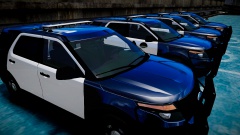 It looks awesome!, you should make the front indicators look something like this:
 -
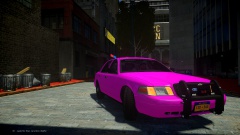 Jesus Christ, never thought EVI. The man himself would comment on one of my pictures.
 -
From the album: Kevin Pictures
Pinked Out Baby! -
![Unmarked/Slicktop CVPI Update [Dat Rear ;)]](//s3-gallery.int-cdn.lcpdfrusercontent.com/gallery/album_2717/sml_gallery_25138_2717_183112.jpg) Thanks Foward! Thanks man, and yeah that poster does match up with the point of this picture haha ;) :O, lol thanks!
Thanks Foward! Thanks man, and yeah that poster does match up with the point of this picture haha ;) :O, lol thanks! -
From the album: Kevin WIP's
Tell me what you guys think of the rear end! -
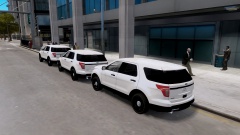 Damn, this motivates me to fix Evan's explorer hard. I'll do it after I finish my CVPI.
 -
 That looks amazing!
 -
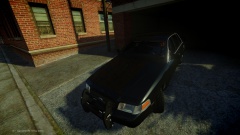 Lol, I will put something on the back, don't worry! Thanks man!
 -
From the album: Kevin WIP's
About 99.85% hates the rear end on the other CVPI, I removed it. I will be adding something else. I don't know if I should release this when it's finished. -
-
 What kind of leds, and yes I know their outdated. I just didn't know what to put back there.
 -
Yeah, I had no clue what to put on the rear.
-
From the album: Kevin Pictures
Special Thanks to Stinkace2 for giving me his ENB. Car in the picture is mine.(Private/Still WIP) -
+extra_1 > extra_1_L0, extra_1_L1 +extra_2 > extra_2_L0, extra_2_L1 +extra_3 > extra_3_L0, extra_3_L1 +extra_4 > extra_4_L0, extra_4_L1 +extra_5 > extra5 > extra5_L0, extra5_L1 +extra_6 > extra6 > extra6_L0, extra5_L1 +extra_7 > extra_7_L0, extra_7_L1 +extra_8 > extra_8_L0, extra_8_L1 +extra_9 > extra9 > extra9_L0, extra9_L1 Yeah, I just create a dummy and rename it.
-
NO, only 5, 6, and 9 needs to look like that.
-
Your extra 9 needs to look like this extra_9 + extra9 + extra9_L0 + extra9_L1 Also, what ENB are you using?
-
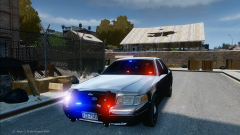 Oh baby my car
 -
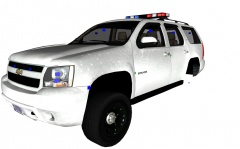 I see that police cars are starting to look like Monster Trucks now.
 -
Code 3 XF2300 and RX2700
-
^ To open it, you just need to press the "f5" button. You can change that in the config file.
-
Hm, I don't really know then. Probably somebody else could help you. It's 3 in the morning. Imma go to sleep.

![Unmarked/Slicktop CVPI [RELEASED]](http://s3-gallery.int-cdn.lcpdfrusercontent.com/gallery/album_2956/sml_gallery_25138_2956_49112.jpg)

![Unmarked/Slicktop CVPI Update [Dat Rear ;)]](http://s3-gallery.int-cdn.lcpdfrusercontent.com/gallery/album_2717/sml_gallery_25138_2717_183112.jpg)
