
steezens
Members
-
Joined
-
Last visited
Everything posted by steezens
-
damn this looks cool
-
I like this, hopefully its possible with what they have now, definitely would be a cool feature! The LSPDFR team will find a way haha
-
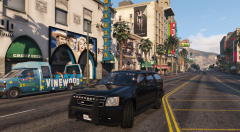 oh man cannot wait for this
 -
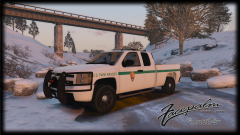 Oh man this looks so good
 -
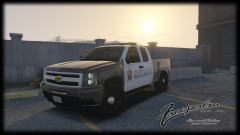 Yessssss
 -
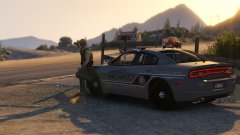
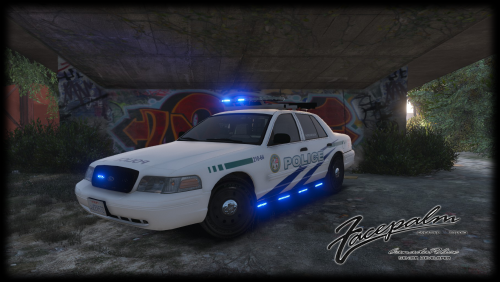
From the album: GTA V LSPDFR
Model by BxBugs123 -
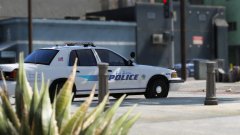
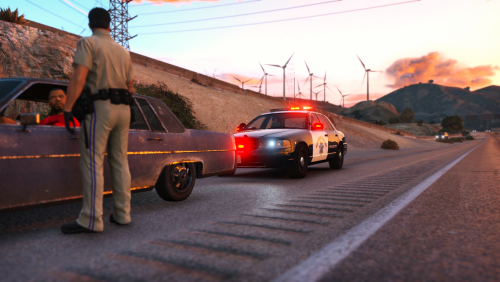
From the album: GTA V LSPDFR
Model made by BlackJesus1 -
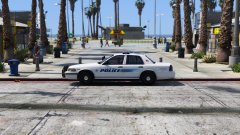
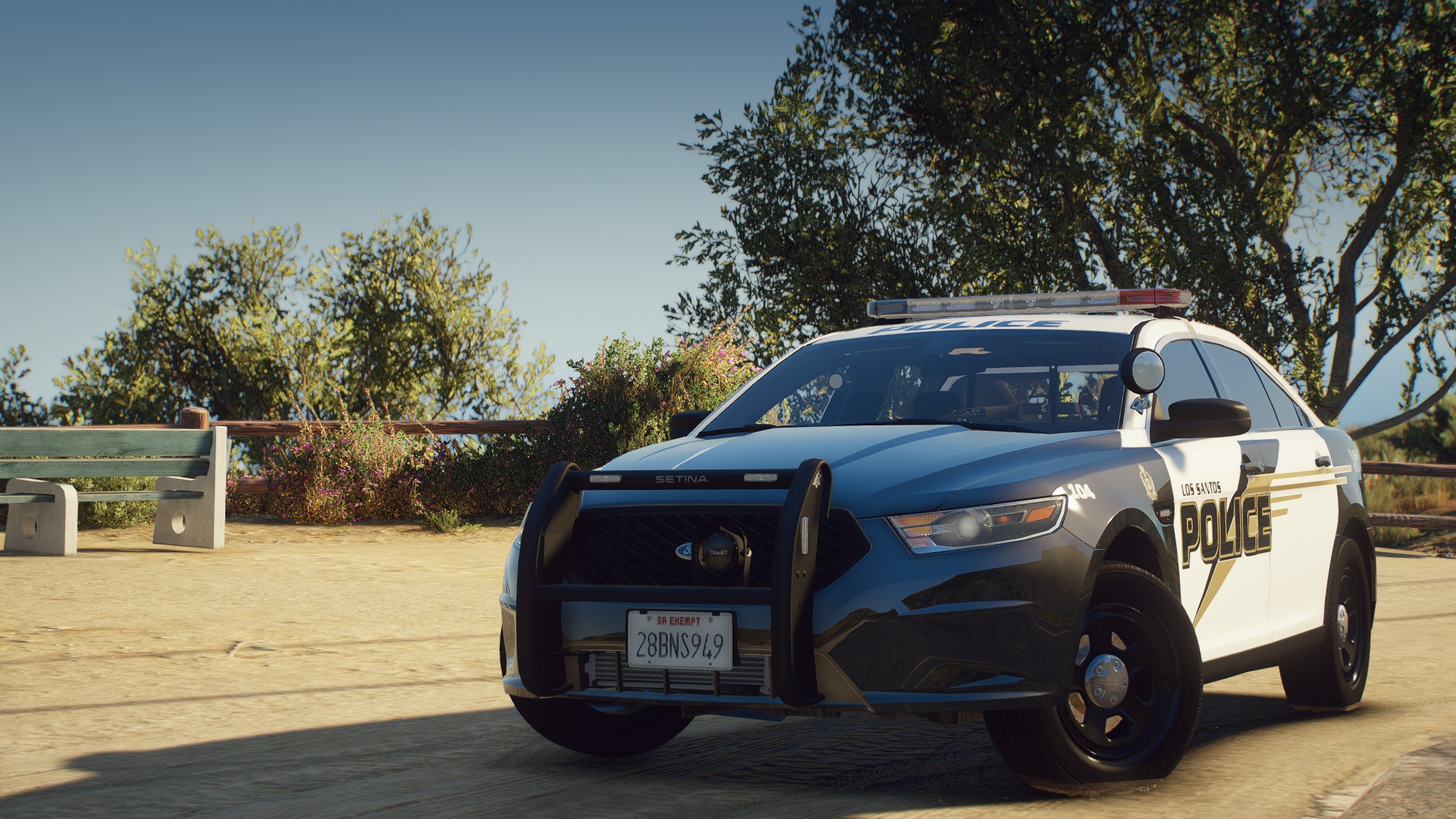
From the album: GTA V LSPDFR
Model made by BlackJesus1 -

From the album: GTA V LSPDFR
Model by: Canadapoliceofficial -
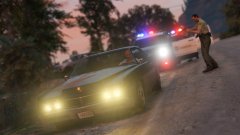
From the album: GTA V LSPDFR
-
-
-
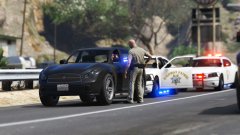
From the album: GTA V LSPDFR
Slicktop charger by Gump Lightbar charger by PimDSLR -
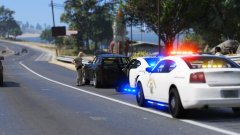
From the album: GTA V LSPDFR
-
worth waiting for
-
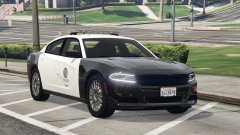 Awesome, big thanks for work you're doing for the community!
 -
Is that Liberty part of the dev pack? Whether it is or not damn it looks good. Nice work!
-
If you check his latest video he is now selling his ripped models to his subscribers that he teased them with for months. Guy is a scumbag
-
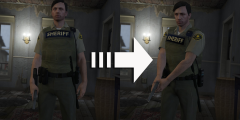 ohhhh boy, this looks good
 -
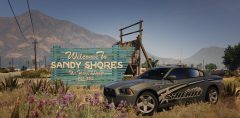 Awesome pic
 -
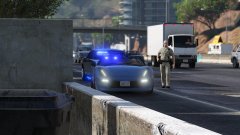
From the album: GTA V LSPDFR
Model made by Gump -
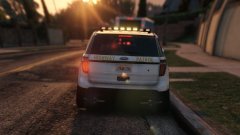 Damn, that looks good
 -
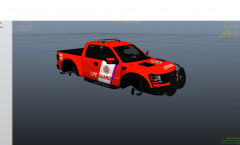
From the album: GTA V W.I.P's
Model made by Martinct, Ford F-150 SVT Raptor Probably going to do some other vehicles with this texture. -
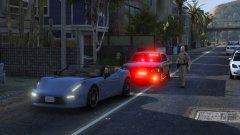
From the album: GTA V LSPDFR
Model made by Gump -
Would love to test it! If you have enough people already though thats fine.