


Creators: Due to background reprocessing of files, approvals and file security checks may be delayed. Thanks for your patience.


A Stranger
Members
-
Joined
-
Last visited
Everything posted by A Stranger
-
Go into the Rage Settings -> Game Settings -> Command Line Switches. Look for "Force Windowed mode." Check it. Then, reinstall DirectX & restart your Computer after. If you use some kind of visual mod, delete it. Also, remove your GPU driver (nVidia or Radeon) and do a clean reinstall. That usually works.
-
First things first; Computer+ and CalloutsV are highly outdated. Remove them. Make sure you have Phone Notifications on and if you are on duty -> M -> Available for calls. Since you have Callout manager, I recommend forcing one and seeing if it throws an error.
-
You are missing outfits.xml. Reinstall LSPD:FR 0.46 manual.
-
You have a mistake in one of your .xml's. "RedItems" to be specific, in the Interaction+ script.
-
Please send your RagePluginHook.log.
-
-
If you use Albo's plugins, like mentioned above, you'll hit performance a lot harder. I found playing without them lately better.
-
GTA V itself is already quite memory hungry. Now add ontop of that all that LSPD:FR adds and needs and there you go. 16Gigs of RAM are more than enough. How many Mhz?
-
Remove Code3 Callouts.
-
With LSPD:FR 0.3 there wasn't much of a need to update the threshold or disable a preload, since the plugins rarely exceeded that limit. But with LSPD:FR 0.4, which changes and profiles the entire ped and car population, it's like you load into a different GTA than if you play without LSPD:FR. Every character gets a new face & action. Ambient events, chases, backup, AI. It's all been overhauled which means that LSPD:FR 0.4 alone requires ta 10k Plugin threshold plus a lot more memory than 0.3 did. If you are having performance issues and texture loss you may have to look at removing some vehicles. You can also increase the memory GTA uses with the heap and limit adjuster. Do you mind me asking what your specs are?
-
That's just a warning, it doesn't crash your plugins/game.
-
First; open commandline.txt and delete everything in it except for -windowed. Then you really need to clean / sort your LSPD:FR plugins. Callouts like CalloutsV haven't been updated since 0.3 and even then it didn't work. I recommend redoing your Plugins/LSPDFR folder.
-
You have to update .NET 4.6.2 to .NET 4.7.2.
-
Whey! We got further. Rename mods to _mods and you should be good.
-
What's the name & path of your GTA V folder?
-
In your GTA V folder. Two below the RagePluginHook.exe, should be a text file. Just drag & drop it into this text box.
-
Seems to be a directX issue. Try renaming mods to _mods.
-
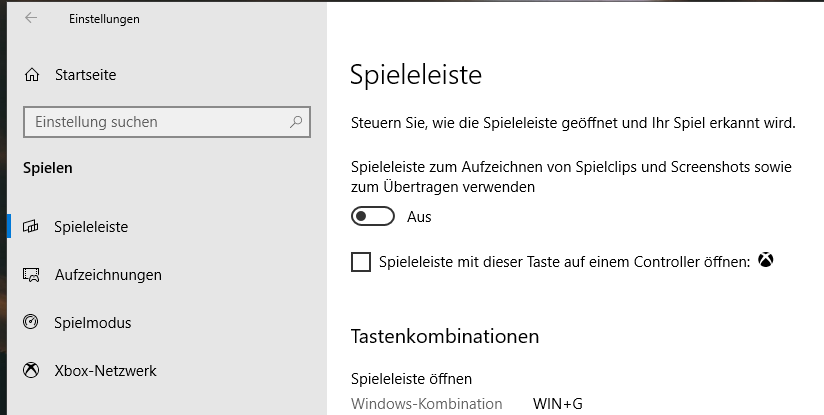
You don't have to uninstall the XBOX app. Windows Settings -> Games -> Gamebar -> Turn it off . It's in German, but it should pinpoint you in the direct location.
-
Try renaming mods to _mods if you have that folder.
-
That means that whatever you last put in your mods folder broke it. Either go back & revert the steps or download additional things, like a gameconfig, heap and limit adjuster if you downloaded cars.
-
Change the plugin timeout threshold from 10000 to 60000 in the RagePluginHook.ini file and disable Main.PreloadAllModel in GTAV/LSPDFR -> LSPDFR.ini. Also, rename the ELS folder to _ELS if you have it!
-
Please send your RagePluginHook.log. You can find it in your GTA V folder, below the RagePluginHook.exe. Not in /Logs.
-
You are in Patchday1ng, when you should be in Patchday22ng. Rename your ELS fodler to _ELS.
-
Make sure this car doesn't require you to change the carvariation / add something to it.
-
Send asiloader.log. And show me pack_default.



