
BeastyBill88
-
Joined
-
Last visited
Everything posted by BeastyBill88
-
From the album: BeastyBill88's Gallery
© Images by BeastyBill88
-
From the album: BeastyBill88's Gallery
Only in Blaine county would you see this kind of shit!© Images by BeastyBill88
-
From the album: BeastyBill88's Gallery
© Images by BeastyBill88
-
From the album: BeastyBill88's Gallery
© Images by BeastyBill88
-
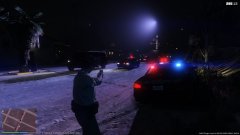
From the album: BeastyBill88's Gallery
Lol didn't pull them in time... The first cruiser got flat tires :P© Images by BeastyBill88
-
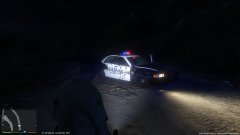
From the album: BeastyBill88's Gallery
Just glad I wasn't in it when I got a barrage of bullets fired at me.© Images by BeastyBill88
-
 Oh I see, do you know the shirts file name? Thanks for the quick response and sorry if I sound like a dick, I'm just tired and it irritated me because I couldn't figure out who to fix it lol.
- 2,346 comments
- 236 reviews
-
Just a question Alex, I only want to use the utility belt with the holster, do I have to install everything for it to work? As whenever I have your belt selected it causes my upper body to freak out.
- 2,346 comments
- 236 reviews
-
 There is indeed and thank you Taleus :D
 -
In the UK, if you have no insurance you get your car towed... But this was part of the hit and run call so the guy was arrested anyway.
-
Ah ok, I wasn't sure if I was allowed to use the report function to have them removed. Thanks I'll do that now.
-
Hello, I need to have some images removed from my gallery as they have duplicated during upload as my internet disconnected. Would a mod or admin be able to remove the images in the links below? I tried deleting them in the image edit menu but that didn't work. Thank you in advance. Bill IMAGES TO BE REMOVED: http://www.lcpdfr.com/gallery/image/55187-patrolling-below-the-city-skyline/ http://www.lcpdfr.com/gallery/image/55189-lspd-obey-survive http://www.lcpdfr.com/gallery/image/55192-it-was-just-a-little-nudge/ http://www.lcpdfr.com/gallery/image/55195-dispatch-roll-the-coroners/ http://www.lcpdfr.com/gallery/image/55196-too-close-trevor/
-
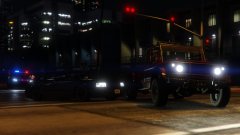
From the album: BeastyBill88's Gallery
© Images by BeastyBill88
-
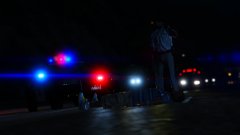
-
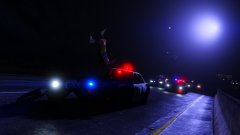
From the album: BeastyBill88's Gallery
© Images by BeastyBill88
-
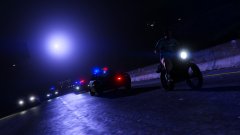
-
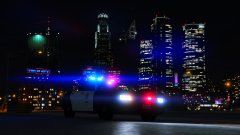
From the album: BeastyBill88's Gallery
© Images by BeastyBill88
-
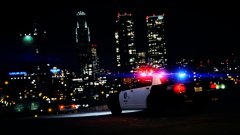
From the album: BeastyBill88's Gallery
© Images by BeastyBill88
-
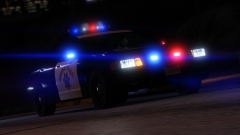
From the album: BeastyBill88's Gallery
Fitted with the lovely Vector lightbar ;)© Images by BeastyBill88
-
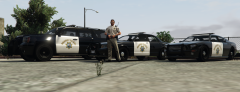
From the album: BeastyBill88's Gallery
A gun on my hip and the right to arrest...© Images by BeastyBill88
-
-
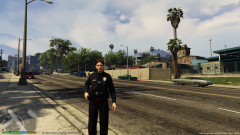 Yeah the picture is abit dark. I got shot and ended up getting a bloody stain there of all places. Hahaha yeah she does remind me of her too lol
 -
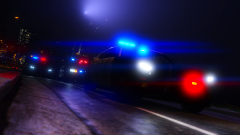 It was either this one by bxbugs123 http://www.lcpdfr.com/files/file/9357-radiance-v/ or this one by gravelroadcop http://www.lcpdfr.com/files/file/7715-improved-spotlight-and-led-lighting-version-7-released/
 -
From the album: BeastyBill88's Gallery
© Images by BeastyBill88
-
From the album: BeastyBill88's Gallery
© Images by BeastyBill88