
BeastyBill88
-
Joined
-
Last visited
Everything posted by BeastyBill88
-
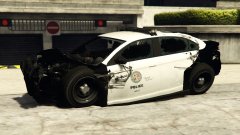
From the album: BeastyBill88's Gallery
Built Vapid tough... Or something like that© Images by BeastyBill88
-
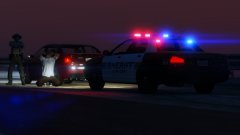
From the album: BeastyBill88's Gallery
I was only gonna give him a ticket for using his mobile while driving... Turns out he had a felony warrant.© Images by BeastyBill88
-
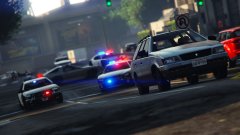
From the album: BeastyBill88's Gallery
© Images by BeastyBill88
-
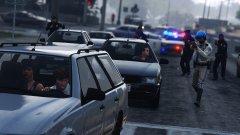
From the album: BeastyBill88's Gallery
© Images by BeastyBill88
-
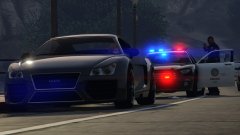
From the album: BeastyBill88's Gallery
© Images by BeastyBill88
-
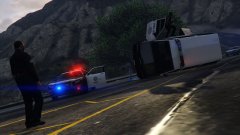
-
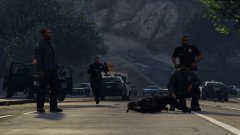
From the album: BeastyBill88's Gallery
© Images by BeastyBill88
-
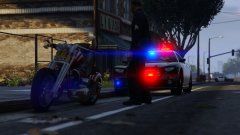
From the album: BeastyBill88's Gallery
© Images by BeastyBill88
-
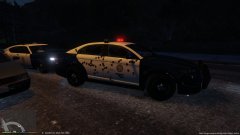
-
Oh wow :D wasn't expecting to make the cut to be honest, thanks!
-
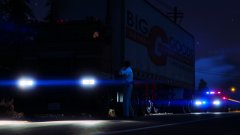
From the album: BeastyBill88's Gallery
© Images by BeastyBill88
-
From the album: BeastyBill88's Gallery
© Images by BeastyBill88
-
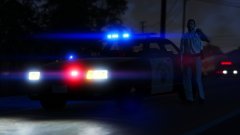
From the album: BeastyBill88's Gallery
Show me out with a vehicle on Great Ocean Highway© Images by BeastyBill88
-
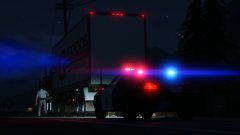
From the album: BeastyBill88's Gallery
© Images by BeastyBill88
-
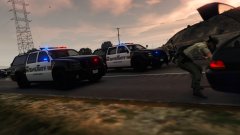
From the album: BeastyBill88's Gallery
© Images by BeastyBill88
-
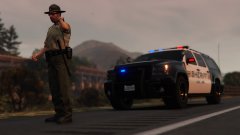
From the album: BeastyBill88's Gallery
© Images by BeastyBill88
-
-
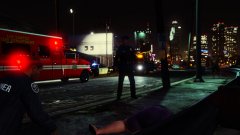
 Been using it a bit more, only just realized the car kept moving forward and caused it to bug out when i pressed Q. Works great now that I'm using it properly lol. Thanks Albo, love the mod so much nicer to have traffic stops on the side of the road and now blocking a whole lane of traffic. Just wondering what do you plan on adding in later versions of the mod?
- 3,646 comments
- 306 reviews
-
I think I've found a bug with the mimic me for the traffic stops. When I blip a vehicle to pullover it stops as normal, then I use the mimic me to get them were I want them to stop. Everything seems fine, but when I get out of the car to speak to the driver I can't interact with them, so I have to cancel the traffic stop and do it all again before it works properly. Or am I doing something in the wrong order?
- 3,646 comments
- 306 reviews
-
From the album: BeastyBill88's Gallery
© Images by BeastyBill88
-
From the album: BeastyBill88's Gallery
© Images by BeastyBill88
-
From the album: BeastyBill88's Gallery
© Images by BeastyBill88
-
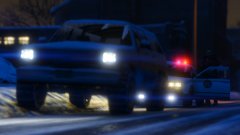
From the album: BeastyBill88's Gallery
© Images by BeastyBill88
-
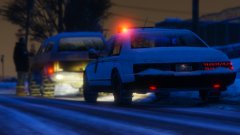
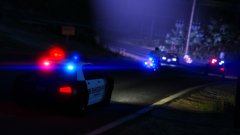 ELS? Nooo its the default light patterns, I'm just using Bxbugs123's visual settings.
 -
 I found a work around :) I used the gun holster with the default uniform for my MP female character, still figuring out how to get the cop holster plugin to work with it. Thanks though :)
- 2,346 comments
- 236 reviews