
Skin Works
Members
-
Joined
-
Last visited
Everything posted by Skin Works
-
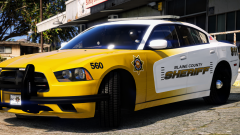
From the album: Skin Works Designs
-
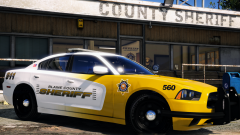
From the album: Skin Works Designs
I like it, just feel like its missing something... -
-
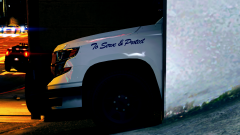
From the album: Skin Works Designs
Although not the exact font, as I have not been able to find the exact font. Like if you want more! -
-
-
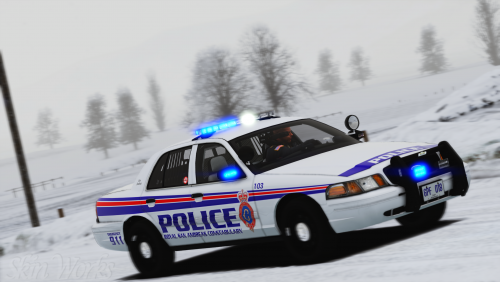 Its hard to say. As I said I was messing with settings and such, but I think it was MVGA and clean+natural ENB.
- 16 comments
- 5 reviews
-
-

- 1
-
-
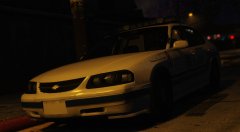 I can't explain how excited for this I am. Thanks for all the hard work!
 -
Been messing with settings to get the best performance and quality and a look I like.
- 16 comments
- 5 reviews
-
-
- 1
-
-
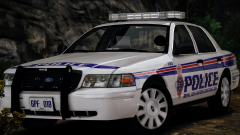
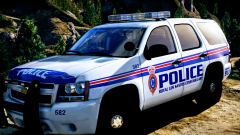
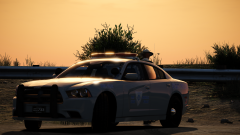
Royal San Andreas Constabulary Hey everyone. Got some more goodies for all of you. This pack is based off the Royal Newfoundland Constabulary. As always this pack includes 10 skins for each vehicle with different unit numbers and plates. This is as always the simple install of finding the .ytd folder of the vehicle then importing all the skins then save. Let me know of any issues or suggestions. Please respect the amount of time taken and do not re-upload or rip off. Please, feel free to make a donation if you like, any amount is more than appreciated! Thanks Everyone! Vehicles used but not limited to:
- 16 comments
- 5 reviews
-
-
- 15
-
-
-
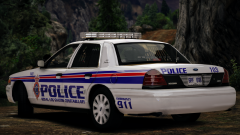
From the album: Skin Works Designs
-
From the album: Skin Works Designs
-
-
From the album: Skin Works Designs
-
From the album: Skin Works Designs
-
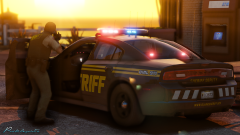 God damn man. My rig struggles to do this and I thought I had a good thing here. Fantastic as always man!
 -
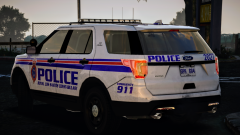
From the album: Skin Works Designs
-
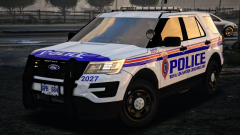
From the album: Skin Works Designs
-
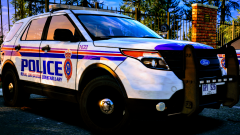
From the album: Skin Works Designs
-
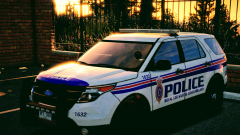
From the album: Skin Works Designs
-
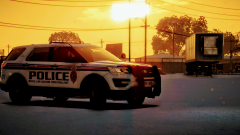
From the album: Skin Works Designs
-
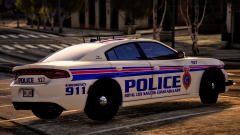
From the album: Skin Works Designs
-
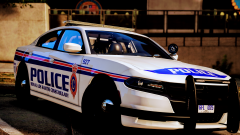
From the album: Skin Works Designs
-
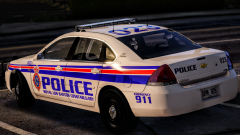
From the album: Skin Works Designs