
Skin Works
-
Joined
-
Last visited
Everything posted by Skin Works
-
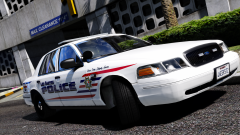
From the album: Skin Works Designs
-

From the album: Skin Works Designs
-
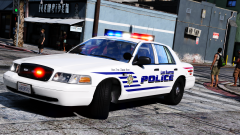
From the album: Skin Works Designs
... Let me know what you guys think. Also, if you have any cool police paint schemes you know of please share. (For inspiration) -

From the album: Skin Works Designs
-
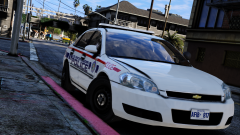
From the album: Skin Works Designs
-
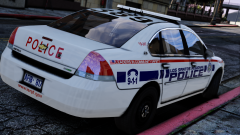
From the album: Skin Works Designs
-
 Damn. Hopefully someone will add in a Ford van as well. That would be cool.
 -
YES! Finally. All we need now is a decent transport van.
-
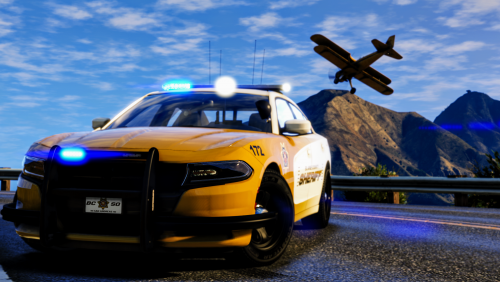 Mustard Well, love them or hate them or perhaps they are growing on you. They are here and they are a bit strange but hey, something different. This is something I just tossed together to be my own skin instead of something based off the real world. I want to do more things like this so be prepared for some weird things in the future. This is as always the simple install of finding the .ytd folder of the vehicle then importing all the skins then save. Notice any issues or suggestions please share in the comments section. Please respect the amount of time taken and do not re-upload or rip off. Please, feel free to make a donation if you like, any amount is more than appreciated! Thanks Everyone Vehicles used in pictures:
- 5 comments
- 11 reviews
-
-

- 14
-
-
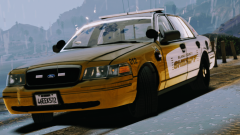 Thats how they get you.
 -
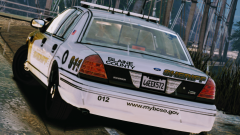
From the album: Skin Works Designs
-
From the album: Skin Works Designs
-
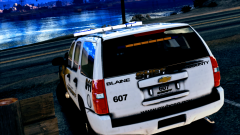
From the album: Skin Works Designs
-
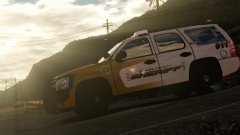
From the album: Skin Works Designs
-
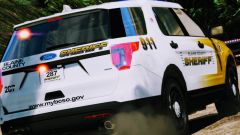
From the album: Skin Works Designs
-
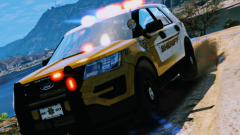
From the album: Skin Works Designs
-
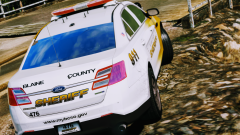
From the album: Skin Works Designs
-
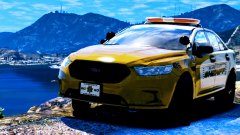
From the album: Skin Works Designs
-
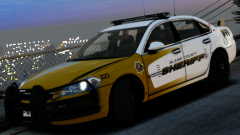 Goetz does... Doesn't it?
 -
No. Not that they aren't fine and all, I just can't stand argent light bars. I'm over them. I'm desperate for a good caprice with a different light bar. Same with the impalas.
-
Agreed. Wish there were more impalas to choose from.
-
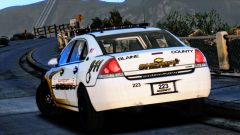
From the album: Skin Works Designs
-
From the album: Skin Works Designs
-
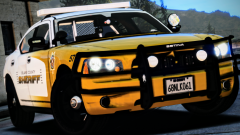
From the album: Skin Works Designs
-
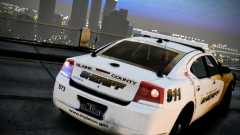
From the album: Skin Works Designs