
Skin Works
Members
-
Joined
-
Last visited
Everything posted by Skin Works
-
 Damn son! I gotta keep up.
 -
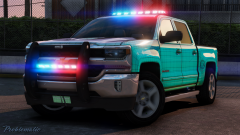 This along with all the rest from this pack look awesome! Can not wait for them as more trucks are always welcome IMO. (ready to skin them) And as usual, great screenshots, blah blah blah. I'm still trying to reach your heights.
 -
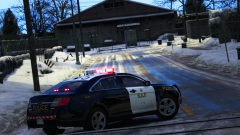
From the album: Skin Works Designs
S.A.P. close road after a train stuck a car. -
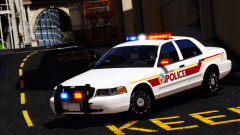 Yup
Yup -
From the album: Skin Works Designs
I wanted something simple and a bit old school feeling that wasn't black and white. Red, or blue?© Skin Works
-
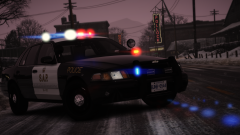 And anyone who doesn't like the forza model as usual, I will be adding skins for the other CVPI model. (don't remember whos that is or where its from)
 -
From the album: Skin Works Designs
© Skin Works
-
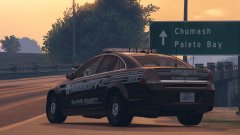 YES! I'm dying for a Caprice without a California style light setup. Can't wait.
 -
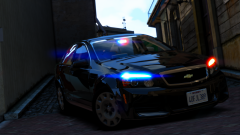
From the album: Skin Works Designs
-
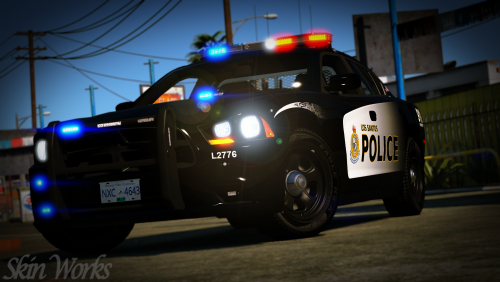 https://www.modding-forum.com/forums/thread/112-visual-settings-improved-emergency-light-brightness/
- 24 comments
- 4 reviews
-
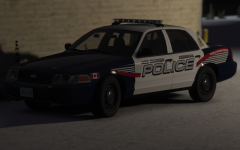 Ugh! Beat me to it. Looks great man.
 -
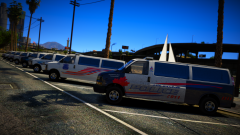
From the album: Skin Works Designs
© Skin Works
-
-
-
-
-
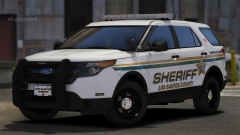 Yes! Finally some more quarter panel lighting... or bumper lighting. Either way, love it!
 -
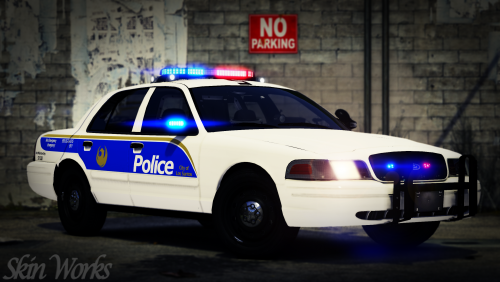 I could probably toss some skins for those together. I have a skin that needs to be done by the end of the month, but these shouldn't take up too much time.
- 12 comments
- 10 reviews
-
-

- 1
-
-
-
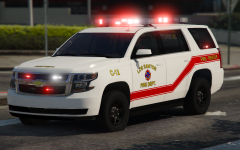 Man, if only we could get a suburban chief vehicle like this. Not that this isn't going into my game immediately upon release.
 -
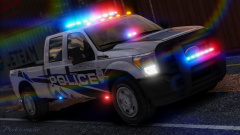 Ready for this beast.
 -
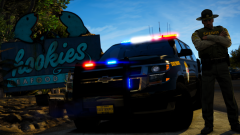 I believe it is Olive Green.
 -
-
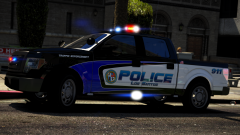 Which?
 -