
Skin Works
Members
-
Joined
-
Last visited
Everything posted by Skin Works
-

From the album: Skin Works Designs
© Skin Works
-
From the album: Skin Works Designs
-
From the album: Skin Works Designs
Its been a while and is going to pretty much be my only real world department. -

From the album: Skin Works Designs
Recommended use with the original model of this bike as a couple weird things happen with this skin on this model. -
-

From the album: Skin Works Designs
© Skin Works
-
-
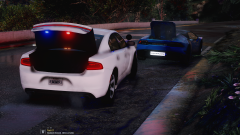 Awesome little detail seen often-ish in real life but neglected in game.
 -
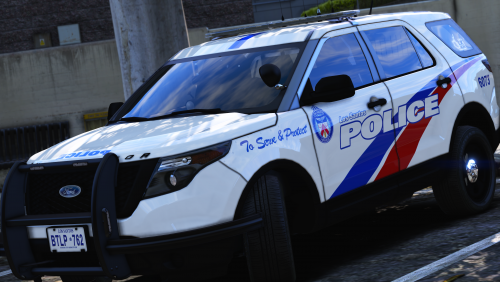
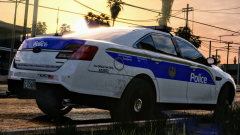 Police is in the wrong font.
 -
From the album: Skin Works Designs
-
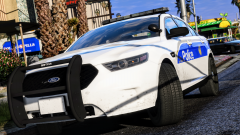
From the album: Skin Works Designs
-
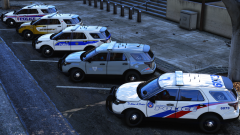
From the album: Skin Works Designs
© Skin Works
-

From the album: Skin Works Designs
-
-
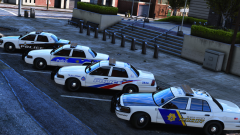
From the album: Skin Works Designs
© Skin Works
-
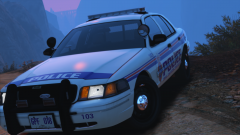 Could be downtown Vancouver for all I know.
 -
 Damn! I didn't think my skin could look that good.
 -
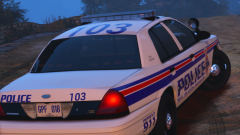 I meant that the website limits how much you can attach all together. Will Try attaching things for everyones happiness
 -
Yeah but there is a limit to how many attachments you can have.
-
Technically I didn't come up with it... Whoever made it for the real deal did. I just changed some words really, to be lore friendly. But thanks
-
From the album: Skin Works Designs
-
From the album: Skin Works Designs
-
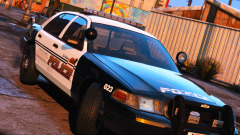
From the album: Skin Works Designs
-
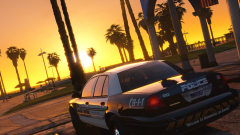
From the album: Skin Works Designs
-
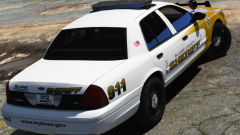
From the album: Skin Works Designs