

Skin Works
Members
-
Joined
-
Last visited
Everything posted by Skin Works
-
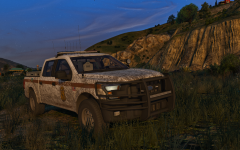 Damn. Seeing how long I could go on for. Looks great. Really itching to get this in game.
 -
I say just gimme.
-
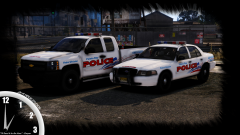 Anyone now the font for police?
 -
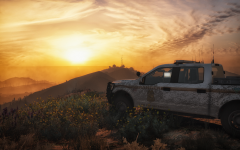 Still waiting! Looks good though.
 -
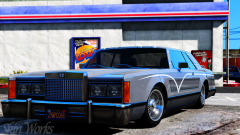 Thats your department.
 -
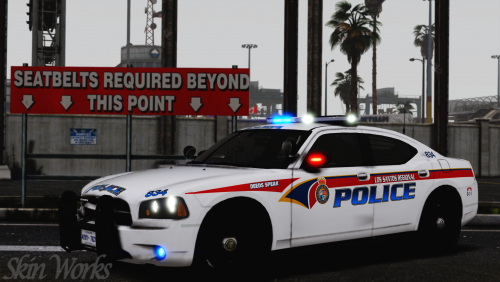 Could do that. Am hoping more people are going to use that model so that it is more worth it to make a bunch of skins.
- 14 comments
- 9 reviews
-
From the album: The Challenge
© Skin Works
-
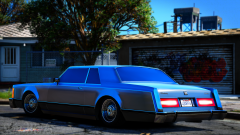
From the album: The Challenge
© Skin Works
-
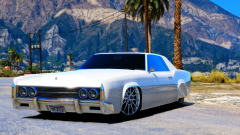
From the album: The Challenge
© Skin Works
-
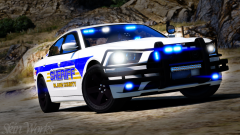
From the album: Skin Works Designs
© Skin Works
-
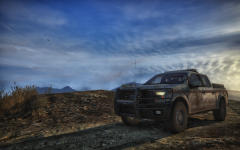 Any time now.
 -
 Super ready for it.
 -
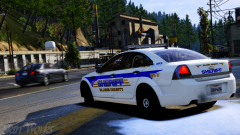 I try to never to show something if its not coming out.
 -
WANT!
-

From the album: Skin Works Designs
© Skin Works
-

From the album: Skin Works Designs
© Skin Works
-
 Love it.
 -
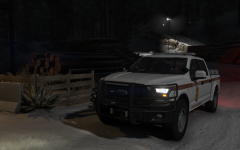 Getting ready for this and all thehurks other stuff coming out. Looks great.
 -
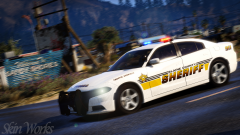
From the album: Skin Works Designs
© Skin Works
-
 Hell yes!
 -
From the album: Skin Works Designs
© Skin Works
-
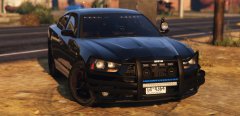 Not only amazing but also, thank you for being one of the few people who incorporate mid-ship lighting.
 -
 Dieing here man!
 -
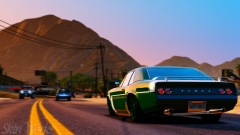
From the album: The Challenge
© Skin Works
-
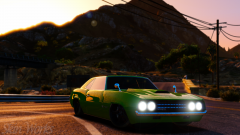
From the album: The Challenge
© Skin Works