
Kal74
Members
-
Joined
-
Last visited
Everything posted by Kal74
-
Something I've been curious about for awhile but just now remembered to post it. How difficult would it be to have EMS show up, open the back of the Ambulance, remove a stretcher, roll it over the patient and lift/place the injured patient onto the stretcher, wheel em back to the ambulance, lift/load the patient/stretcher into the ambulance, go to hospital, unload the patient. ??? Thanks in advance for reading and any response
-
-
This is great news! I can't wait to see the many screen previews and feature updates along the way. That was one of my favorite things about the development phases of 0.3. We weren't kept in the dark and I for one appreciated anything and everything you guys shared with us along the way. Thanks again for all that you do. Looking forward to 0.4
-
-
 Update your RAGENativeUI.dll (you are on 1.5.1.0) You should be on 1.6.3.0 https://github.com/alexguirre/RAGENativeUI/releases Also, make sure you're using the most current version of Albo1125.Common.dll (6.6.0.0) If you have Albos plugins updated, those files were included in the Zip from the download. You should of replaced the outdated ones unless you never moved them into your GTAV Folder or you haven't updated any plugins from Albo1125
- 3,646 comments
- 306 reviews
-
-

- 1
-
-
Also, if you have any further issues with LSPDFR+ post over on the LSPDFR+ page as this page is for Traffic Policer. and no problem
- 3,646 comments
- 306 reviews
-
Did you ever change your sprint key? Is capslock on? if it is, turn it off
- 3,646 comments
- 306 reviews
-
uh yes! by default those 3 features you are wanting to use have to be pressed with the modifier key unless you remove the modifier key. but its recommended to use a modifier key. I bolded the modifier and keybind. //Do NOT set this to shift, else you will cancel the traffic stop. I recommend having a modifier key. TrafficStopFollowModifierKey=LControlKey TrafficStopFollowKey=T //Do NOT set this to shift, else you will cancel the traffic stop. I recommend having a modifier key. TrafficStopMimicModifierKey=LControlKey TrafficStopMimicKey=Q //Custom Pullover Location moving keys are the same as the speed checker moving keys (Default: Numpadkeys). See above. CustomPulloverLocationKey=W //Do NOT set this to shift, else you will cancel the traffic stop. I recommend having a modifier key. CustomPulloverLocationModifierKey=LControlKey LControlKey + T LControlKey + Q LControlKey + W You can disable the modifier key in the .ini if you want. Its not recommended but its up to you. //To disable the modifier key: ModifierKey=None <-----------------------------
- 3,646 comments
- 306 reviews
-
I know what the .ini says, I was just asking you which keys are you pressing. When you are trying to mimic, follow me, custom pullover, you're pressing the modifier key + the keybind ? or just Q, W or T
- 3,646 comments
- 306 reviews
-
Where did you place Albo1125.Common.dll and RAGENativeUI.dll? Also, what keys are you pressing to use follow me,mimic me,custom pullover?
- 3,646 comments
- 306 reviews
-
What Folder did you install the files into? Can you screenshot it and post it. Did you change any keybinds in the .ini? What keys are you pressing?
- 3,646 comments
- 306 reviews
-
-
- 1
-
-
Are you sure you watched the video or are you just saying you watched it? I watched it and guess what? he made a statement about the radar gun model around the 10:40 mark. So I didn't expect that radar model to be included. The only people who expected it to be included are the ones who didn't bother listening. Also, where are you getting it took 110 pages to come up from? The 111 pages of comments are also from previous versions of the plugin, not just the most recent update. Do you have any clue how many versions of this plugin have been released? Your attitude is pretty sad.
- 3,646 comments
- 306 reviews
-
-
- 1
-
-
-
-
-
-
That is because its not just Q but LControlKey + Q by default in the .ini You might want to go take a look at the Traffic Policer.ini file to see what the default keybinds are.
- 3,646 comments
- 306 reviews
-
Did you happen to have an older version of EUP installed before? If so, did you follow the steps to remove it before installing the newer version of EUP? Can you also, post your RagePluginHook log file too.
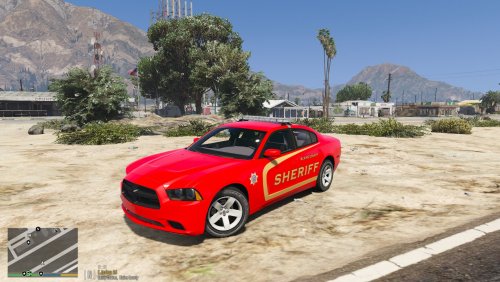 Awesome skin. Motivated me to play more LSPDFR. Only people from Craven county NC would understand this skin. What I really love most is the uniqueness. How many red police cars do you see out on the road? They look even nicer when you see them live. 5/5 hope you do more. Maybe Onslow or Pitt county would be cool.
- 6 comments
- 3 reviews
-
-
- 1
-
Funny I donated to Albo1125 because I appreciated all his free time he put into making free plugins for all of us to enjoy. I didn't donate with expectations he owes me something.- 3,646 comments
- 306 reviews
-
-
- 3
-
If you scroll up and look just above the comments section under the picture- 3,646 comments
- 306 reviews
 If you click the link it should take you to the proper page for the most up to date version. I just tested it myself. https://www.gta5-mods.com/misc/gta-5-gameconfig-300-cars (Gameconfig (1.0.1290.2)) <------------------------- most current version If you look in his ReadMe in the PDF on the 2nd page it says (I recommend 1x traffic, GTA base)
- 266 comments
- 36 reviews
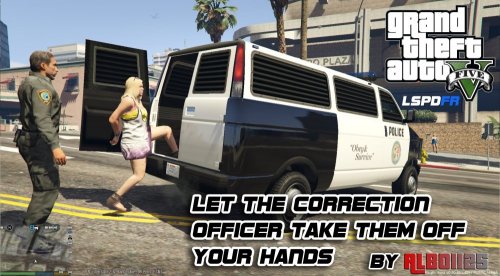 If it isn't available for download here, then you will would need the authors permission for that.
- 1,915 comments
- 242 reviews
Go to page 46 on here and look at the first post you see posted by @Rollins. There will be a link to a support Discord for EUP.