TheSteel
Members
-
Joined
-
Last visited
Everything posted by TheSteel
-
.thumb.png.dfdc0ef482b9fbaf6e047efbeb702b6d.png) yes vintage police with a keyfob on the belt....
yes vintage police with a keyfob on the belt.... -
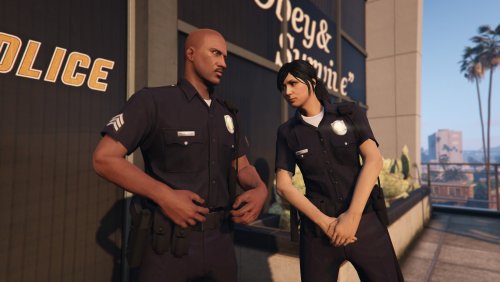
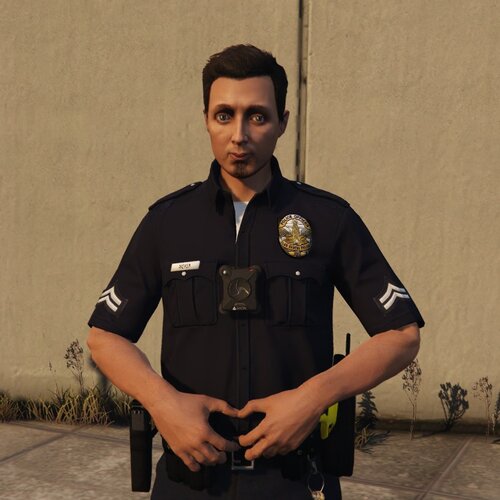 EUP LSPD Badges are already based of LAPD? You didnt really change anything.,......
- 6 comments
- 1 review
-
-
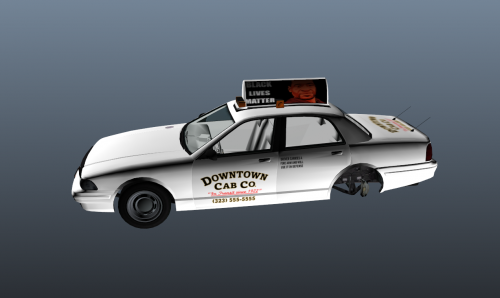 all lives matter no race is above anyone else keep this garbage out of gaming
 -
i made these lore verison itysSame heresame Same here, this update is pretty bad. i will most likley be going back to 0.3, also the backup uniforms have no badges or anything on them.My guess it will come out on the 24th because it has a 4 in it and it is LSPDFR "0.4" idk thoYepIt only works with the old patch, you have to downgrade GTA 4 and then download LCPDFR.buddy its's coming out tomorrow
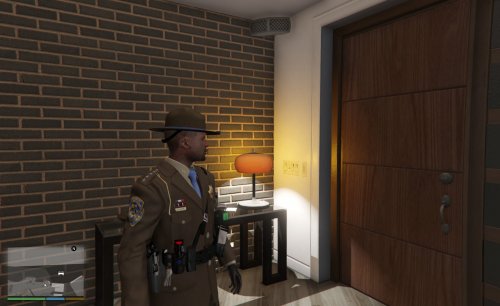 These look so good, glad to a more formal state trooper. Great work, PLEASE MAKE MORE PEDS!!!!!
- 34 comments
- 4 reviews
-
-

- 2
-
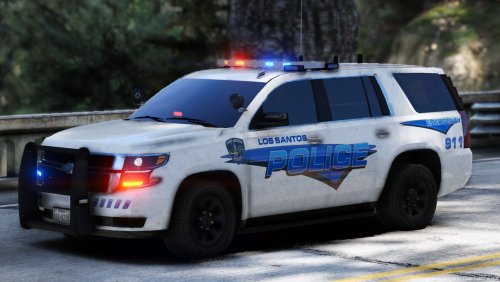 Its not lore friendly when the badge says "port Arthur" last time i check los santos police skins DONT have a "port Arthur" police badge on it...
- 10 comments
- 6 reviews
 Yes, It was, thanks for the feedback I will look into editing it.
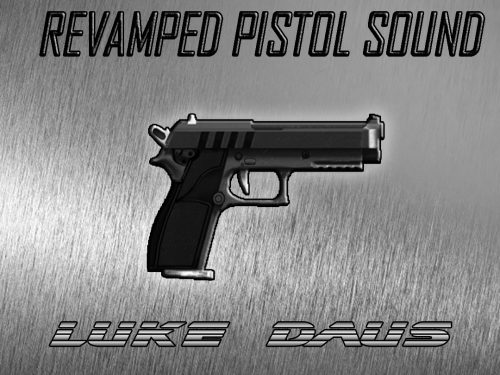
Revamped the combat pistol sound by replacing with actual recorded gun audio. Check Out My Video below for a clip of the sound in action. Also check out my channel for LSPDFR and other stuff!
Yes, It was, thanks for the feedback I will look into editing it.
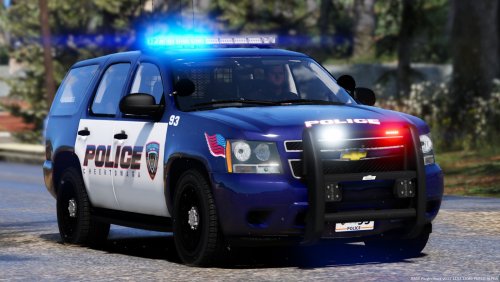
Revamped the combat pistol sound by replacing with actual recorded gun audio. Check Out My Video below for a clip of the sound in action. Also check out my channel for LSPDFR and other stuff! Yea I understand, I was just letting you know so you can use em for other cars!
- 6 comments
- 1 review
-
-
- 1
-

.thumb.png.dfdc0ef482b9fbaf6e047efbeb702b6d.png)