


Singleton
Members
-
Joined
-
Last visited
Everything posted by Singleton
-
 Hey so quick question since I'm replacing all of the RDE vehicles with custom ones....I see certain RDE specific vehicels within vehicles.meta file contained in the rde dlcpack such as POLICE5...but as far as the regular vehicles such as Police2 and Police3, what vehicles.meta file location should I edit to make those changes?
- 1,523 comments
- 85 reviews
-
-
-
-
-
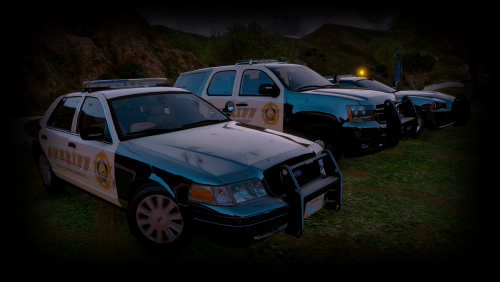
.thumb.png.04a1687a445e54a18a959b7926b87d7b.png) @OfficerFive0 did notice one bug (not sure if it's intended or not though). When activating the secondary lights on the tahoe for the traffic advisor, there are two red/blue lights and pushbar lights that are still flashing in the front. Not sure if that was intended
@OfficerFive0 did notice one bug (not sure if it's intended or not though). When activating the secondary lights on the tahoe for the traffic advisor, there are two red/blue lights and pushbar lights that are still flashing in the front. Not sure if that was intended- 217 comments
- 38 reviews
-
Try using the Tahoe in Patchday3ng. I had an interesting ordeal before where everything was right like you had, but for some reasons the top lights only worked in patchday3ng. If that doesn't work, I'm pretty much stumped! This video was the one that I found which fixed it: https://www.youtube.com/watch?v=q2Cd5wodi6s&t=600s Also sorry for double post, try to use the meta file that he provided in the descrip of his video.
- 217 comments
- 38 reviews
-
you didn't put the correct line for diffusetint in vehicles.meta in update.rpf\common\data\levels\gta5 under sheriff2 find the diffuseTint line and replace it with this <diffuseTint value="0x00FFFFFF" /> You're welcome
- 217 comments
- 38 reviews
-
-
Actually no, AFAIK ELS coronas are controlled through the VCF file, so if you change the emissive textures, you should be good. I actually changed the ELS VCF to all blue the other day on a regular CVPI and I had red/white lights but all blue coronas.
- 217 comments
- 38 reviews
-
Got it, thanks for the quick reply. Is there any chance of a blue only texture being uploaded by chance? Been looking for a blue only Sheriff ELS pack but doesn't seem to be there except for BxBugs CVPI...
- 217 comments
- 38 reviews
-
-
-
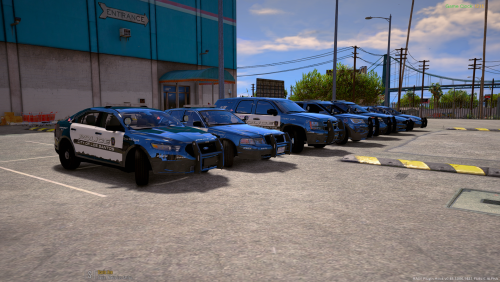 Any chance of getting this with a FPI in Police 1 rather than an Impala? P.S. awesome work!
- 779 comments
- 187 reviews
-
-

- 2
-
-
-
-
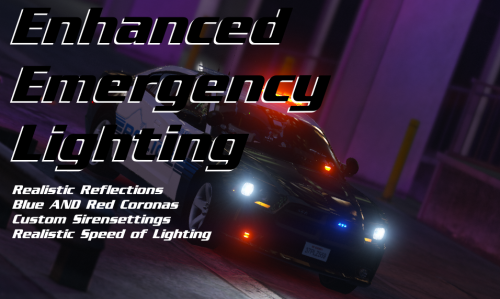 @thegreathah just wanted to say thank you for everything you're doing here man. You're super responsive (WAY more than anybody has a right to ask you to be) and I know I don't speak for all of us, but I think everybody here is in debt to you.
- 150 comments
- 33 reviews
-
-
- 1
-
-
Hey @ thegreathah did you get a chance to see if there was a way to make a setting for the lights? specifically for people like myself who have Sheriff units with all blue & LSPD with Red + Blue by chance?
- 150 comments
- 33 reviews
-
My Police units use Red + Blue lights while my Sheriff units use all blue...will this work or will I have to make them all one or the other?
- 150 comments
- 33 reviews
-
Good insight. But what about in the case of Patchday11. For example, I can replace vehicles from patchday11, but there is no vehicles.meta file in patchday11 so where would I put the vehicles.meta file? For example, I know the default vehicle.meta file is in the common/data folder - for me I'm trying to replace the stanier or whatever R*s CVPI knock off is with a FPI and make it handle like Police3. For some reason, when I load the game it remains handling like Police despite putting the addon in the latest patchday (patchday10 at the time) and changing the applicable data in the vehicles.meta file. This also happened when changing the SheriffSUV to a Charger...for some reason when I changed Sheriff2 to drive like Police2, it wouldn't work....but when I changed FBI to drive like Police2, my charger drove like a charger rather than an suv....any insights into some of these inconsistencies?
.thumb.png.04a1687a445e54a18a959b7926b87d7b.png)
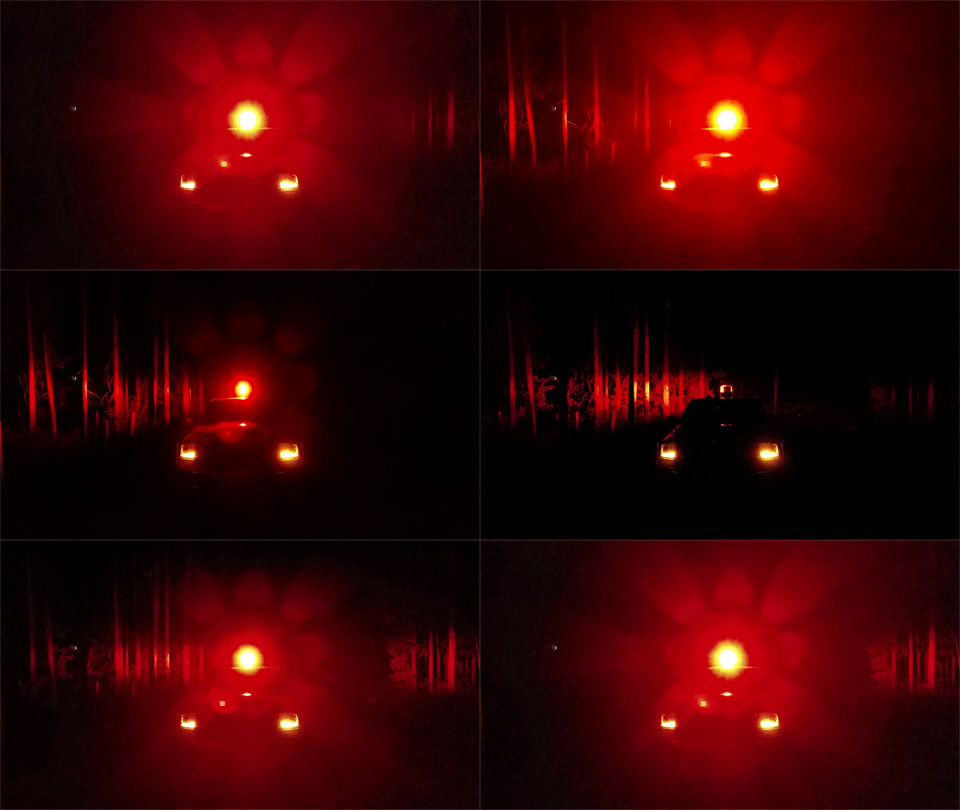
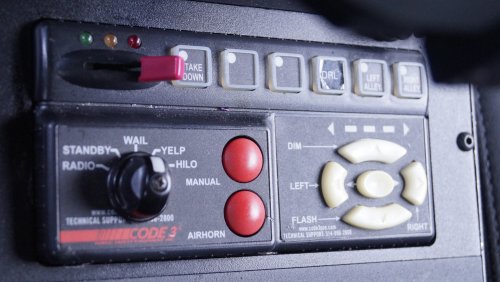
.thumb.png.6acb9e8b9307ce42974ab0e9d45e0a98.png)
.thumb.jpg.1db0be3e377ccefdd47e57a95ec56762.jpg)
