
Albo1125
Insiders
-
Joined
Everything posted by Albo1125
-
 0.7.1: Added an animation to the Traffic Stop Assist:FollowMe feature. Fixed some known bugs with the callouts (Such as the animation glitches). Added the LControlKey as the default modifier key for the FollowMe feature.Because of the added animation, Traffic Stop Assist:FollowMe will only work with RPH 0.22 now. If you for some reason are still on RPH 0.20, you should get 0.7.
- 3,646 comments
- 306 reviews
-
This will probably be added by lspdfr soon! There is no legitimate way to check if the police computer is open. Try setting a modifier key.
- 3,646 comments
- 306 reviews
-
-
-
-
-
Absolutely! Give it a try, you'll find it works fluidly and requires very little thinking :)
- 3,646 comments
- 306 reviews
-
-

- 1
-
-
0.7: A very much-wanted Traffic Stop Assist feature is coming in: FollowMe! When a vehicle stops in a bad location on a traffic stop, you can drive in front of them and press T (Default) to make that vehicle follow you. This allows you to have the vehicle pulled over in a safe, more appropriate location.Other than this, a few bug fixes :) ENJOY!
- 3,646 comments
- 306 reviews
-
-
- 3
-
-
It's out! Check the download page :)
-
-
-
Tomorrow I hope to release: Some useful assistance for your regular traffic stops. I won't say much more right now but I'm sure you'll absolutely love it!
-
Chances of them attacking depends on the crime.
-
-
As soon as the API allows more flexibility, this is on the list!
-
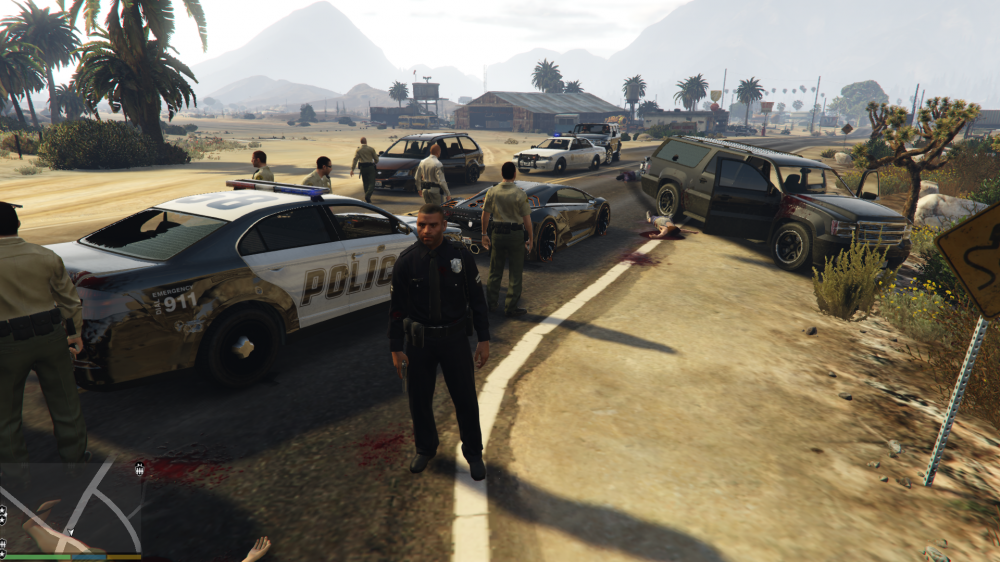
The aftermath of a high ranking gang member in transit ANPR hit: never assume a traffic stop will be routine!
-
Great idea! As you said though, the LSPDFR API doesn't support vehicle details yet. When that has been added, I will add this in for vehicles with flags like wanted for murder or whatever. Check the forum topic out to see why I'm waiting for LSPDFR API update to implement certain features :) Thanks!
- 3,646 comments
- 306 reviews
-
-
- 1
-
-
The callout is processed like any other callout. If you have lots of other callout plugins installed, the chances of getting the ANPR one aren't very high, whereas if you only have traffic policer installed, the chances skyrocket :) Should be fixed in 0.6
- 3,646 comments
- 306 reviews
-
-
- 1
-
-
0.6: Lots of changes! Added the option to disable the callout in the ini file.Made the owner wanted callout a little less frequent.Removed the annoying beep of the police scanner owner wanted callout message.Added some new situations to the owner wanted callout.: perpetrators may now call for reinforcements > prevent this from happening by shooting their phone out of their hands.Changed the default chances of ambient events.Added an extra animation to the parking ticket option.Fixed numerous crashes.Fixed an animation loop in the motorcyclist without a helmet ambient event.Added more possible vehicles to the owner wanted callout.Toned down the odds of a perpetrator drawing an automatic firearm in the owner wanted callout.Increased the duration of someone holding a mobile phone before putting it down again in the ambient event.Numerous other fixes and improvements!Thank you for your continued support and crash reports!
- 3,646 comments
- 306 reviews
-
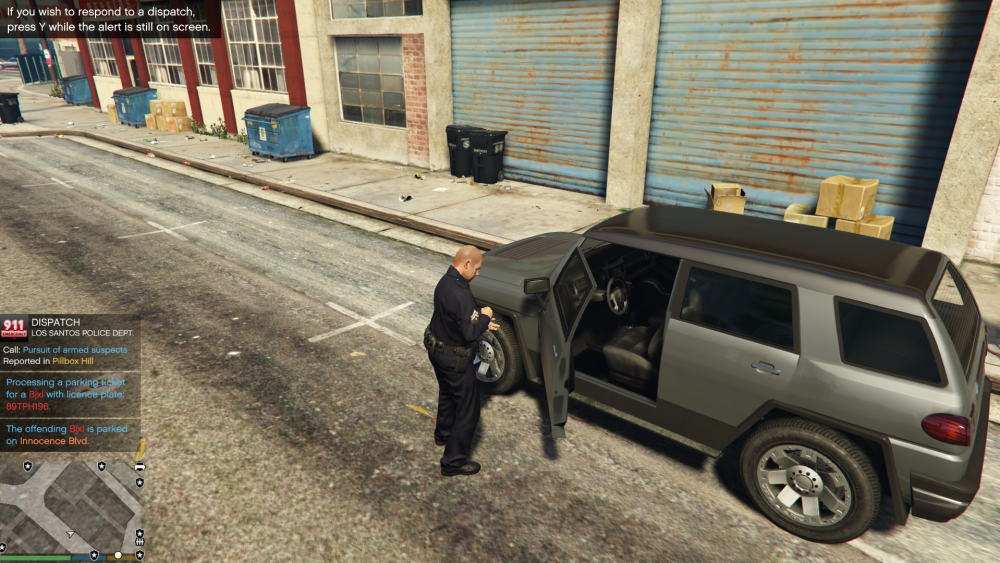
Officer will now write a parking ticket and stick it on the windscreen!
-
Also in the next patch: an additional writing animation for parking tickets! Will check this out, won't be in the next release but may be in the one after that!
-
I'm currently working on adding one more situation to the callout: they use their phone to call for reinforcements if you don't keep them busy! After that, Road VIP protection unit is on my list. Highways are 60mph, most single lane carriageways outside the city are 50 mph, inside the city is 35mph (I believe). There are quite a few signs next to the road
-
-
It may well be difficult to spot them at first. Try turning on ambient event messages and blips and setting mobile phone with a high chance to see what it looks like. Phone Users drive erratically and physically hold a phone in their hand.
- 3,646 comments
- 306 reviews
-
There is no limit: 4000 means a 1 in 4000 chance for a vehicle to get that event. When you disable blips you won't notice most of them though, so I recommend not going too high when you disable blips.
- 3,646 comments
- 306 reviews