



PantherP71
Members
-
Joined
-
Last visited
Everything posted by PantherP71
-
.jpg.d50845d56a695421f794e141a0d72879.jpg) Well if it's the halogen then it would need the lenses to be amber instead of clear, right? I may be wrong either way excited for the car!
Well if it's the halogen then it would need the lenses to be amber instead of clear, right? I may be wrong either way excited for the car! -
Does the signal master have the individual LED's deveined? Because I have that on my work truck (LED gen 2 signalmaster) and it isn't blocks of light it's little dots lol
-
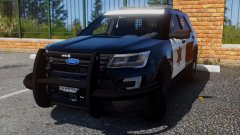 Ahh okay thank you
 -
Is this going to be an accurate OCSD, or fictional Los santos/ Blaine county sheriff
-
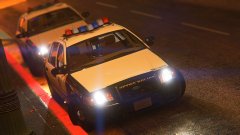 Looks good! Hope these are released soon
 -
.png.e8436bfdbb232040b35102ced75b8b57.png) These are beautiful
These are beautiful -
.png.1c32e8f79e931f79520cbbde79eacf06.png) Can you please release or send this to me?? This is amazing looks just like San Joaquin county!!
Can you please release or send this to me?? This is amazing looks just like San Joaquin county!! -
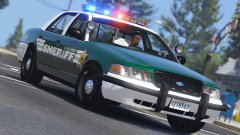 all vehicles going to have coronas I hope haha
 -
This looks amazing I cannot wait to use this to run over some meth smoking inbreads!
-
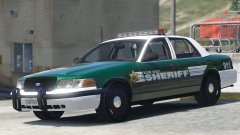 This is an older one with a Whelen edge would be cool too see in the pack tho! Ahh but some of the newer edge freedom's have colored glass as well. Just suggestion can't wait for this pack I know it will be amazing all your cars are
 -
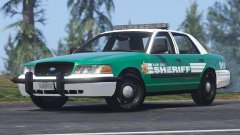 Are we going to have the ability to add color to the lens sections of the edge ultra freedom?
 -
Looks like your green is a little bright compared to the real deal but I know it's based on it not 100% accurate Other than that it looks amazing and I cannot wait for these to be released!!
-
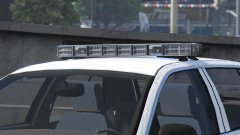 So assuming no OCSD based Tahoe in future?
 -
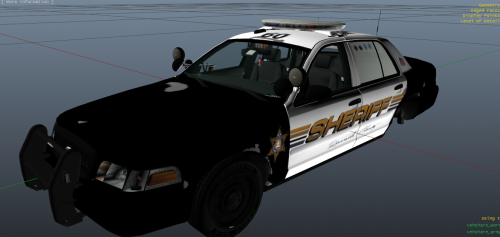 True but over time general wear and tear causes the other oaints to chip especially around the wheel wells due to rocks and shet haha
- 6 comments
- 1 review
-
I have one for the DSF CVPI but I want to make it better, I add optional rust and scratches as of right now I'm not going to make one for the Tahoe because Chevy actually uses good quality paint that doesn't chip lol
- 6 comments
- 1 review
-
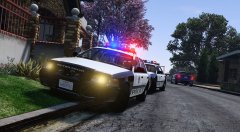 Yeah I can understand looking at it from an outside perspective but I've had three Vic's and the first one (2001) the lights were like that because of the oxidation haha
 -
This is a paint damage skin (4k) with no background. This can be applied over any existing skin for Bxbugs123's cvpi, if using a program like paint.net or Photoshop be sure to add a new layer. anyone and everyone is free to use this for making skins, feel free to edit etc. just make sure to give me credit. this is a first test beta version
- 6 comments
- 1 review
-
-

- 5
-
-
Makes sense especially with the headlight fogging and yellow deterioration of the plastic! Love it ❤️❤️
-
If you are messing around with the headlight settings the best one for the crown Vic is setting 0 but you probably know that haha
-
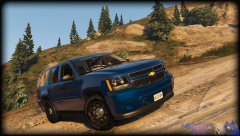 If this gets an Arjent sl and due spotlights and a TA I'm going to loose my shit!!!😱😱
 -
.thumb.jpg.30de2cdd6bdce371d029c527c67ad196.jpg) Clear. I have the texture replace but I can't find it in both the .ytd and +hi.ytd (or ytf whatever I'm not looking at it haha)
Clear. I have the texture replace but I can't find it in both the .ytd and +hi.ytd (or ytf whatever I'm not looking at it haha)- 101 comments
- 33 reviews
-
-
-
![Tahoe PPV [WIP]](//s3-gallery.int-cdn.lcpdfrusercontent.com/monthly_2016_09/small.Untitled-1.jpg.ce40486268ea4a7f6e3c26a68a88c4f6.jpg) May I suggest using a different spotlight? Other than that, these look fantastic!
May I suggest using a different spotlight? Other than that, these look fantastic! -
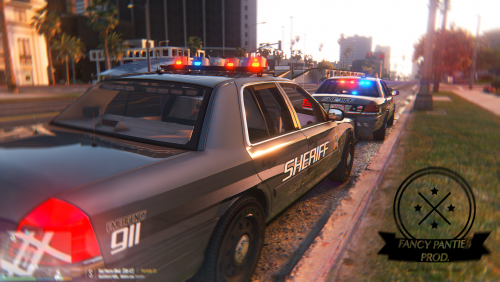 Having same issue most people having, installed open IV package still crashes game tried it with and without rage plugin hook everything up to date also, tried to change back the carcols.ymt and it won't change back am I missing something?
- 108 comments
- 11 reviews

.jpg.d50845d56a695421f794e141a0d72879.jpg)
.png.e8436bfdbb232040b35102ced75b8b57.png)
.png.1c32e8f79e931f79520cbbde79eacf06.png)
.thumb.jpg.30de2cdd6bdce371d029c527c67ad196.jpg)
![Tahoe PPV [WIP]](http://s3-gallery.int-cdn.lcpdfrusercontent.com/monthly_2016_09/small.Untitled-1.jpg.ce40486268ea4a7f6e3c26a68a88c4f6.jpg)
