


OfficerFive0
Members
-
Joined
-
Last visited
Everything posted by OfficerFive0
-
so as the title says how do you properly make a working spotlight on a car?
-
thank you!
-
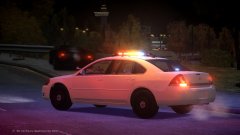 lookin good!
 -
that moment when u think to yourself: how long have i been making this mistake
-
-
new unadfly link http://www.mediafire.com/download/5hd9346jcnnvmsb/FordEseriesVan.rar
-
well i am releasing 2 cars today or tomorrow depends when i have the time
-
hey can you do a handling line for a Ford Eseries Van. Adfly link removed. -Staff
-
ok. well how about trying a new project with just the lightbar and see if it works then btw when responding to me please quote me or i may not see the response
-
making a key west pack soon! look forward to something like this and more
-
glad i could help
-
this may help a bit
-
ok worked fine for me what version of zmodeler do u have
-
sure glad i could help!
-
* ctrl click the object you want to scale
-
i will be busy for the next few hours but if u leave a link to the lightbar i will test it out and see
-
you have to go in a new project or your current one, add the lightbar textures and merge the z3d file.
.thumb.png.e63dd0ebd7d0bd7eac5acd243a2a71bb.png)
.thumb.png.e96463bc037017d97d235d3cbbb7e0e0.png)
.thumb.png.d17515e96f93d22a71a0d1baded528e4.png)
.thumb.png.885186f6bf7372f79cc838edbd7225d3.png)
.thumb.png.a2c5ecec4b0c30bf170a5655e3f0e576.png)
.thumb.png.ac3b4da76cb80b0435c6cbba017ce27b.png)
.thumb.png.3ec438442035888ada970c5c0d99fe8e.png)
.thumb.png.4e69e71287b0a07a5b3cfb789166c6d6.png)
-
you can go and ctrl+click scale to each axis
-
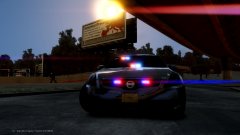 if it would be a solid color it would be red
 -
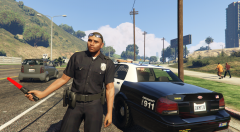 ugh stuck on lane duty again. fml.
 -
-
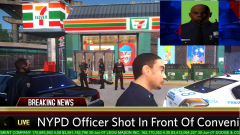 the original link had all them in one but it was removed im still looking for other links
 -
All-In-One HD Textures By Lord Neophyte its like 4 gb. ill try to find a good link the mega link was removed edit: heres a few http://www.zippyshare.com/WayneTrain
-
lil sneak peak of whats coming soon
-
WARNING! contains graphic content that is not suitable for all ages. Officer Rodriguez was shot as he was leaving a 7/11 convenience store this Thursday morning. Rodriguez, an one year veteran of the NYPD, died at the scene. NYPD Commissioner Bill Bratton led the tributes at the funural. "Officer Rodriguez service to New York City will be remembered and honored," he said. "We grieve his loss today with New York and the rest of the country."Rodriguez worked for the NYPD's IMPACT unit. Today, one of New York's Finest was shot and killed, with no warning, no provocation.He was, quite simply, assassinated - targeted for their uniform, and for the responsibility they embraced: to keep the people of this city safe. According to witness statements, the suspect, who has been identified as 25-year-old Jerome Hardley, walked up to Officer Rodriguez. He took a shooting stance and fired his weapon several times striking Officer Rodriguez in the head. On behalf of the New York City Police Department, I extend my deepest condolences to the Rodriguez family. Officer Rodriguez paid the ultimate sacrifice today while protecting the communities he served. Officer Rodriguez wass ambushed and murdered by Jerome Hardley. Tragically too, this is not the first time this Department has seen such violence. Eight times since 1972 we have seen partners murdered together, often in incidents such as this, mindless assassinations without warning. Officers know this from the memorial walls in our precincts and Headquarters and from the stories they hand down. Nevertheless, they do what we expect of them. They grieve, they mourn, but then the go out on the streets of this city and work to keep it safe, every day and every night. We have never and never will forget that mission. We will never forget the two young men who lost their lives today. Officer Rodriguez was married and has a 5-year-old son. Officers Later tracked down Hardley and confronted him leaading to a shootout Hardley was shot and later transported to Maimonides Medical. The gunmetal semi-automatic Colt firearm recovered on the ground near the suspect's body.



.png.fc7a4b7ed7267288f9dcf64f07c9dc47.png)
.png.789f5b754af12c050d62ab0ac2fe5f46.png)
.png.4fcc9d7d594be63086bf51a86c6258d5.png)
.png.5dc5238210b7cc7c9a43f8f360321db3.png)
.png.19057753e39f64405f27c9b5a9f8f07e.png)
.png.026ee153ea757cf72ab636dcbc9d94ea.png)
.png.eb229d9159b96cf190dd28d183129583.png)
.png.81ed420108a2fcfcd540a06eb9f52d48.png)

