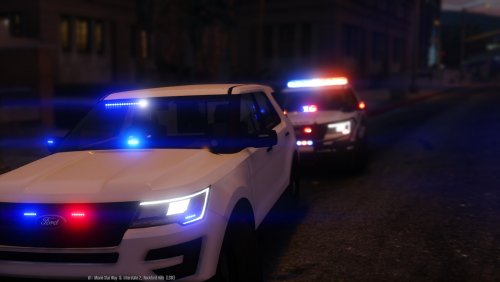
OfficerFive0
Members
-
Joined
-
Last visited
Everything posted by OfficerFive0
-
![Slicktop Patrol Silverado [WIP]](//s3-gallery.int-cdn.lcpdfrusercontent.com/monthly_2016_04/small.571f936e05b0c_GTA52016-04-2612-10-30-124.jpg.6839a42651b1c406b1d752abca7ff080.jpg) are those raiders in the grill?
are those raiders in the grill? -
fitted the ithaca 37 shotgun for the 03 slicktop
-
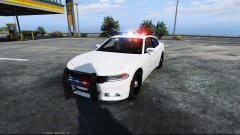 really? unless this is meant to be a demo car i think its a bit much
 -
damn looks really nice!
-
radios backwards ;) good job on the smartsiren
-
the base console is most probably this http://www.havis.com/products/CON_VS_16TMS_0DG_HC_EXPL_11_15-42001-82.html i can send you the console i made for the lapd gang unit and you can modify it for the explorer
-
its some havis console i believe
-
fedsig signalmaster lights i made the other day
-
the first picture is of a "demo" car not one they actually used. on the 2011-15 explorer the just used the arjent. on the 16 they use the valor
-
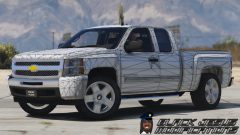 nice. looks like you did a good job on it!
 -
how many polys?
-
-
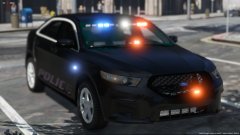 ah cool, nice to see some feniex!
 -
Is that an inner edge?
-
@Desmond98 finished the stand for the coban dashcam
-
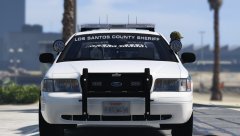 interesting placement of a dashcam
 -
some stuff ive been working on improved whelen edge whelen edge with a whelen smart arrow messenger Mobile vision dashcam
-
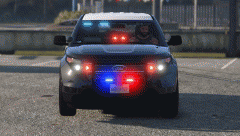 idk i abandoned it due to having some actual projects i need to work on and not having enough time to fool around with this
 -
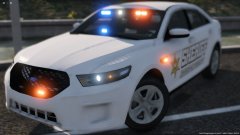 nice to see those hubcaps!
 -
-
-
so far yea i read somewhere that out of all districts only one had them in the cars. but the article was from 2014.
-
not a slicktop. and im pretty sure its a experimental vehicle. very few cars actually have them equipped
-
but they dont use those... im surprised you of all people asked that :)
-
finished modeling the buttons and lens. just have to make the stand

![Slicktop Patrol Silverado [WIP]](http://s3-gallery.int-cdn.lcpdfrusercontent.com/monthly_2016_04/small.571f936e05b0c_GTA52016-04-2612-10-30-124.jpg.6839a42651b1c406b1d752abca7ff080.jpg)