OfficerFive0
Members
-
Joined
-
Last visited
Everything posted by OfficerFive0
-
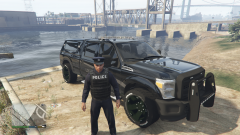 what in the hell is it?
 -
wait, its an actual thing? o god
-
worse than the 2016 crown vic?
-
worse than a explorer?
-
photos taken by @steinberg4145
-
i dont have any misc parts,
-
some more photos of the slicktop http://imgur.com/a/Mxze4
-
i always thought u just had to remove update.rpf thats always worked for me
-
anyone know how or where lapd puts their m4s in the trunk? or have any pictures?
-
 ok, well not sure if i didnt get close enough but here you can see he just kept on running away
- 329 comments
- 53 reviews
-
i have a little question regarding the vicious dog call. what exactly should i do? just shoot it? most of the times its just walking.
- 329 comments
- 53 reviews
-
why would you say vector? it seems to be a vision sl as you can see the red led flashing in the back
-
not sure about the sirens but the lightbar is a federal signal raydian s2
-
lol actually these are both my arjents
-
patrol video with the slicktop
-
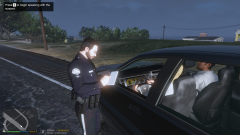
From the album: OfficerFive0's gta 5 album
-
worked just fine for me
-
hopefully i still have some kinks to work out but yea it should be out in a few days
-
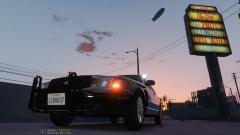 And actually uses the right lights and equipment. (No disrespect to windows)
 -
lil video of the lapd hybrid
-
because after every update the update the directory for a few cars. i dont know what the reason is, it may just be solely to fuck with modders, but chances are its not.
-
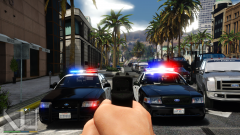 its hard to tell, too far away
 -
From the album: Five0 WIP
-
lol i thought he was talking about someone elses cvpi using my arjent lol that was quick i just gave it to him this morning
-
which cvpi?