Creators: Due to background reprocessing of files, approvals and file security checks may be delayed. Thanks for your patience.

LilQ
Members
-
Joined
Everything posted by LilQ
-
 Look at who is "still up'n'kickin"! Great to see you're getting back. Keep it up!
 -
 Could you post more pictures of this in action ?
 -
 Great to see you Olanov, great pictures ! :)
 -
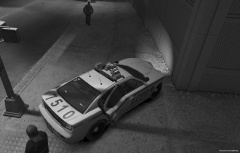 NOW there is a "blurry" video on that channel ! Doesn't really look like ELS, but still looks like a promissing alternative to an old ELS system. Can't wait for more updates !
 -
Damn, I thought that youtube link at the lower right corner of the pic will lead to a video explaining this picture... unfortunately it didn't. Anyway, looks promissing ... ? lol
-
 Looks fu*^in' awesome ! Great to see you Kev ! May I ask what's the status on your SUV Rhino project ? :)
 -
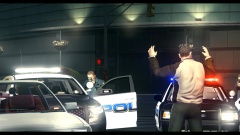 Damn, looking good !
 -
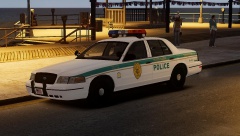 ELS or not - yes, you should ! :)
 -
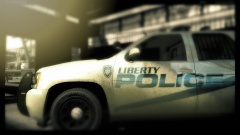 Reminds me of first Most Wanted... had that "dirty warehouse" atmosphere. haha Great picture !
 -
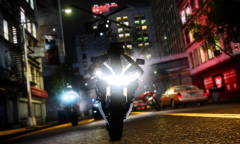 enb by bone 1.0 enbeffect taken from XC3 2.0
 -
 Where's the background explosion ?
 -
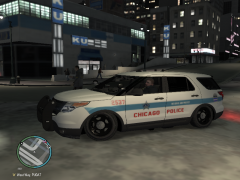 Looks like that explorer can't handle fat LC cops
 -
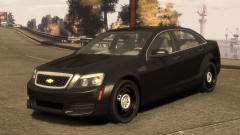 I love you !
 -
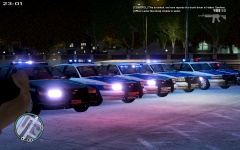 I was wondering if you're working on the buffalo and declasse as well. Judging by your last answer - these won't be released ? I'd be more than happy to have those in my game, nice work !
 -
Holy wow ! Sounds and looks great ! Is vapid the only one you're working on ?
-
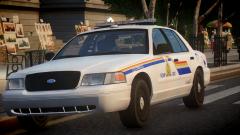 Well dayum
 -
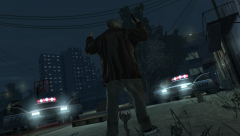 Oh yeah, old school vanilla, got to love that ! Nice s-shot btw !
 -
-
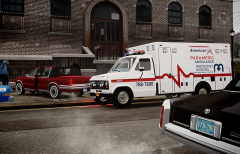 A really like the overall scenario, idea and the way you took those pics, fantastic !
 -
![[WIP] 2013 NYC snow plow](//s3-gallery.int-cdn.lcpdfrusercontent.com/gallery/album_547/sml_gallery_2101_547_537647.png) Now if only there was a decent snow mod for IV... I mean road textures. Anyways, great mod !
Now if only there was a decent snow mod for IV... I mean road textures. Anyways, great mod ! -
 Hello crossfire ! haha Great pictures any ways ! :)
 -
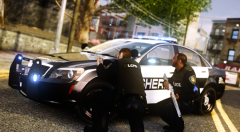 With such a variety of clothing and faces, you shouldn't be surprised ! There is probably nothing better than these ! Thanks a lot !
 -
From the album: GTA IV screenshots
-
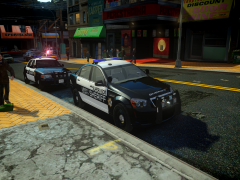 Tim, what happened ?
 -

![[WIP] 2013 NYC snow plow](http://s3-gallery.int-cdn.lcpdfrusercontent.com/gallery/album_547/sml_gallery_2101_547_537647.png)