


OfficerAndrew
Members
-
Joined
-
Last visited
Everything posted by OfficerAndrew
-
It looks good.
-
Happy Birthday LCPD:FR! I cant say I've enjoyed 5 years of it since ive only had it for a year and a half, but I enjoyed all portions of it. G17 Media of course, The Moderators, Admins, and Developer Staff, and the community! Let LCPDFR continue its rain!
-
If i can remember, I had LCPD:FR for a year so far. Oh wait, it happened today! So i pulled over a yellow taxi and arrested the driver for DUI, Suspended License, 2 Warrents, and Possession of a Firearm. I get his car towed, everything is going well. When I placed the handcuffs on him, he walked into the middle of the street and a speeding car just hit 'em, sent him flying. The car that hit him didn't stop, so I called in a pursuit when he didn't want to pull over...
-
ScripuDaga.. Im terrible XD
-
4...Lets get this done
-
9
-
6...
-
9!!!
-
2... almost there then.. ya know..
-
13
-
Ahh come on! Count is all messed up. I think im 9 or 10. EDIT: Scratch that 10
-
4
-
2... *sniffle*
-
Never mind Lol EDIT: 1...
-
9
-
Might want to keep the cussing down... 3...
-
Congratulations Guys! Well deserved i'm sure.
-
9 me then. (mod or dev probably going to post at 10 -_-)
-
Six...
-
4
-
2 :)
-
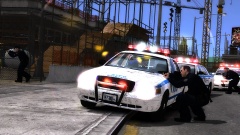 I like the cars, Non-ELS?
 -
Love it! this is going to be my main skin, the only problem is that it mixes it with the ped arms. (Ex: White hands with Black forearms) Its a minor texture problem but it is still good.
- 10 comments
- 5 reviews
-
-

- 1
-
-
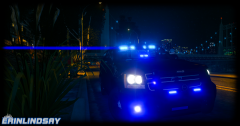 I would like to know the ENB also. :)
 -
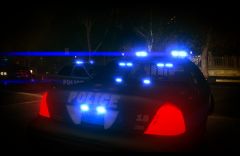 Niiice, I'm liking the CVPI model and skin. Nice setup too. Whats the download to the Model and Skin? (if they are up for download of course)

