
F5544
Members
-
Joined
-
Last visited
Everything posted by F5544
-
-
-
-
-
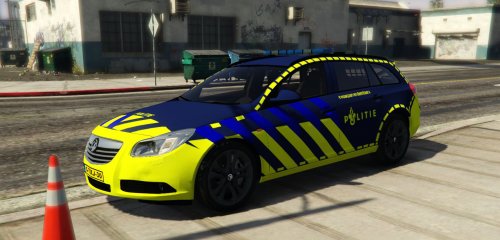 hmm.. i like the current striping of the cars also
 -
-
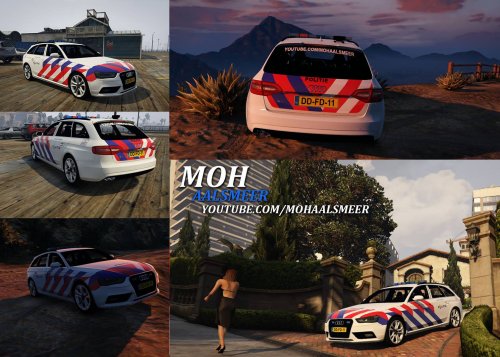 Haha ja. Ik maak alleen amerikaanse politie autos. Maar verder nice skin
 -
Because this is a great project
-
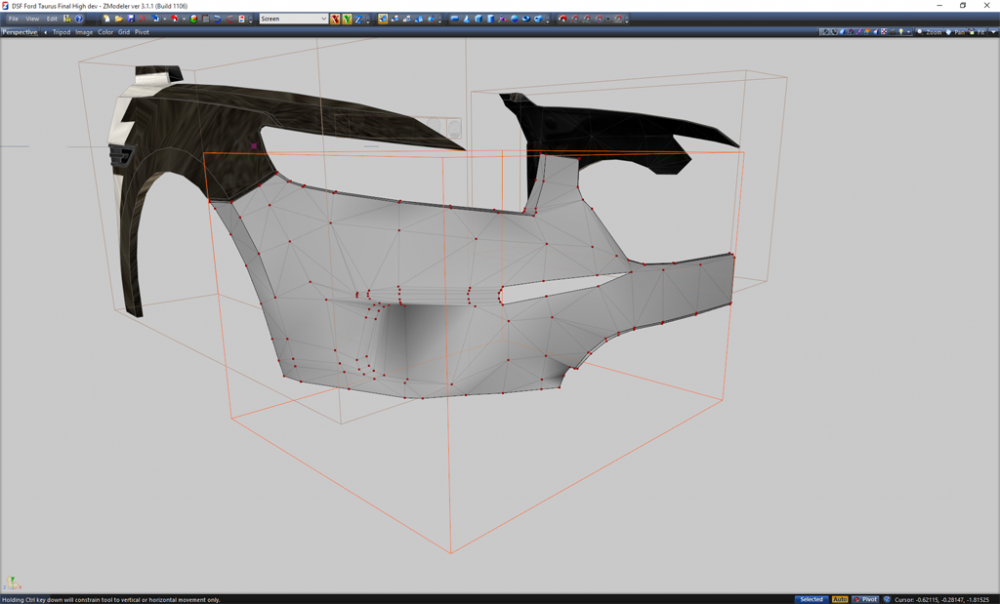
lightbar is ready and on the lapd mx7000/arjent version. progress fpi 2013 conversion. front bumper
-
 haha Christmas car but nice model nightkid. maybe less lights?
 -
je hebt een touran nodig ;)
-
-
 nice skin
 -
ahh it's a shame... :(
-
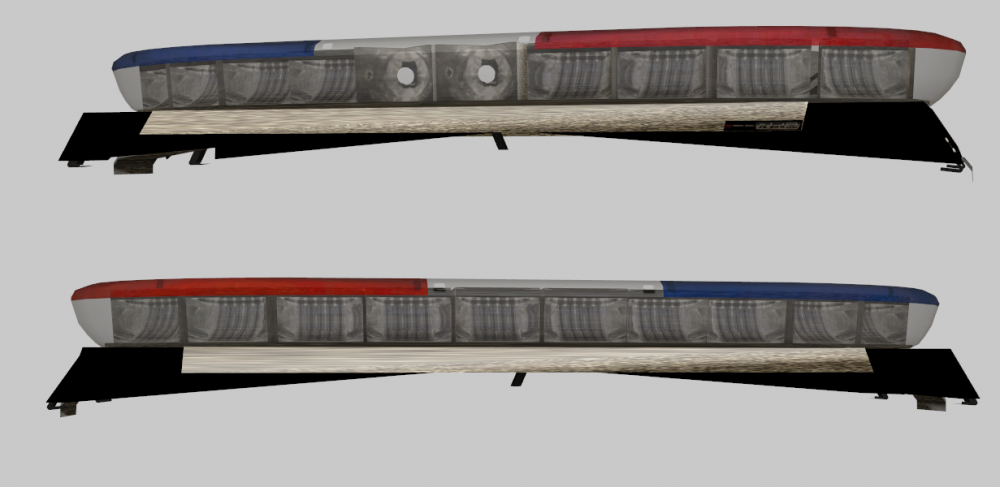
busy with the new accurate arjent
-
-
-
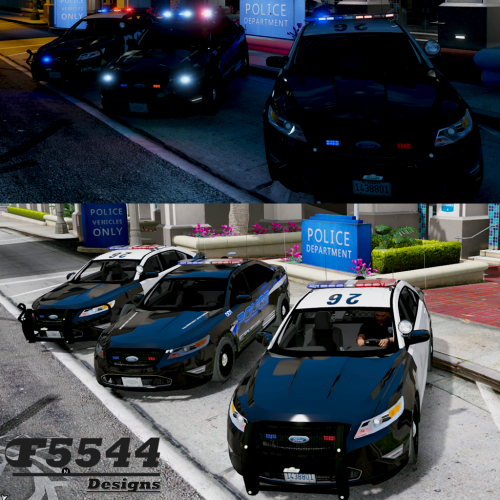 This is because of the handling data. You need to change it also then. Do you have ms office? Did you installed the carvarations.meta? Did you installed the carvariations.meta in like the readme said
- 202 comments
- 51 reviews
-
-
-
so for now i will be busy with making it an 2013 version. also a dev 2012 will be available soon. It's is under testing by BxBugs123
-
hmm... i don't think so. it depends what everybody wants. so for now i will be busy with making it an 2013 version.
- 202 comments
- 51 reviews
-
is fixed in the 1.1 version. follow the instructions will be in the 2013 model. because this concept model had chrome.
- 202 comments
- 51 reviews
-
-

- 2
-
-
-
because this rambar is an extra. that is the only thing the the yft file. all the properties of this car is stored in other date such as handling.meta, vehicle.meta, carvariations.meta etc.
- 202 comments
- 51 reviews