



amenbrother
-
Joined
-
Last visited
Everything posted by amenbrother
-
 Yep, works great! Thanks for the update!
- 37 comments
- 4 reviews
-
- rph
- open source
- legacy
- rph
-
Tagged with:
-
Hi, there, I'm experiencing a crash on the new version of GTA V and RPH/LSPDFR. When I load the plugin, it crashes immediately. I can provide my RPH log if needed. Thanks!
- 37 comments
- 4 reviews
-
- rph
- open source
- legacy
- rph
-
Tagged with:
-
.thumb.jpg.37cdb54de83d6dee03b6b15e76b2f5fd.jpg) Got it! I wasn't sure if adding the CalloutInterfaceAPI file would create problems, but I'll give it a go tonight. Thanks for your help!
Got it! I wasn't sure if adding the CalloutInterfaceAPI file would create problems, but I'll give it a go tonight. Thanks for your help!- 183 comments
- 24 reviews
-
You can find the log in the spoiler below. I'll see if I can get the pause menu crash as well. I don't have Callout Interface installed, but it is not listed as a dependency. If it is, that's fine, but I think it should be included in the dependency list if it is. Hope this helps!
- 183 comments
- 24 reviews
-
HI, there, I've been experiencing some crashes after updating. It is evidently related to the Callout Interface, causing pause menu and force callout crashes. Is CI a dependency at this point? I love the pack, but I don't play with CI. I can provide log files if necessary, if it is indeed a bug.
- 183 comments
- 24 reviews
-
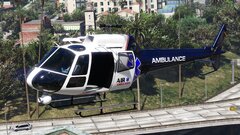
From the album: Project Andreas II - MORE! Lore-Friendly Liveries
-

From the album: Project Andreas II - MORE! Lore-Friendly Liveries
almost done -
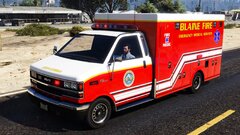
From the album: Project Andreas II - MORE! Lore-Friendly Liveries
weewooooooooooooo -
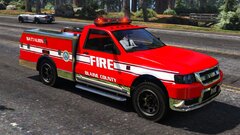
From the album: Project Andreas II - MORE! Lore-Friendly Liveries
sick model for sure -
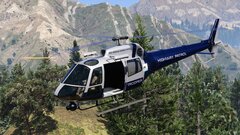
From the album: Project Andreas II - MORE! Lore-Friendly Liveries
this looks very good to me -
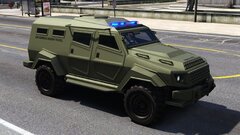
From the album: Project Andreas II - MORE! Lore-Friendly Liveries
small revamp, loving this look now -
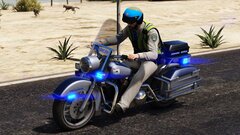
From the album: Project Andreas II - MORE! Lore-Friendly Liveries
special SAHP vehicle time -
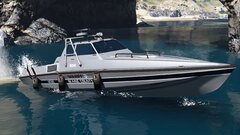
From the album: Project Andreas II - MORE! Lore-Friendly Liveries
sploosh -
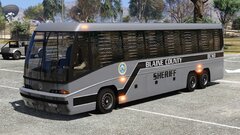
From the album: Project Andreas II - MORE! Lore-Friendly Liveries
finally done with the prison transport stuff woot -
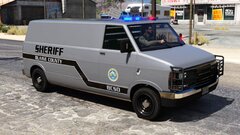
From the album: Project Andreas II - MORE! Lore-Friendly Liveries
police transport yeeeeeeeeeeeeeeeeeeeet -
It can. @eazbox I used to think the garage was not very useful, but I have come around to loving the various LSPDFR station functions. Want a slicktop instead of your regular old lightbar (with non-ELS)? Garage! Can't keep up with those pesky fleeing suspects? Garage! Want a custom license plate? Garage, garage, garage! i love the garage
-
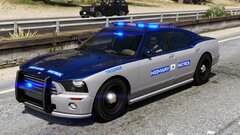
From the album: Project Andreas II - MORE! Lore-Friendly Liveries
i accidentally went oldish school with all of the SAHP vehicles lol -

From the album: Project Andreas II - MORE! Lore-Friendly Liveries
i never do trucks so this is pretty cool -
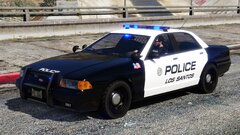
From the album: Project Andreas II - MORE! Lore-Friendly Liveries
i FINALLY found an old hidden away file with the templated stanier and i am in love with it -
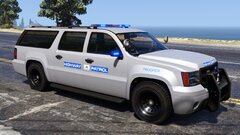
From the album: Project Andreas II - MORE! Lore-Friendly Liveries
weewoo -
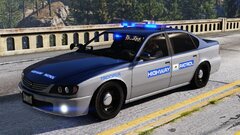
From the album: Project Andreas II - MORE! Lore-Friendly Liveries
this is actually sick -

From the album: Project Andreas II - MORE! Lore-Friendly Liveries
yesyesyysyeysyesyyeysyes this WORKS -

From the album: Project Andreas II - MORE! Lore-Friendly Liveries
remade woooo -
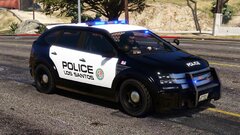 i know right, there's just something about it that i love. not that i know what that is though lol
 -
From the album: Project Andreas II - MORE! Lore-Friendly Liveries
i think this just looks better as LSPD for sure

.thumb.jpg.37cdb54de83d6dee03b6b15e76b2f5fd.jpg)


