
strike
Members
-
Joined
-
Last visited
Everything posted by strike
-
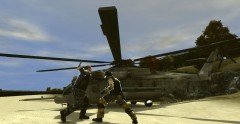 Man, I love that CH 53, is badass
 -
Just the same than in the others, in the same folder look for a file called vehicles and replace the line of the vehicle you've modded with the line that should come in the rar, it's pretty simple.
-
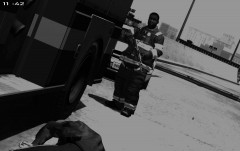 And that supports my theory of the satellite, the officer couldn't die of a shot since the AK is not loaded;)
 -
Everything in North Korea is soviet made, original or modified.
-
A North Korean spy satellite fell on you, and that's why there's a soviet made weapon there.
-
The handling line makes when you install vehicle mods run properly and more reallisticaly. When you install a vehicle mod and you don't install the handling line it usually rolls over in the curves, making it impossible to drive, so when you install mods you should install the handling, carcols and vehicles.ide lines that comes in the readme. For using it you have to go to your GTA IV directory --> Common --> data and look for a file called "handling", open it with the notepad and search the car you want to install the handling line on, replace the line of that vehicle with the custom handling line (in this case SGT Kanyo's handlig line). The same is done with vehicles.ide and carcols line, with their respective replacements.
-
A 1987 Caprice is going to be converted to GTA IV soon.. Edit, I just noticed that had been already say, I didn't see what Intensified posted ;)
-
No mobile phone, please, I don't want to go bowling when I'm being shot by 50 swat! And typing cheats like in SA, without a damn phone number...
-
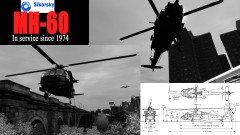 Cool picture man, and great chopper
 -
Very original work mate, but I'd say you should remove the back door graffiti (the guy with the spray), it would look better, and more realistic ;)
- 6 comments
- 4 reviews
-
No problem;)
-
Well, which I think is the best is Traffic Load, but you need a pretty good computer for running it: http://www.gta4-mods.com/script/trafficload-f9780 If you have a lower end computer I recommend you Traffic Control System (you can find it in gtapolicemods), or Traffic Flow, that spawns 20 cars:
-
Go to the file properties, and unselect Read-only option, then it should work:)
-
From what I've heard is not a very good game...
-
-
Finally one!
-
Traffic Control System, a traffic bug that doesn't a great computer to work.
-
Glad to hear it :) Do you know if TCS works with EFLC?
-
Hey guys, I recently got EFLC, as far I could have seen, it performances much better than GTA IV (since my computer run it pretty good with almost everything at max settings), so before starting modding it I would like to know how EFLC run with mods (if it's faster than GTA IV). And since I guess EFLC also has traffic bug, I'd like to know if Traffic Control System is compatible with EFLC. Thanks in advance.
-
Perfect :)
-
I'm looking forward to the taxi version ;) Btw, how about an unmarked version, with a red light in the roof driver's side or inside it, under the front glass?
-
Awesome!
-
-
Nah, It's a great game, a bit arcade but very entertaining, and have great graphics. You can do your tactics playing versus boths (multiplayer fails due to the idiots playing, that kick every new people playing), but I've played hours and hours to it :)
-
World in Conflict full edition, I love that game, my specs were similar to yours (a bit higher) and it runned very well. It's a fantastic modern war (1989) real time strategy game, check it out ;)