MrWussWuss
Members
-
Joined
-
Last visited
Everything posted by MrWussWuss
-
 This is such a cool concept! It works on my Razer mouse but not on my K100 Corsair keyboard. 😢 Fingers crossed you might be able to make it work for us Corsair users, too!
- 114 comments
- 13 reviews
-
-
-
 Alright, so, haven't played in a long time and just got back into it. This works just fine if you spend enough time skimming through the forums to leech from wiser people. Really you only need: The main ELS files (make sure you just copy paste everything from the Grand Theft Auto V folder into your Grand Theft Auto V folder. I did it manually and forgot the AdvancedHookV.dll) The latest RageNativeUI which you can get from here: https://github.com/alexguirre/RAGENativeUI/releases drag that into your GTA V root directory, too And then the latest ScriptHookV (you need dinput8.dll and ScriptHookV.dll not the trainer unless you want that) from http://www.dev-c.com/gtav/scripthookv/ drag that into your GTA V root directory After that everything worked just fine. Hopefully saved y'all a little bit of headache and trouble of having to skim through the forums to figure what the heck you did wrong. 😛
- 2,706 comments
- 241 reviews
-
-

- 8
-
-
 Definitely a really well done plugin. I found myself in my first bank robbery yesterday and I had a blast! Thanks a bunch for this and I truly hope you continue to expand this further!
- 1,081 comments
- 166 reviews
-
-
- 1
-
-
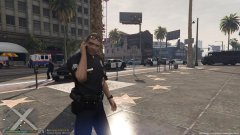 Sergeant Sherman leads the negotiations for hostage release during a bank robbery.
 -
 A very simple, yet efficient tool to help clear up any keybinding issues you might have if you have a lot of plugins. Thank you so much for this!
- 10 comments
- 7 reviews