




googleplex2010
Members
-
Joined
-
Last visited
Everything posted by googleplex2010
-
-
Yup
-
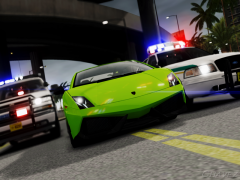 what cvpi is that?
 -
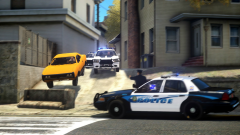 Suprise Motha Fuka
 -
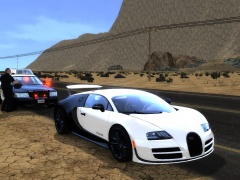 Vroom! Vroom! Alt+E
 -
I sent you a message.
-
-
it looks amazing but what handeling line do you use for the seagrave?
-
So I have heard people talk about how Open IV has started corrupting files and messing up the game. I kind of get it now because vehicle wheels have started disapeering and floating aroud and i cant spawn certain vehicles like the firetruck. Can any one help me on what to do? Thanks, Googleplex2010
-
![[BETA] 2014 GMC 3500 Ambulance](//s3-gallery.int-cdn.lcpdfrusercontent.com/gallery/album_722/sml_gallery_3386_722_440352.jpg) I'm going to explode of waiting to long!
I'm going to explode of waiting to long! -
Does not work uses broadcastify to broad cast its feed. If you have a real scanner you might pick it up if your close by. Yea my scanner cant pick it up im all the way in jersey.
-
im sorry to say that broadcastify is down due to heavy traffic. ATTENTION! ALL SCANNER APPS USE BROADCASTIFY TO BROAD CAST THE SCANNER RADIO IF YOU HAVE A REAL POLICE SCANNER LIKE ME YOU MIGHT BE ABLE TO TO GET IT WORKING/.
-
Do you have a real scanner like me? OMG 74000 listeners
-
What enb do you use?
-
Are those grass textures part of your enb or are they seperate?
-
well the good thing is that all the stupid people are getting rid of them selves.
-
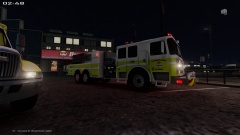 What enb?
 -
all of a sudden swarms of aspca police swarm the guy
-
Thanks!
-
What enb is closest to it?
-
well its 4 am and i havent slept im pretty tired. Im very sorry Mr. Rainbow
-
Seems Pretty Legit.
-
BTW on a seperate note what enb and grass texures are you using?
-
Release it please im dying for new original models!
-
And this happened because a new movie is coming out!! People are jsut sooo stupid they have no logical computing core left in theyre pea sized brains! Oh, Not by us


![[BETA] 2014 GMC 3500 Ambulance](http://s3-gallery.int-cdn.lcpdfrusercontent.com/gallery/album_722/sml_gallery_3386_722_440352.jpg)
